Presentation of the article page
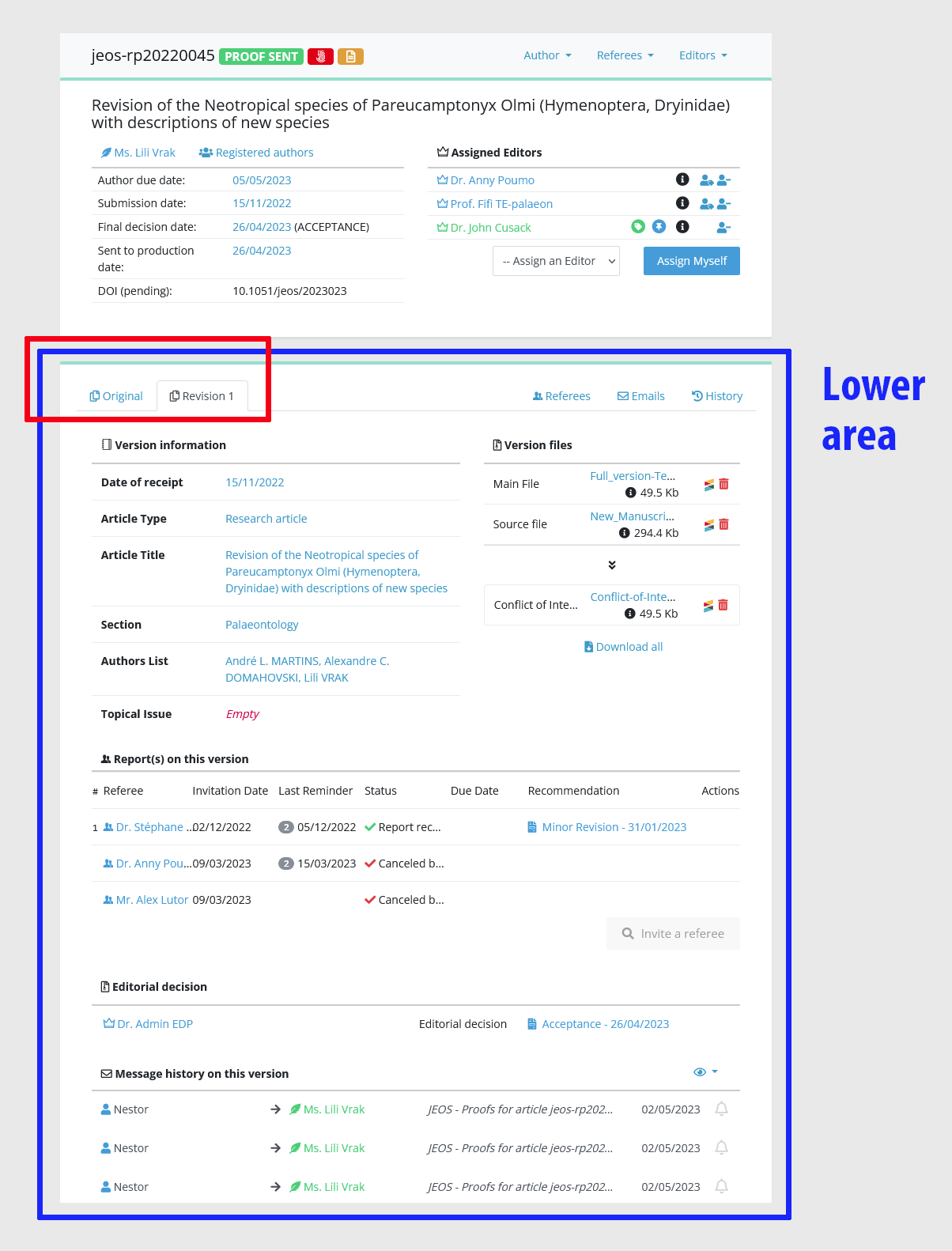
Selecting an article will display the article information page. This page is divided into: * the upper area, containing the main information about the article * the lower area, containing information related to versions
- Upper area: the main information
- The quick actions toolbar
- The due date
- Lower area: versions
- The metadata module
- The file management module
- The referee management module
- The editorial decision module
- The correspondence module
- History tabs
Upper area: the main information
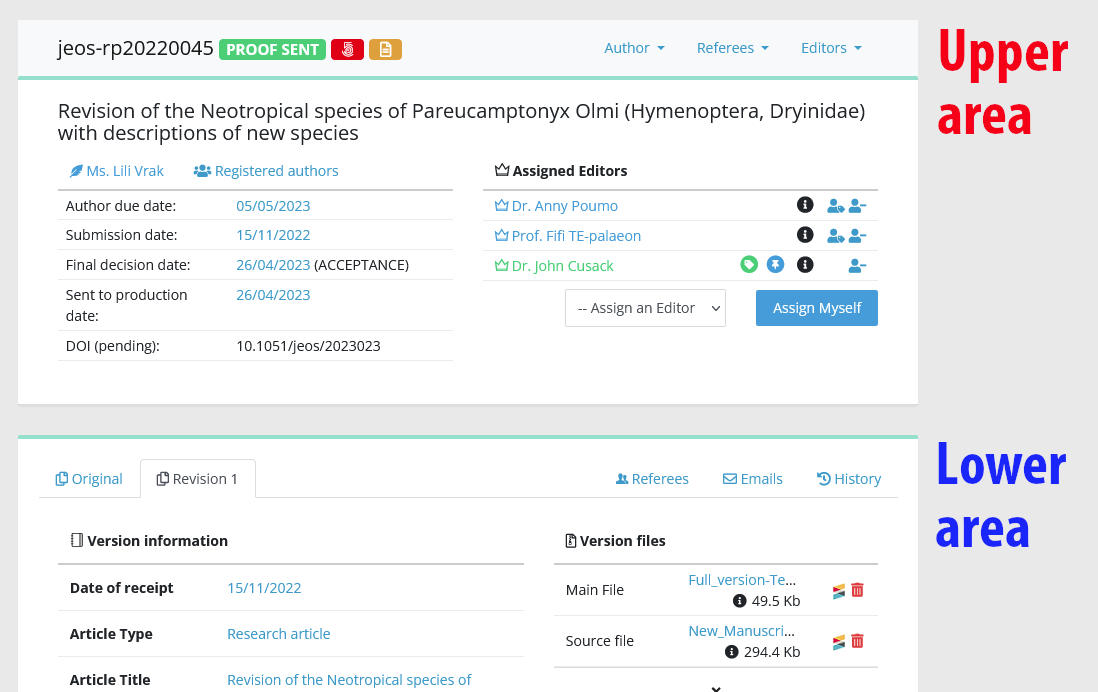
The main information module is located in the upper area. It contains the most important information about the manuscript:
- The reference, status and flags
- The quick actions tool bar
- The article title
- The authors linked to the article, and tools to manage them
- The editors linked to the article, and related management tools (if you are Editor-in-Chief)
- Dates, most notably the due date, which is used to send automatic reminders and display belated and urgent articles in dashboards
The quick actions toolbar
The quick actions toolbar is located in the upper part of the article page.
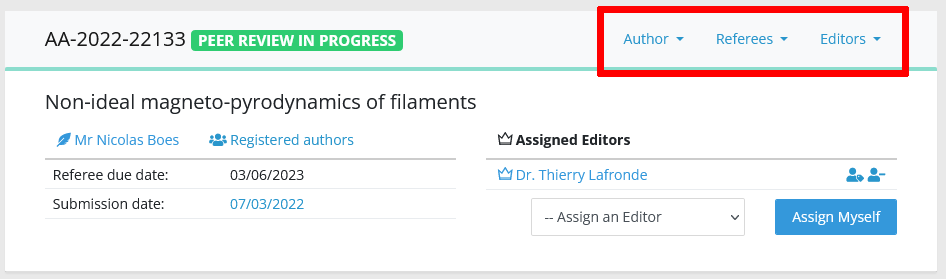
It contains quick shortcuts to manage the article. Note that available actions will depend on:
- the article status
- your own editor profile (see rights)
For instance if the article is in peer review, the toolbar will allow you to reach actions to manage referees easily without scrolling to the referee module.
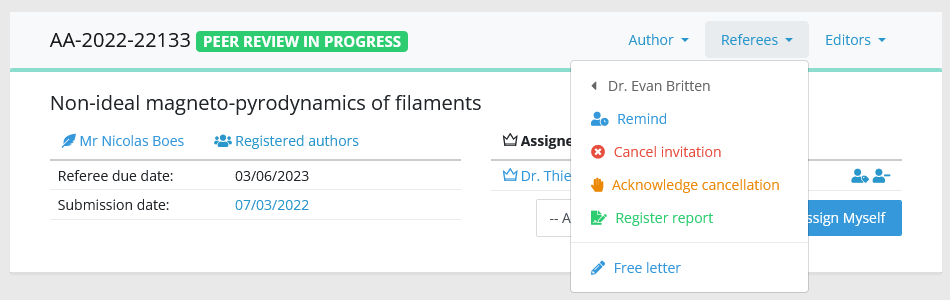
Likewise, you can send the editorial decision to the author directly from here.
The due date
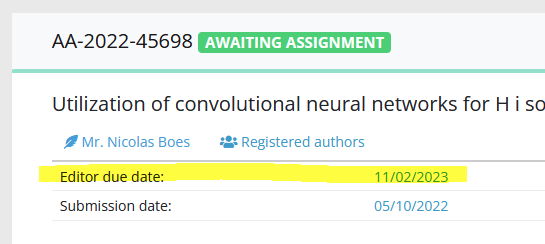
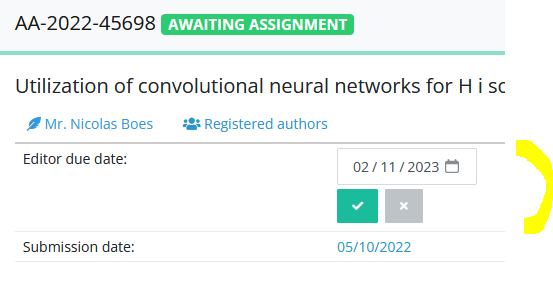
The due date is indicated in the upper part of the article page. The due date indicates:
- who must take action to move the article forward?
- when is the action due?
According to the article status, it is used:
- as a deadline for the editor to take a decision on the article
- as a deadline for the author to revise, when a revision has been requested
How does Nestor uses the due date?
Nestor uses the due date for two important features:
- highlighting delayed articles in dashboards (with red counters)
- sending automatic reminders
How is the due date computed?
The due date is computed automatically when the article changes status, using:
today's date + a number of days
The number of days depends on the article type and its workflow configuration. Some article types need faster processing times, so their due dates will be set earlier.
Can the due date be corrected?
Yes, the due date can be corrected!
- Automatically: the due date is corrected each time the article changes status
- Manually: the due date can be corrected just by clicking on it (if your profile allows it)
- Correcting the due date will prompt you to send an e-mail to the concerned person
- Typically, this happens when an author is granted a deadline extension to revise the paper.
Lower area: versions
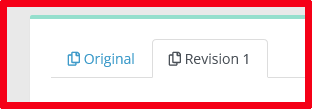
For each revision of an article, Nestor will create a new tab in the lower part.
Information about the article is stored for each version. The specific modules of the lower area are described in the following pages:
- The metadata module
- The file management module
- The referee management module
- The editorial decision module
- The correspondence module
The metadata module
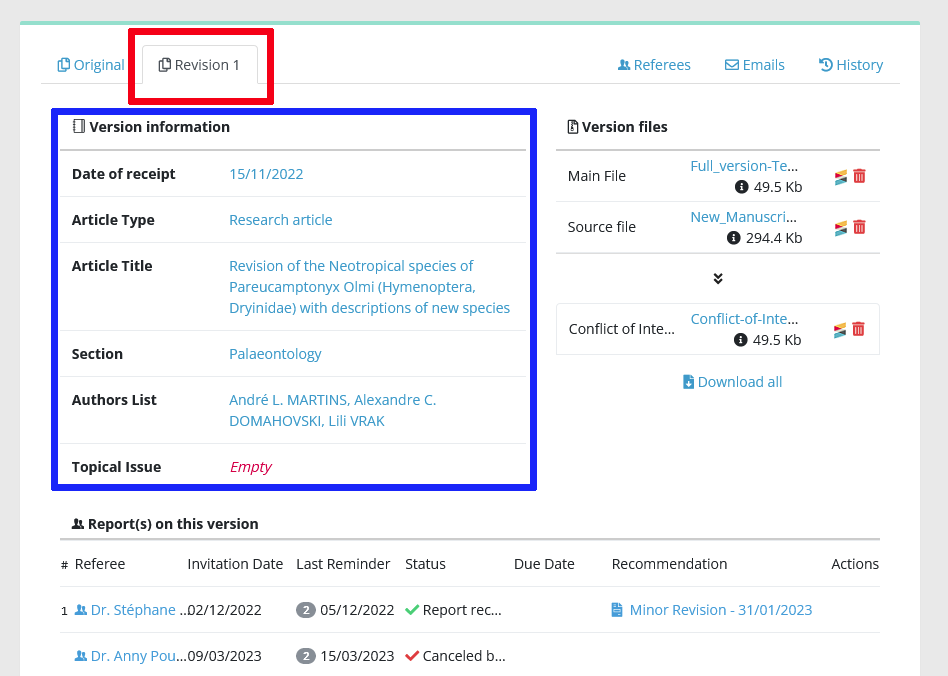
On the left hand are the metadata fields. Metadata fields are editable by clicking directly on the values. Note that metadata can be edited only on the last submitted version of the article.
Depending on the article type configuration, metadata can include:
- the date of receipt of this version
- the article title
- the authors list (in text, which may differ from the linked authors)
- standard categorizations
- custom fields
- free keywords
- Fundref information
The file management module
On the right hand side is the file management module, which lists all files submitted by the author for this version.
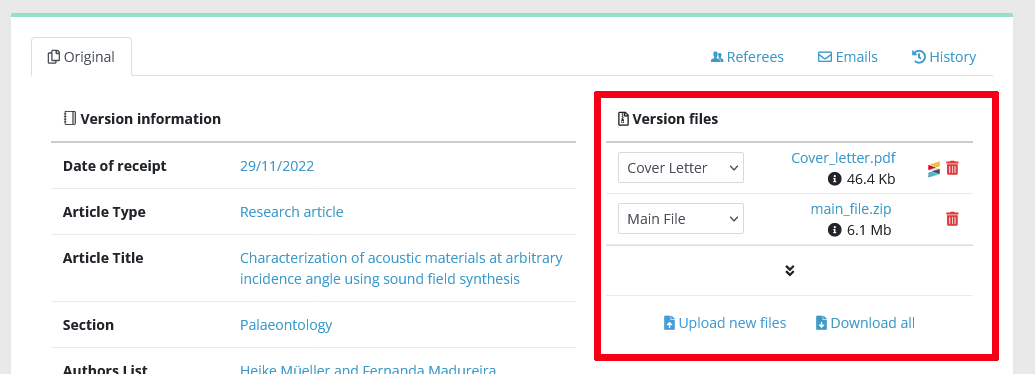
This module allows to:
- download a file (click on the file name)
- delete a file (click on the red bin)
- upload files (click on the “Upload new files“) button
- check the similarity report (if present)
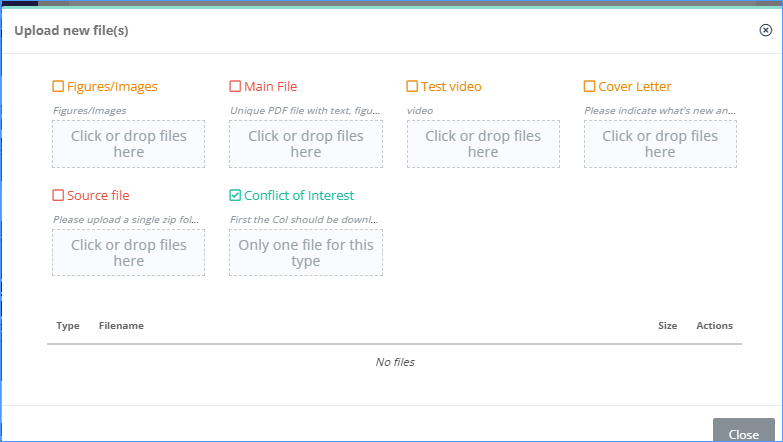
Uploading files will open a window proposing available file types for this article:
The referee management module
This is where you will invite referees, un-invite, send reminders, consult the reports, etc. (these actions are explained in detail here).
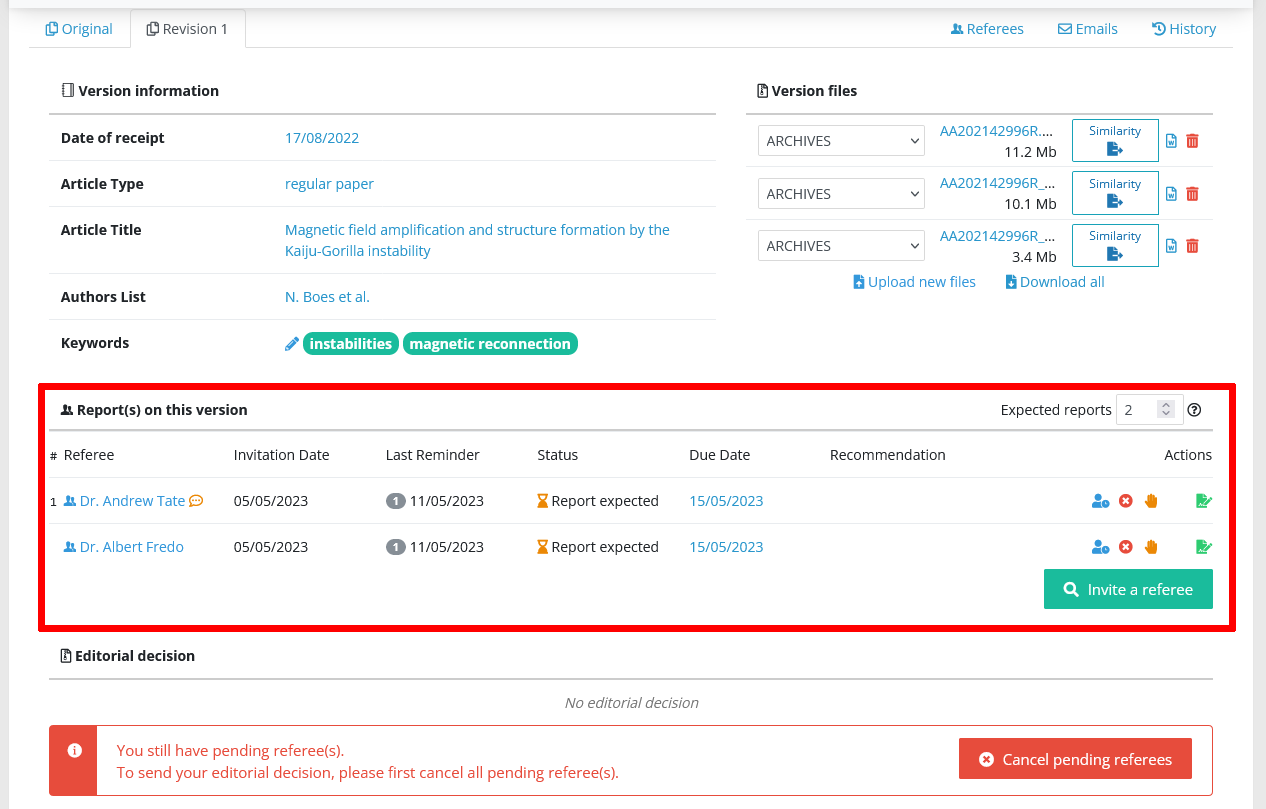
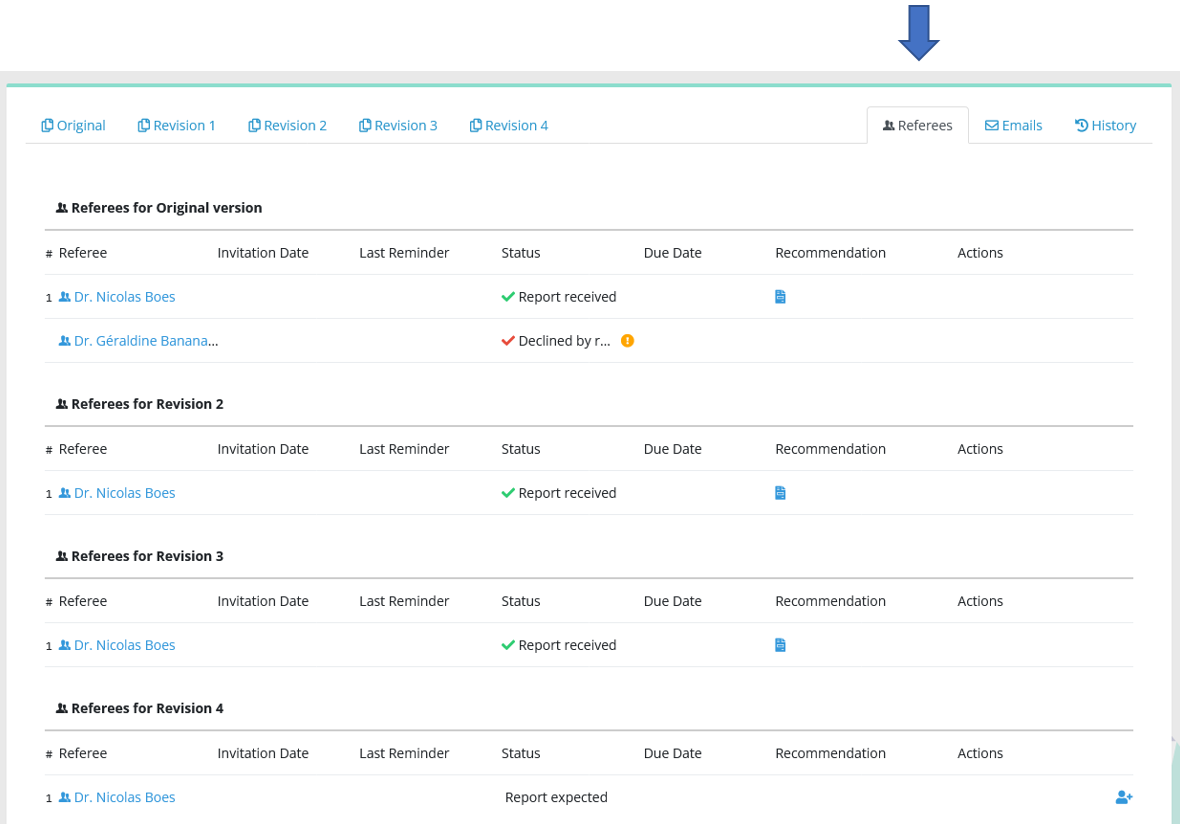
The information is related to each revision. If you want to have a global view of the referee process, please click on the referees tab on the right hand side of the page.
The editorial decision module
This is where you will propose or take the editorial decision, and consult it. Those actions are detailed here.
For each version, all proposal/decisions are stored in this module. Clicking on the recommendation will open the corresponding decision letter.

The correspondence module
All e-mails sent from Nestor are stored and accessible at any time.
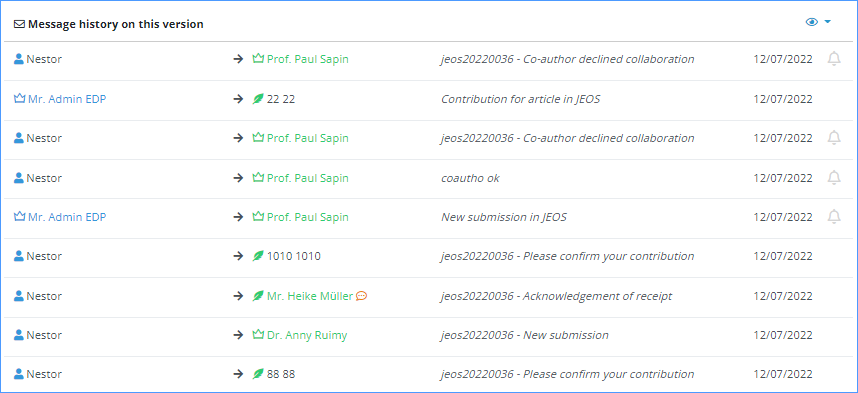
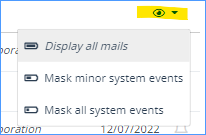
The list of messages can be shortened with the 'Masking menu', you can choose which kind of messages you want to hide.
Similarly to referee management, a global view of e-mails on all versions can be found in the Emails tab.

History tabs
Writing in progress... ↁ_ↁ
Any enquiries? please contact us: support@nestor-edp.org