Peer review management
- Finding/creating a referee
- Contact a suggested referee
- Referee AI search with Prophy
- Managing invited referees
- Checking/editing referee reports
- Uploading my own report on the paper
Finding/creating a referee
In the referee module, click on the ‘Invite a referee’ button.

You can search a referee using different criteria: e-mail address, last name, first name, or expertise fields if the journal uses them. For any search, please type in at least 2 letters and the system will display the relevant propositions. You may switch to classic search to use wild cards and filter referees precisely.

For each referee found, the system displays his/her activity. If you click on the link or on the user logo you will get more information. For confidential reasons, you are not allowed to access the papers that you were not put in charge of.

If the referee you’re looking for is not registered in the system, you can add and invite them with the link ‘add a new referee’.

When you have chosen the referee, click on the ‘Invite’ button, this will open the invitation pop-up window, where you can edit the invitation letter, or send it directly.

Uploading my own report on the paper
You can assign yourself as a referee on the paper. In this case, you will receive the usual referee link to upload your referee report, and the author will receive this report grouped with other referee reports.
Instead, please consider submitting an editor report.
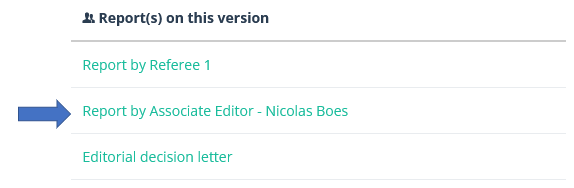
The difference between a referee and an editor report is slim: the editor report is identified as such to the author, and is distinguished in the author interface:
Contact a suggested referee
In the referee module, click on the ‘Invite a referee’ button.

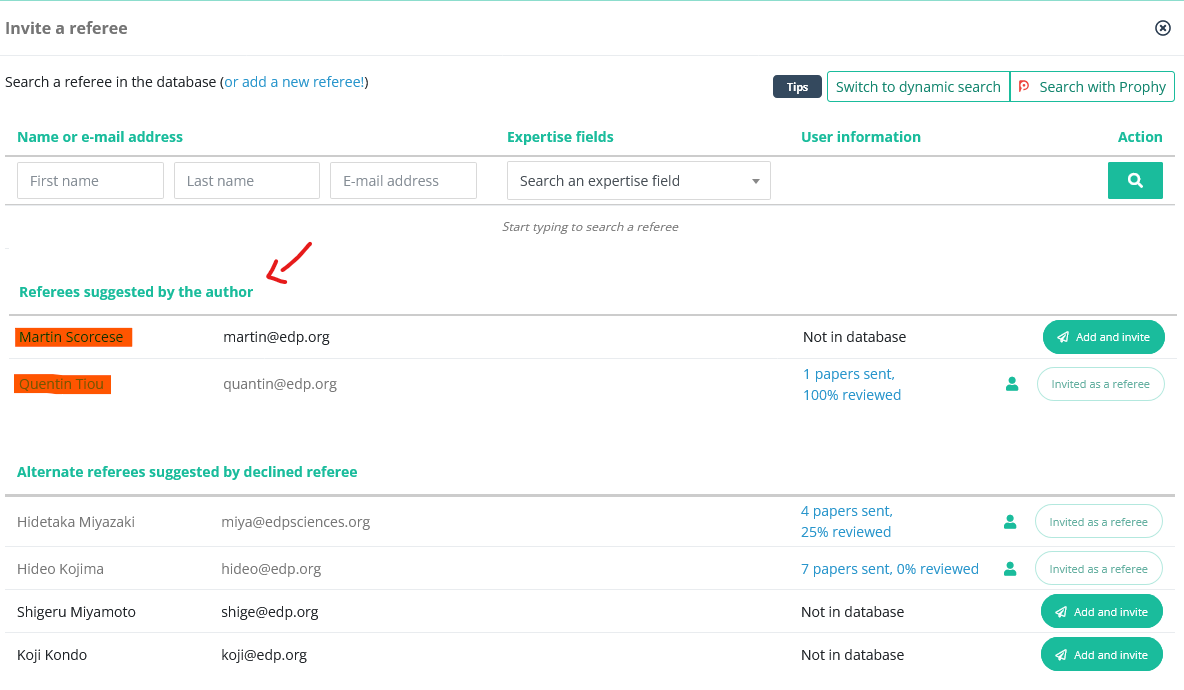
If the journal requests this information during submission, you will have the possibility to invite the referee(s) suggested by the author.
Declined referees can also suggest their own colleagues to help you find an appropriate expert:
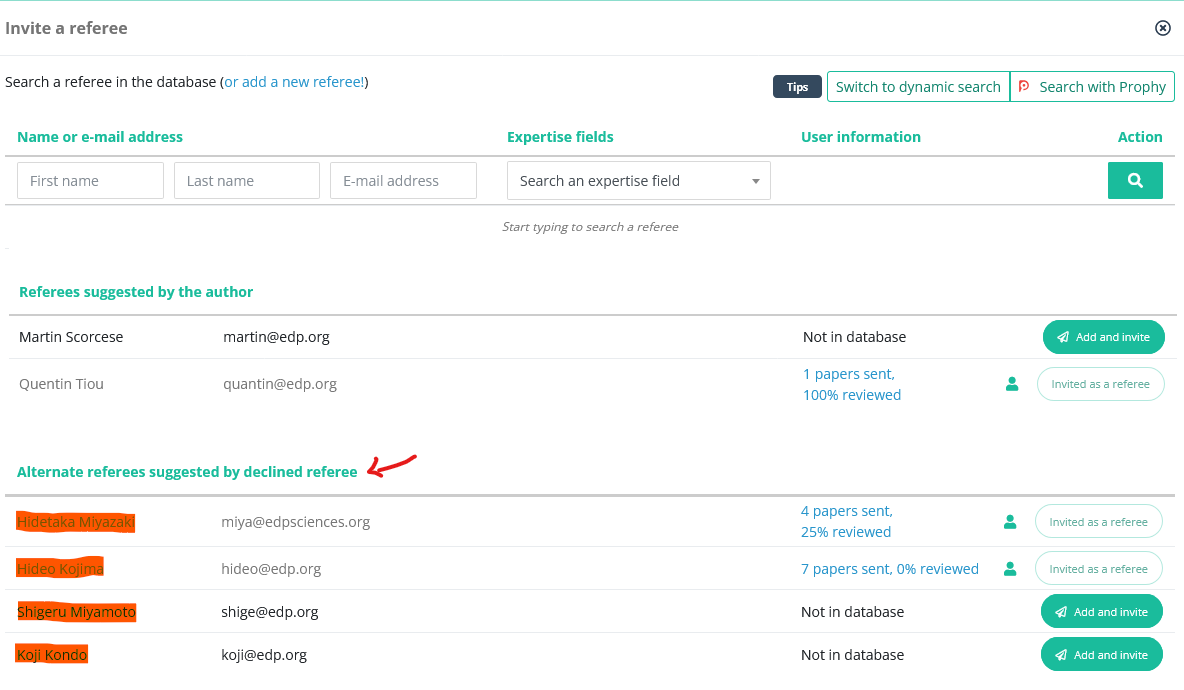
In any case, Nestor will check and inform you
- if the suggested referee is absent in the data base (in which case you will need to create the referee)
- or if the suggested referee has already been contacted to review the paper
Referee AI search with Prophy
Starting 2025, Nestor has a partnership with the Prophy referee finder tool! Prophy is configured on a journal basis: to activate the feature, please contact us at support@nestor-edp.org
Triggering Prophy
In the referee module, click on the ‘Invite a referee’ button.

In the invitation window, triggering the tool is straightforward:
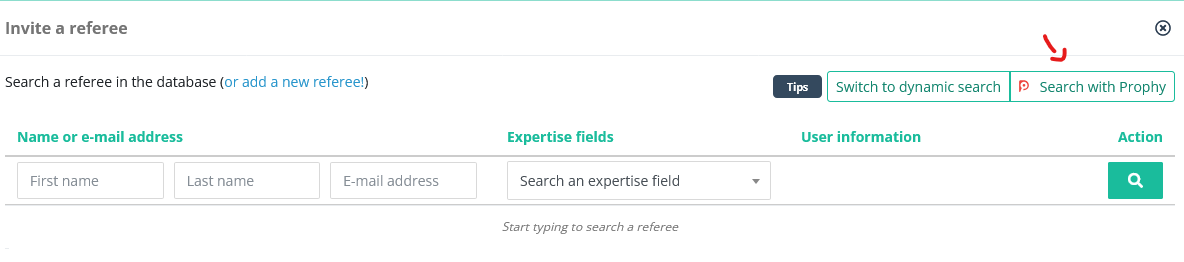
When clicking "Search with Prophy", Nestor will send the manuscript to Prophy who:
- performs a concept analysis on the manuscript
- based on this analysis, will return a list of 50 referees to evaluate the paper
Checking the list of suggestions
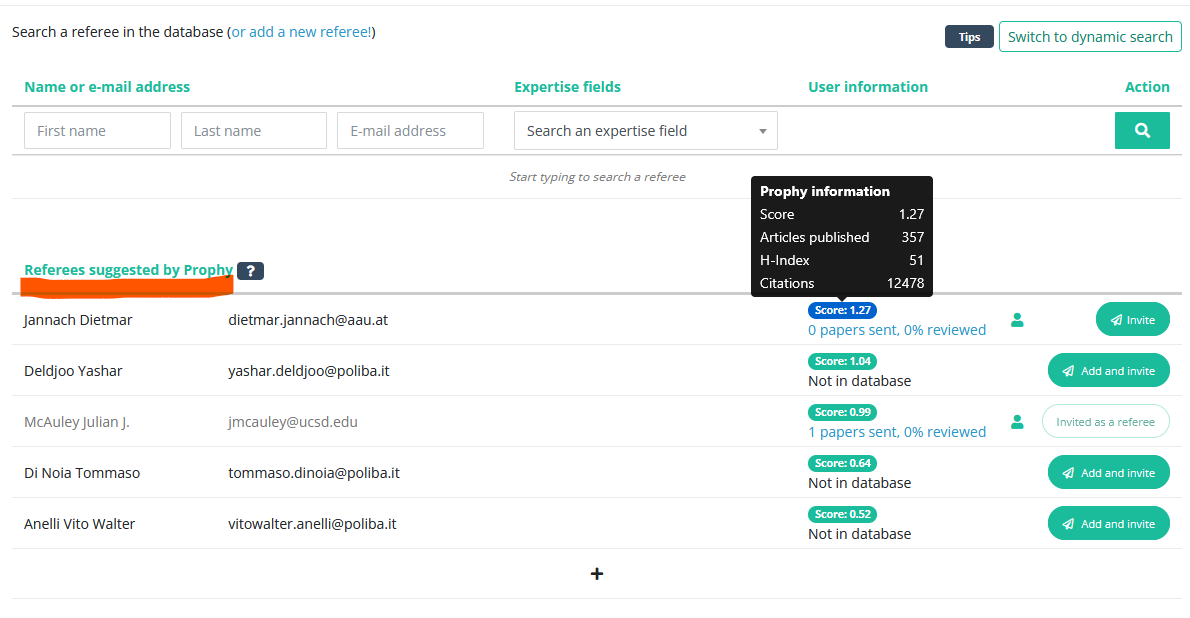
The list shows the first 5 referees. It is sorted by score, which represents the match between the manuscript's concepts and the referee's own papers. The higher the score, the higher the relevance of the referee to assess this paper.
From this interface, you can:
- click on each referee score to get more details on the referee
- invite the referee directly
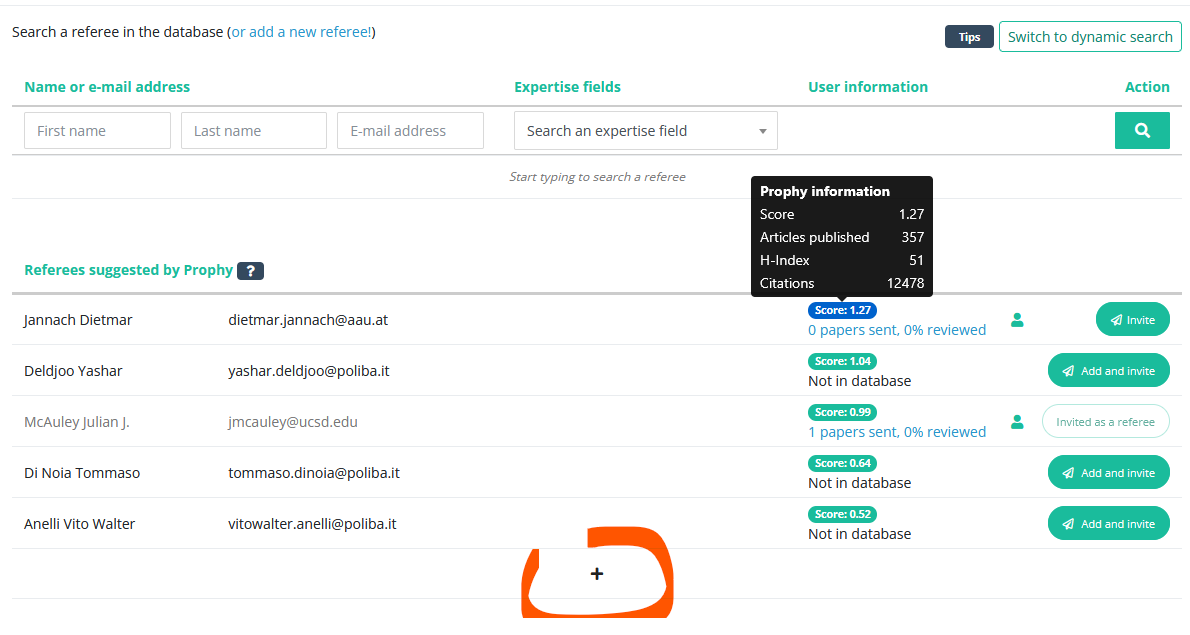
- can click on (+) to expand the list of suggestions
Managing invited referees
Actions on referees
Once a referee has been invited to review an article, it is listed in the referee module for this version.
The module keeps track of the status of each referee and proposes relevant actions to manage them:

Here is the detail of each action:
|
|
Remind the referee manually, the letter template content will adapt depending on the referee status. Note that automatic reminders may be active in your journal, please check with your Editorial Office. |
|
|
Cancel invitation if you no longer need this referee |
|
|
Acknowledge cancellation of the referee (if received outside of the system). Use with caution: as much as possible, referees should interact directly with the system. |
|
|
Acknowledge promised report from the referee (if received outside of the system). Use with caution: as much as possible, referees should interact directly with the system. |
|
|
Register a report manually (if received outside of the system). Use with caution: as much as possible, referees should interact directly with the system. |
|
|
Reinvite a canceled referee |


Number of expected reports and impact on article status
For each article type, a number of expected reports can be set:

This number determines the article status according to referees' answers:
- As long as the expected number of promised reports is not reached, the article will stay ‘In search of referee’ status.
- When the expected number of promised reports is reached, the status will switch to ‘Peer-review in progress’.
- Finally, once all expected reports are received, the status will switch to ‘Waiting editorial decision’.
The number of expected reports depends on the article type, but can be adjusted if necessary for each article. Adjusting the number of expected reports will automatically impact the article status as described above:

Reminders to referees
Reminders to referees may be either manual, or configured to be sent automatically. For each referee, Nestor keeps track of the last reminder date, and the number of reminders already sent.

Checking/editing referee reports
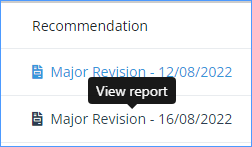
Please click on the recommendation to open the referee report.
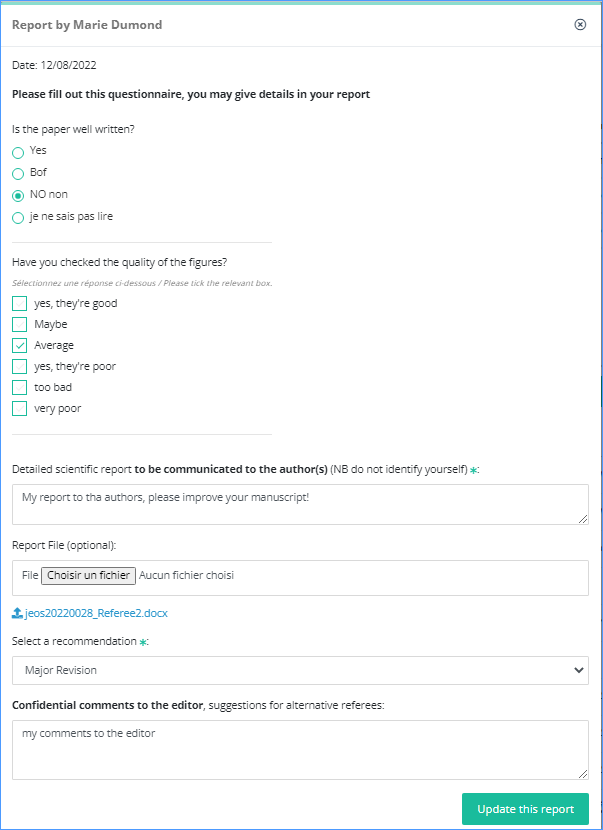
You can edit the referee’s questionnaire, comments and recommendation. You can upload a referee attachement (or replace it, if needed). In case the referee has uploaded more than one file, they will be available in a zip file.
Uploading my own report on the paper
You can assign yourself as a referee on the paper. In this case, you will receive the usual referee link to upload your referee report, and the author will receive this report grouped with other referee reports.
Instead, please consider submitting an editor report.
The difference between a referee and an editor report is slim: the editor report is identified as such to the author, and is distinguished in the author interface: