User guide

Register

If it's the first time you come to Nestor, please click on the REGISTER button at the top.
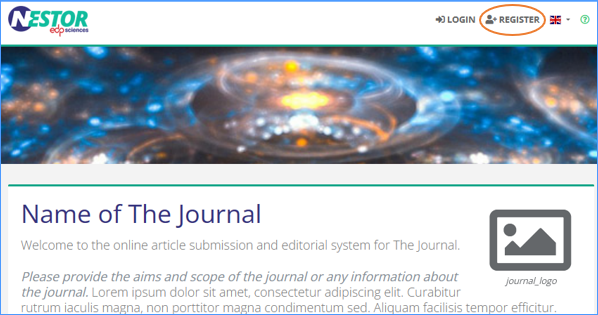
image.png

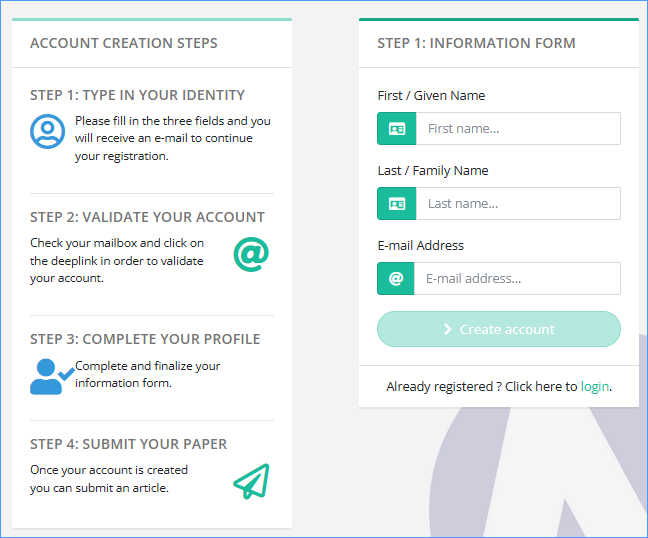
Enter the requested information.

image.png

You will then receive an e-mail containing a deeplink. Click (or copy and paste) this link and complete your information, i.e. choose a password and provide your affiliation.
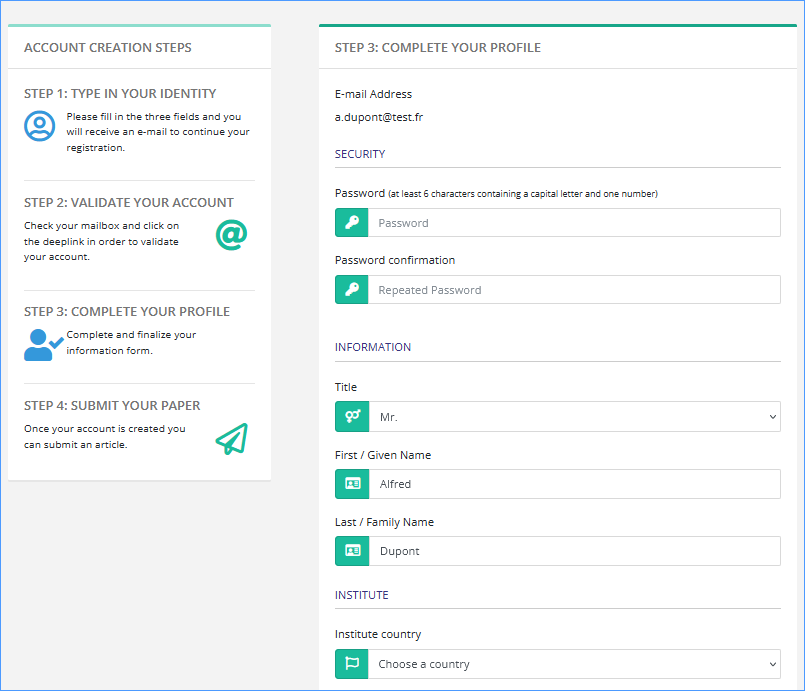
image.png


If you are an author or a referee already registered in MMS, do not register again, but please click on the ‘Reset password’ link https://XXXX.nestor-edp.org/resetPassword (or available in the Login page).

For editors previously using MMS, your codes have been migrated, do not register againType in your e-mail address (the one used with MMS) and the password you used to access MMS. If you got some connection problem, please click on the ‘Reset password’ link' https://XXXX.nestor-edp.org/resetPassword    

Login

From https://xxxxx.nestor-edp.org/ please click on the LOGIN button at the top.

You will be requested to enter your e-mail and password. 


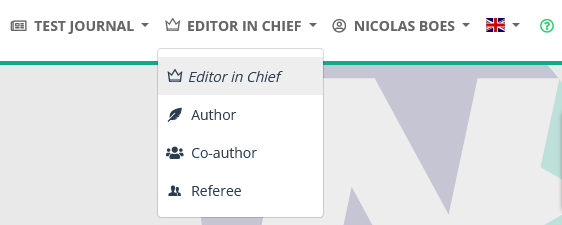
Once connnected, you have access to your activities as author, co-author or referee available in three dedicated tabs. Or you can switch from your author role to referee role using the menu at the top.

image.png


For editors previously using MMS, your codes have been migrated. Do not register again. Type in your e-mail address (the one used with MMS) and the password you used to access MMS. If you got some connection problem, please click on the ‘Reset password’ link' https://XXXX.nestor-edp.org/resetPassword    

As an editor, once you’re connected, you access directly your interface as editor. 


You can switch to your interface as author or referee using the role menu close to your name. 

I want to link my ORCID and update my personal information

Once registered and logged in, please click on your name and on ‘My profile’. 


From this page, you can:


Change your e-mail address and reset your password

image.png


Click on the ORCID link. 


Sign in to ORCID


Make sure to authorize access to EDP Sciences.

image.png 

Your Nestor account is now linked to ORCID. If needed, you can delete the link with the red button.


image.png


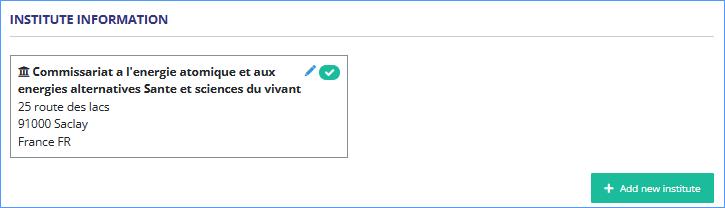
Add or edit your institutes

image.png

You can add another institute and choose the one by default.
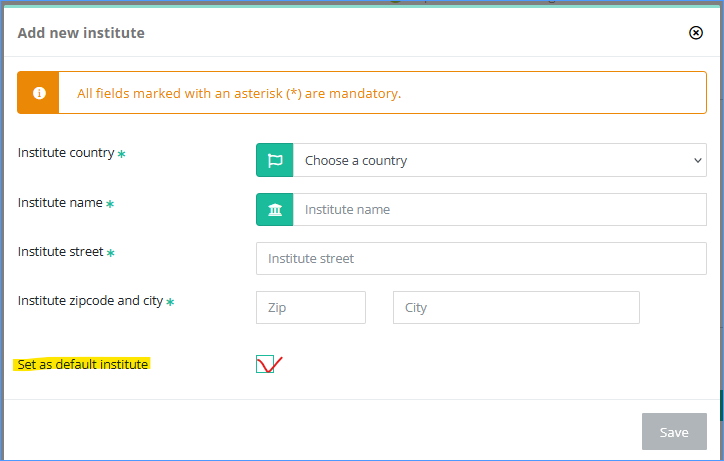
image.png


Set unavailability dates

image.png


Add your dates and more information if you want.
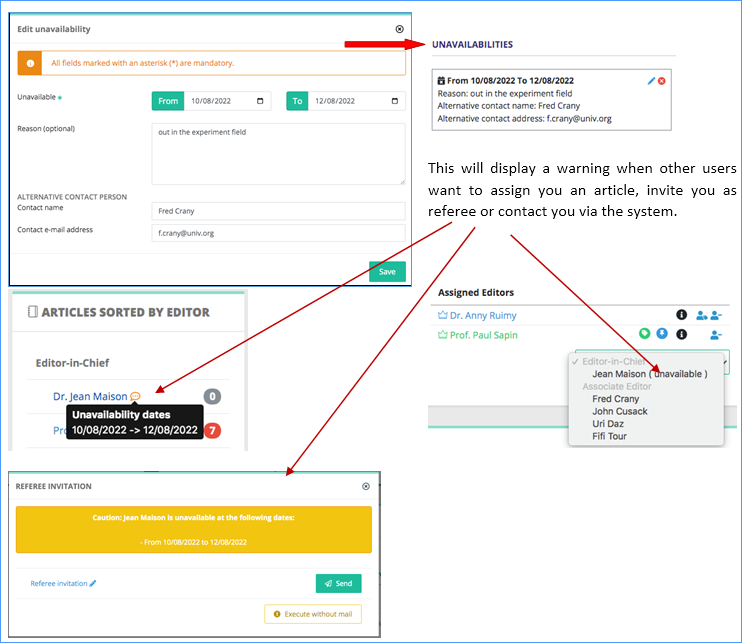

image.png


What is the status of my article?

In your author dashboard, the workflow has been divided into functional steps (who is working on the articles). Your to-do list focuses on articles expecting an action from you. See below from a detailed breakdown of article statuses, and the detailed workflow diagram.


To-do list (cf green status in the diagram)

Back to author

The article did not pass technical check and expects your input.

Resubmitting will not create a new version.

Revision in progress

The article was sent to you for revision.

Resubmitting will create a new version.

Proof sent The article is expecting your proof corrections


In progress

Registration / RV registration

The article is the hands of the Editorial Office for initial checks

With Editor

This tag covers several statuses, cf diagram below.

  • Awaiting assignment: to be sent to an editor
  • ⭐New submission: expecting refereeing/decision
  • In search of referee: start of peer review invitations
  • ⭐Waiting editorial decision: end of peer review (reports received)
  • Editorial decision proposed: reserved to EiCs
  • ⭐Revision received: expecting refereeing/decision
  • Proof sent to Editorial Office
Peer review in progress The article is in the hands of referees, reports are expected
Accepted

Good news: the article is in the hands of the Editorial Office for final corrections.

Requests for revision can still be expected.

In production

This tag covers several statuses, cf diagram below.

  • In production: production starts
  • Proof checked by you
  • Proof checked by Editorial Office
  • Proof validated by Editorial Office
  • Publication scheduled


Finished

Published : )
Rejected : (
Closed The article is closed (usually, no news from you)
Withdrawn The article is withdrawn (usually at your request)


image.png

FAQs for journals migrating from MMS

The Manuscript Management System (MMS) for your journal has migrated to a new platform NESTOR (New Editorial System Tool for Research). All papers, including their data, files, correspondence history, reports, and associated users, have been migrated to this new system. This means authors, referees, and editors can access all their current and past activities within NESTOR. 

Please find below some questions that may help you.

1. How can I log into NESTOR? 

If you are an author or a referee already registered in MMS, please DO NOT register again! For your FIRST connection in Nestor, click on 'Login' and 'Reset password'

image.png

Provide your first e-mail address used in MMS and you will receive a message. Click on the deeplink and follow the instructions. You will be asked to choose a password and check your affiliation. 

2. How can I update my profile information? 

Once connected click on the menu near your name and select ‘My account’. 


 Here you can:


More details here.


3. Where can I find my previous papers?

All your previous papers complete with data, files, correspondence history and reports have been migrated to NESTOR. 

From your new dashboard, you can now see three tabs, for your activities as author, co-author and referee.  


4. I recently submitted a paper, do I need to re-submit it on NESTOR?

No, there is no need to submit again. All articles and data have been transferred. You will find your paper under the ‘As author’ tab.


5. My article is under revision in MMS, where do I submit the revised version?

Your article is under your ‘As author’ tab, specifically in the To-do list folder since it is currently under revision. 


6. Can I add new files or a revised figures to my paper?

In NESTOR, file uploads are only allowed during specific phases of the evaluation process. If your article isn't in submission or under revision, you are not able to upload files and edit the data. If you need to make changes, you may do so at the next phase in the process (for instance at the next revision stage). 


7. I’m not the corresponding author anymore, can I change this myself within Nestor? 

No. Please contact the editor overseeing your article or the editorial office to make this change.


8. As a referee, I’ve accepted the invitation to review in MMS, how can I access the article? 

After logging into NESTOR (as per Question 1), click on the 'As referee' tab. The article will be available in the ‘Expected report’ folder.


9. As a referee, can I upload more than one file with my report? 

Yes. The review form contains a questionnaire and sections for comments to both authors and the editor. You can upload multiple files, but please ensure they are anonymized.


Additional Information
Need more information about NESTOR's features?  Visit our documentation page Nestor User Guide for more guidance and user guides on the new system. 
Didn't find an answer to your question?  If your query isn't addressed in the above FAQs, please don't hesitate to contact us support@nestor-edp.org. We're here to assist you every step of the way. 
Have suggestions for our FAQ section?  We continually aim to improve our user experience. If you have recommendations for additional questions or insights that might be helpful, please share your suggestions with us support@nestor-edp.org.