Workflow configuration
The workflow is defined at the article type level. However, critical actions (such as technical checks, assignments, decisions...) are also dependent on user rights. See the next chapter for more details.
- Workflow summary
- Submission
- Technical check
- Editorial assignments
- Peer review
- Decisions: the recommendation system
- Configuration of questionnaires
Workflow summary
The workflow is divided into statuses, an article will go through a series of statuses to reach a final decision.
Below is a diagram of the Nestor workflow. For each status, Nestor expects an action from the indicated user, and use the due date to calculate delays.
Blue boxes represent editorial statuses: they will appear in editors' to-do list and require your attention!

Some parts of the workflow are highly configurable, namely:
- the technical check (status; Registration / RV registration)
- editors' assignments (status: awaiting assignment)
- the peer review system (status; in search of referee / peer review)
- the decision workflow (new submission / waiting decision / revision received)
Configuring these usually involves:
- Checking the workflow options in the article type, to ensure the workflow is enabled
- Checking the editors' rights according to their profile, to ensure at least one editor can handle the workflow
- Cheking relevant mail templates triggered by workflow events, to ensure the letters format match your journal needs
Submission
Before configuring the submission workflow, please ensure the following are defined properly in your journal:
- File types! Many options are available here, such as auto-renaming, extension constraints, visibility etc
- Article categorizations (metadata)
Article type configuration
Once the above are defined, the submission workflow is easily configured at the article type level, where specific file types and metadata may be requested at submission or revision.
Two practical examples:
-
A cover letter may be mandatory on a regular article, but not on a preface article.
-
A first submission will never require a reply to the referee, while a revised version will often needs one.
For each article type, you may configure:
- Required files

- Required metadata
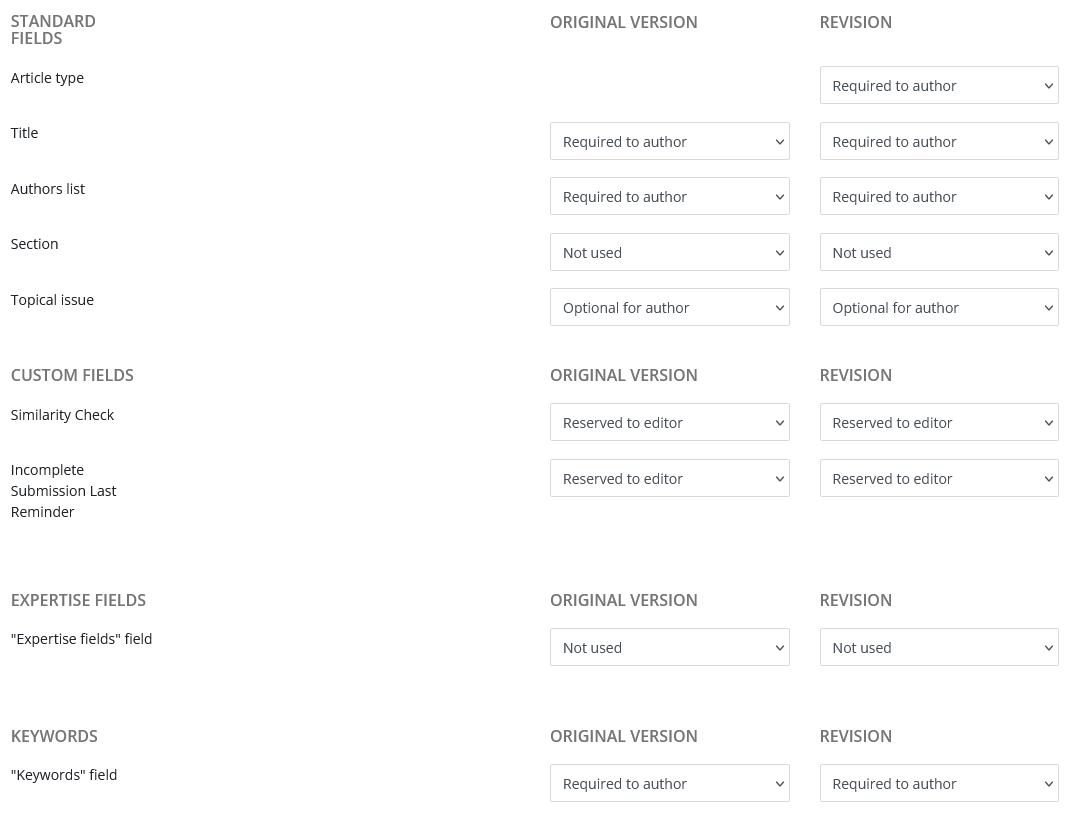
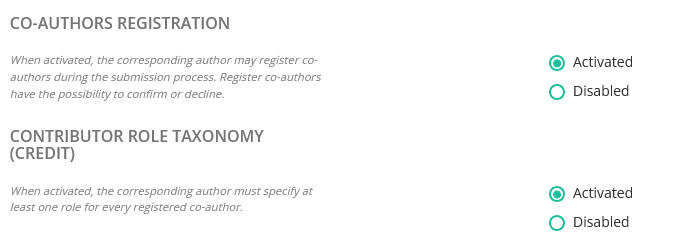
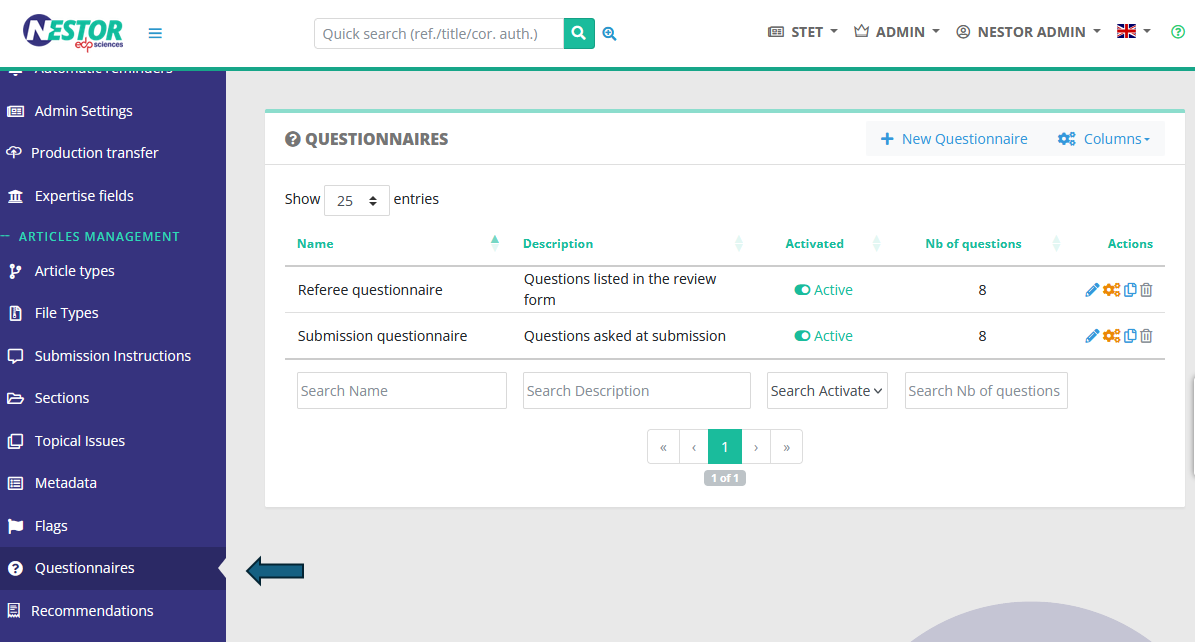
Configuration of the submission questionnaire
First, configure your questions to the author here:
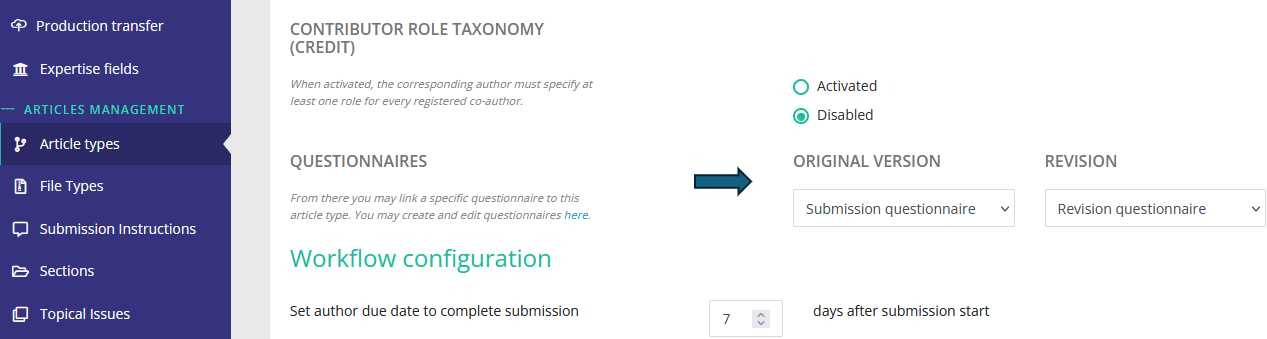
Then, set up the questionnaire in each relevant article type:
Configuration of submission instructions
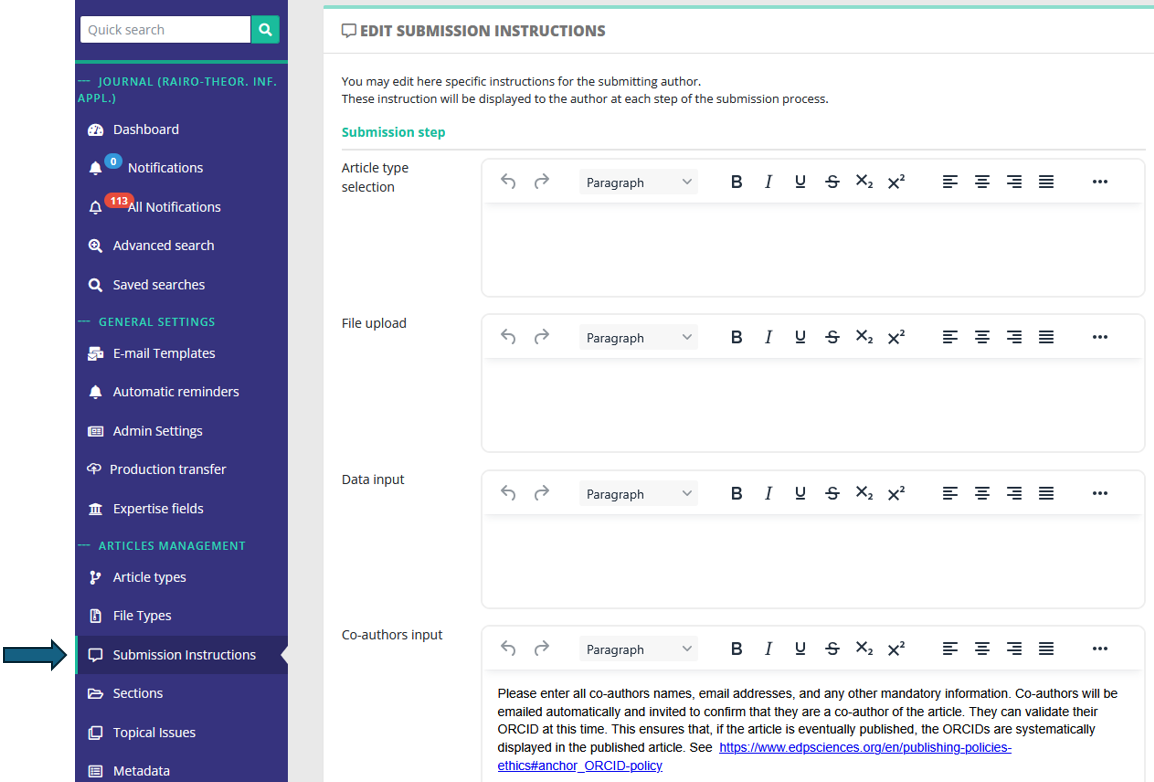
During the submission process, the author may be guided during each step of the submission. For this purpose, you may configure specific instructions here:
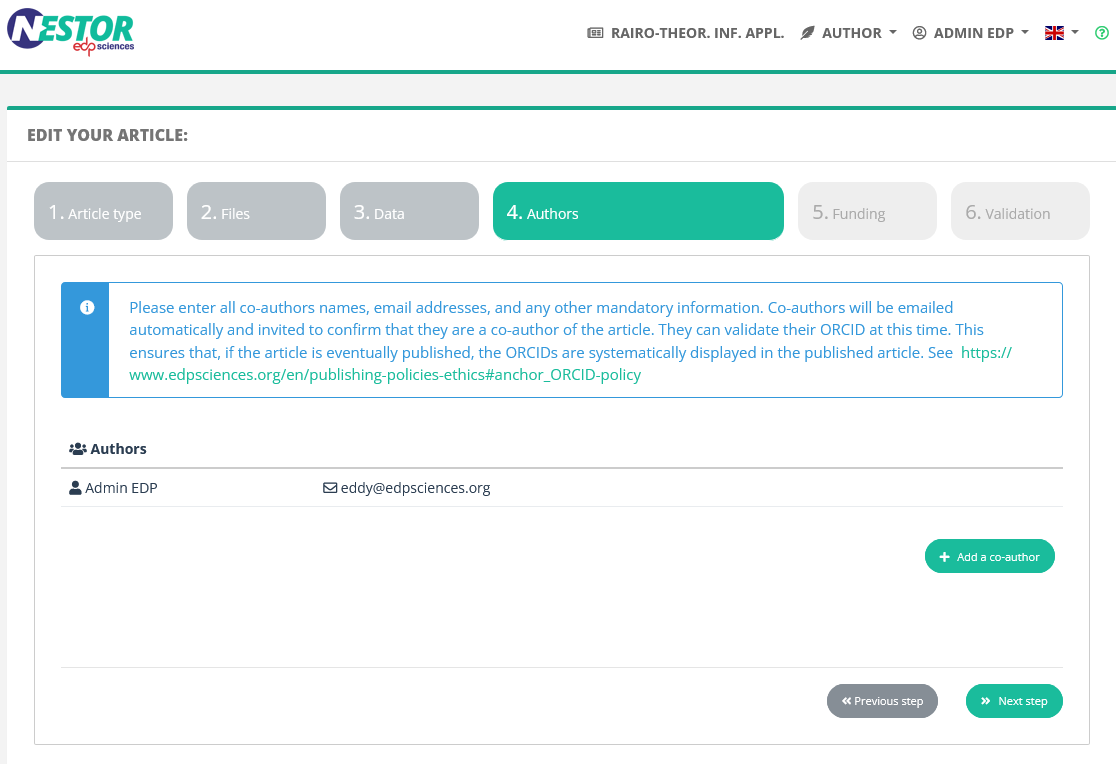
These instructions will be displayed to the author in the submission tunnel:
Configuration of submission e-mails
E-mails triggered by the article submission are configurable in the mail configuration.
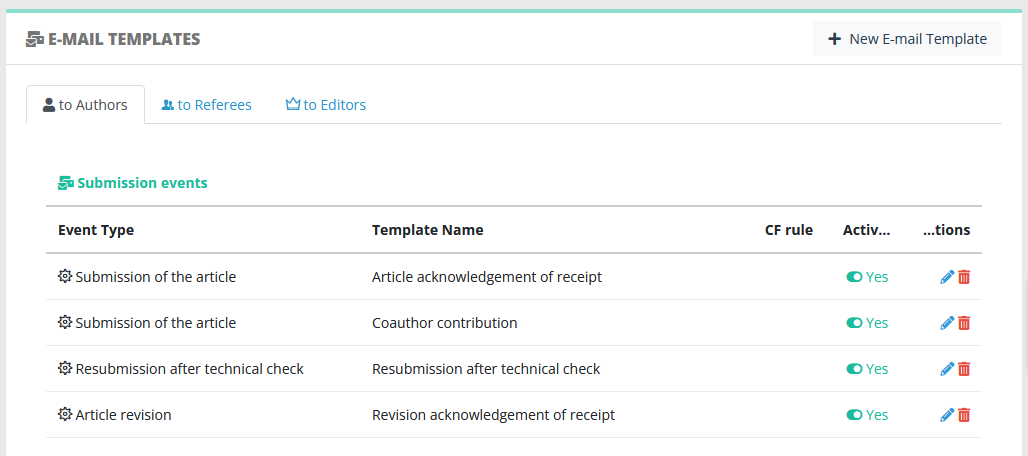
Submission e-mails can be triggered to these recipients:
- the corresponding author, typically an acknowledgement of receipt
- the co-authors
- the current editor
- other editors according to their profile, typically all people of the Editorial Office
The events triggering submission mails are:
- Submission of the article (for the first version)
- Article revision (any other version)
Technical check
Article type configuration
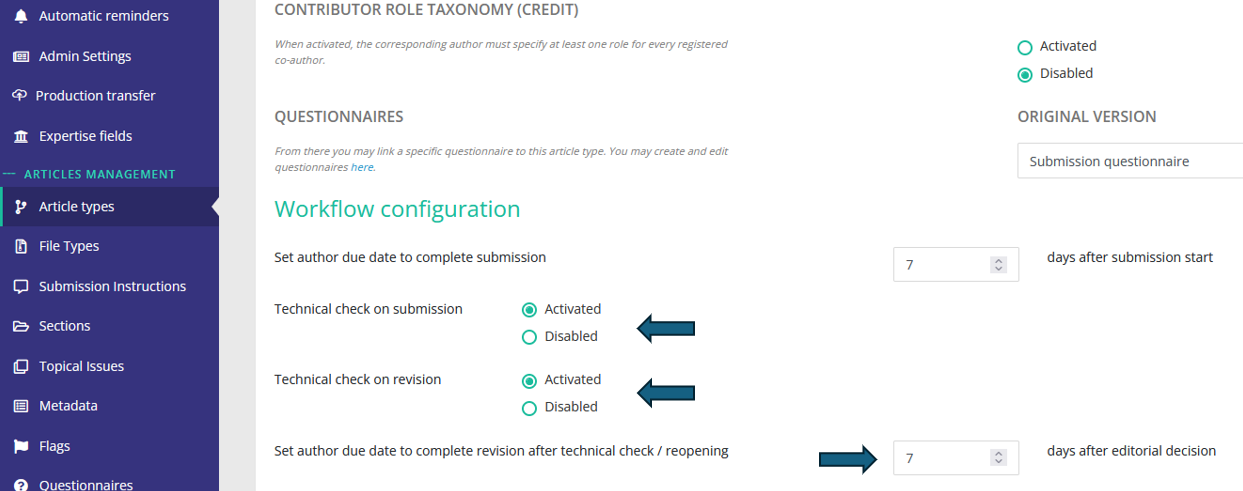
The technical check workflow is first defined at the article type level. For each article type, you can enable/disable the technical check, and set up the time granted to the author to satisfy the technical check:
Profile configuration
Once article types are configured, you must ensure at least one person can perform the technical check action.
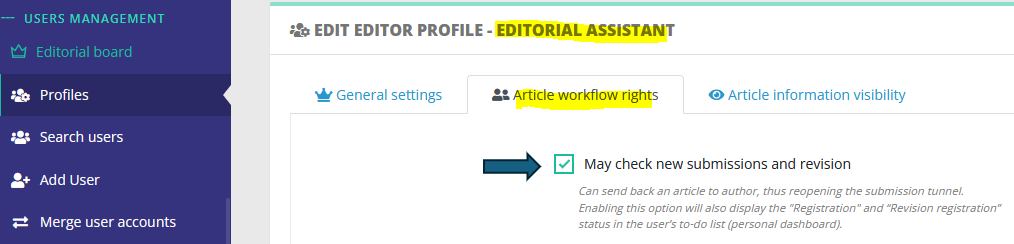
- To do so, at least one editor profile must have the right to handle technical checks:

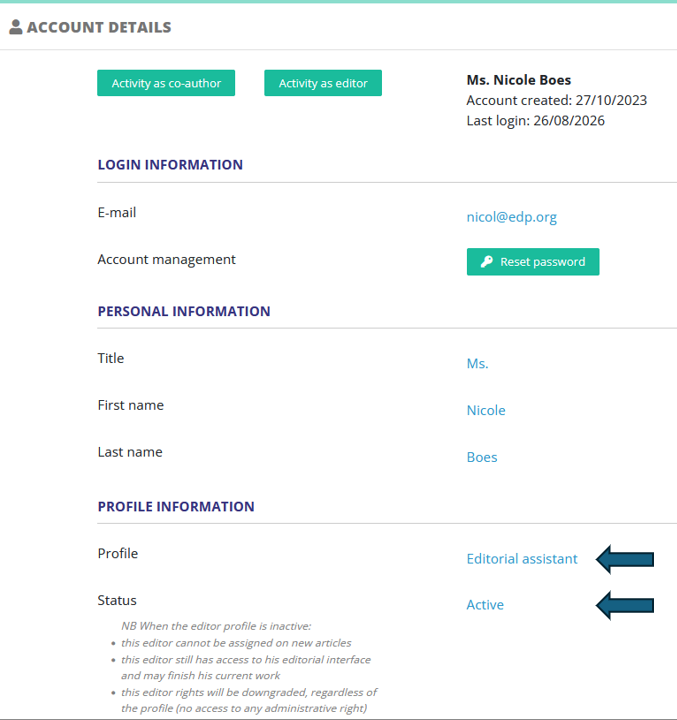
- Then, ensure this person account is set up with this profile:

Configuration of technical check e-mails
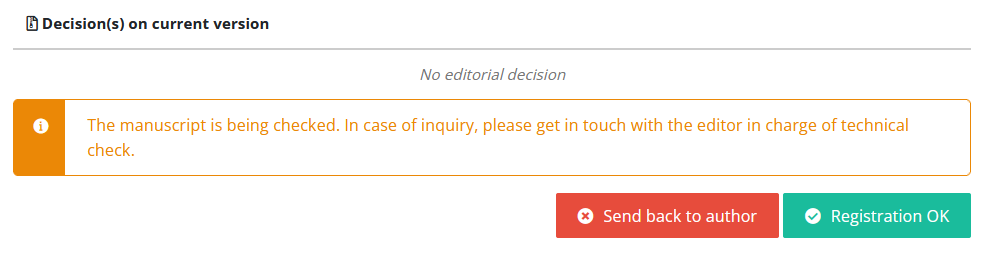
Once technical check is set up, new submissions/revisions will feature those two actions:
These actions trigger e-mails, whose templates are configurable in the mail configuration:
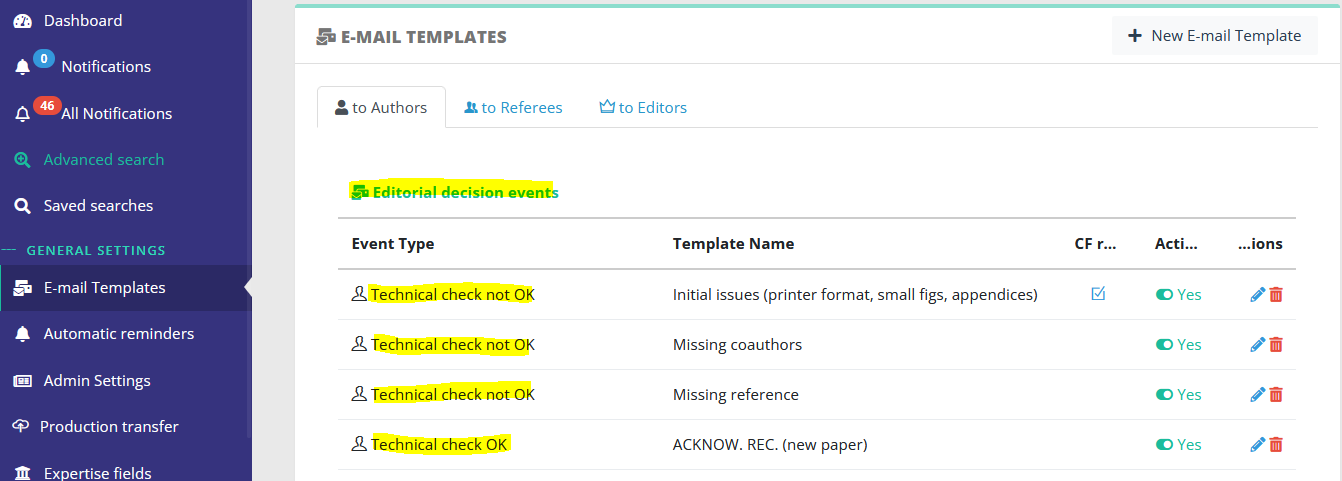
TC e-mails can be triggered only to the corresponding author, who will need to correct his paper accordingly.
NB A special event exists to notify the editor when the author revises after a technical check:
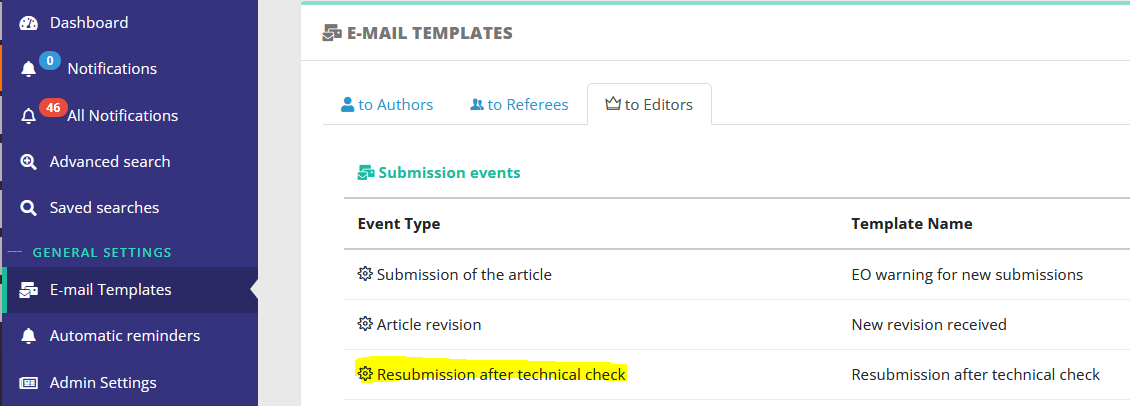
Editorial assignments
Manual assignments
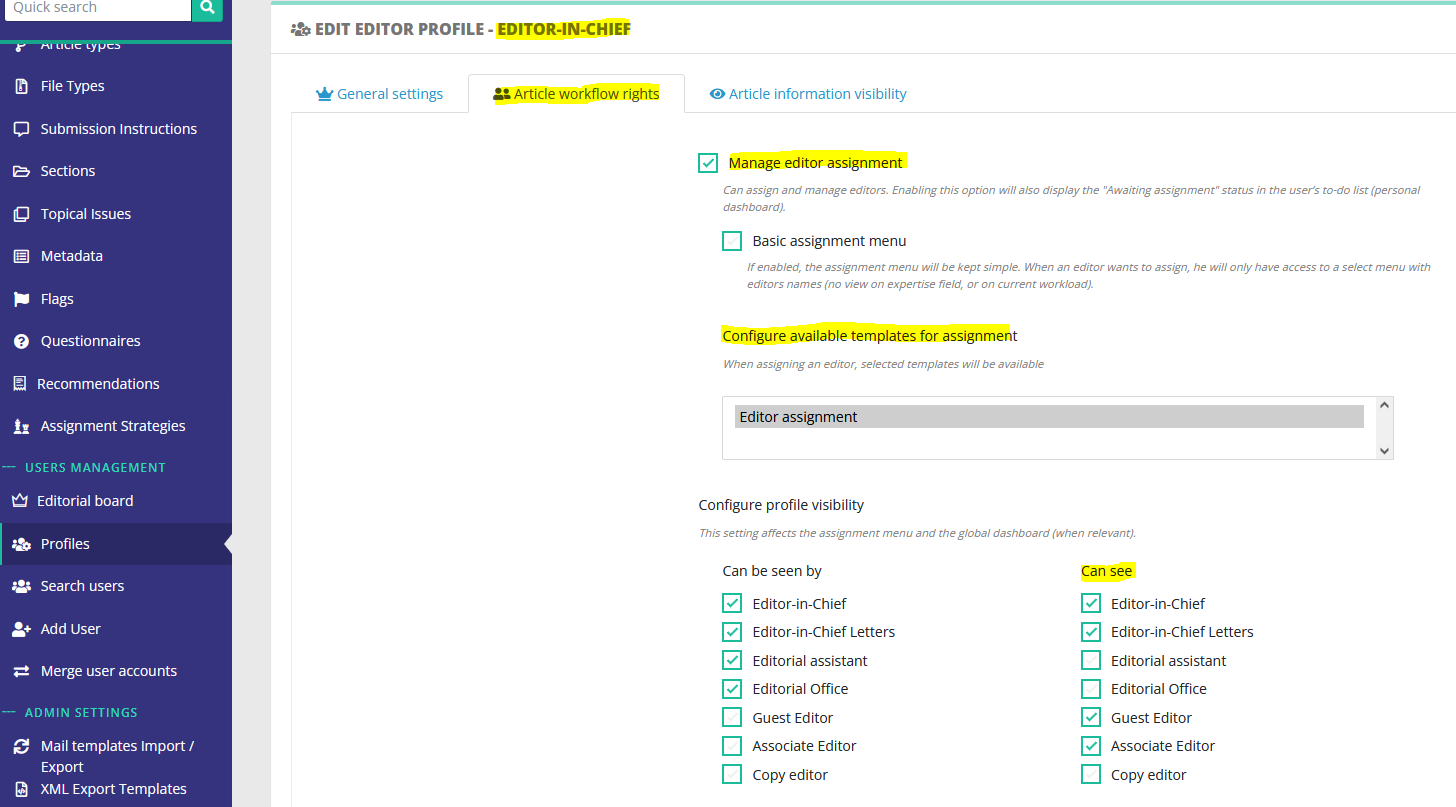
Configuring a manual assignment is done at the profile level. For a given profile:
- ensure it can manage editor assignment,
- and check which profiles he can see.
For example, an Editor-in-Chief will usually have the right to assign:
- himself or another EIC
- an associate editor
- a guest editor
Automatic assignment strategies
Automatic assignments are defined on this dedicated page:
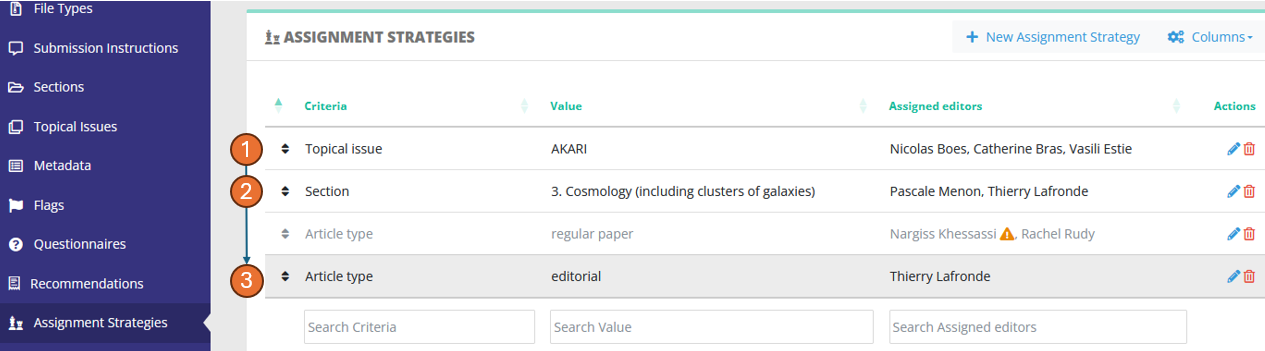
When an article lands in the status "Awaiting assignment", Nestor will check the strategies defined here and apply them if the criteria are met. The goal is to quickly dispatch articles to relevant editors based on the article metadata. The dispatch criteria can be any standard or custom field.
Stragegies are sorted by priority, with upper strategies having higher priority. As soon as a criteria is met, the strategy is applied, and lower strategies are ignored. A strategy with inactive editors will always be ignored (see ⚠ in the screenshot)
For example in the screenshot above, a paper with:
- no topical issue
- in section "3. Cosmology"
- and which is a regular paper
will match the second strategy and be dispatched to Pascale and Thierry.
Strategies and filiation links
For a given strategy, multiple editors can be assigned on the fly:
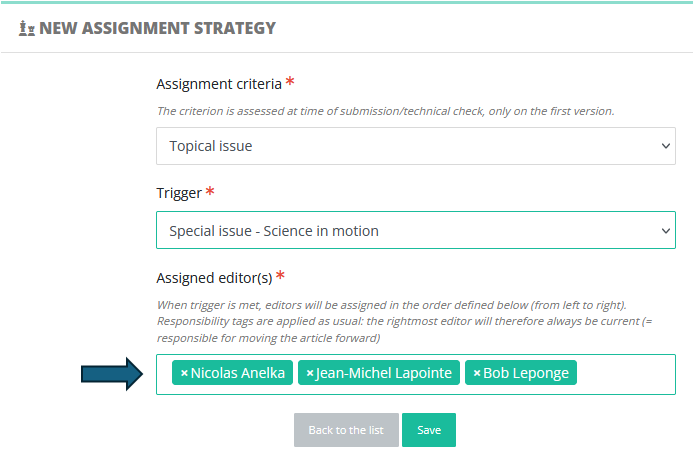
When there are multiple editors in a strategy, Nestor will assign them sequentially from left to right and apply responsability rules. As such, the rightmost editor in the strategy will always be the current editor and receive the assignment notification. His parent editors are merely put in cc of the notification. This is extremely useful to assign several affiliated editors to handle e.g. a special issue:
Editor-in-Chief > Associate Editor > Guest Editor (= current)
In that example, the Guest-Editor will be responsible for handling the peer review, and his decision proposal can be subject to validation by his parent editor (in the screenshot above: the Associate Editor).
Peer review
Article type configuration
The peer review workflow is first defined at the article type level. For each article type, you can enable/disable the peer review and set up the time granted to referees to answer invitations and send reports:
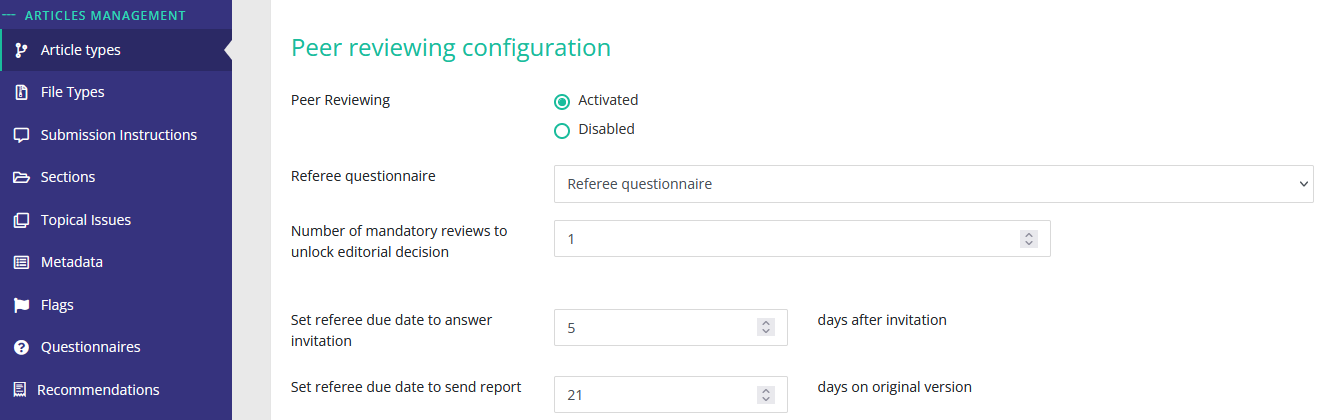
The numbers of mandatory review defines how Nestor handles the statuses transition, as defined here.
Configuration of the referee questionnaire
First, configure your questions to the referee here:
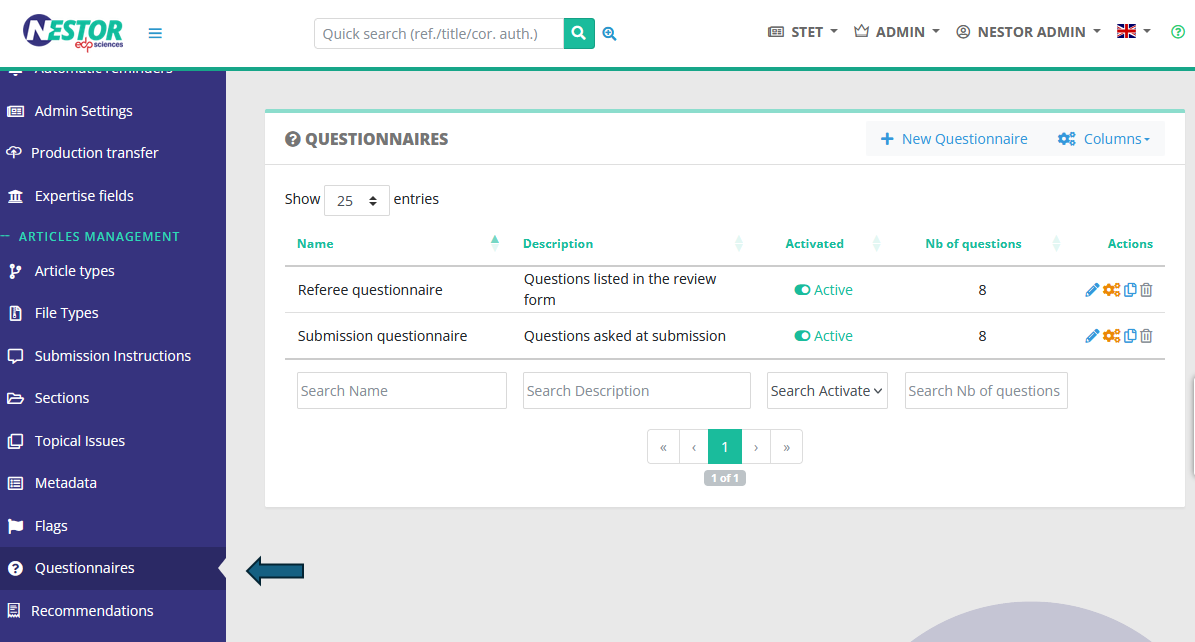
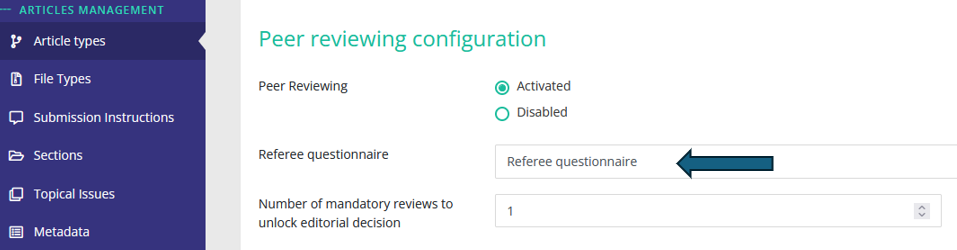
Then, set up the questionnaire in each relevant article type:
Profile configuration
Once article types are configured, you must ensure profiles have the right to manage the peer review:
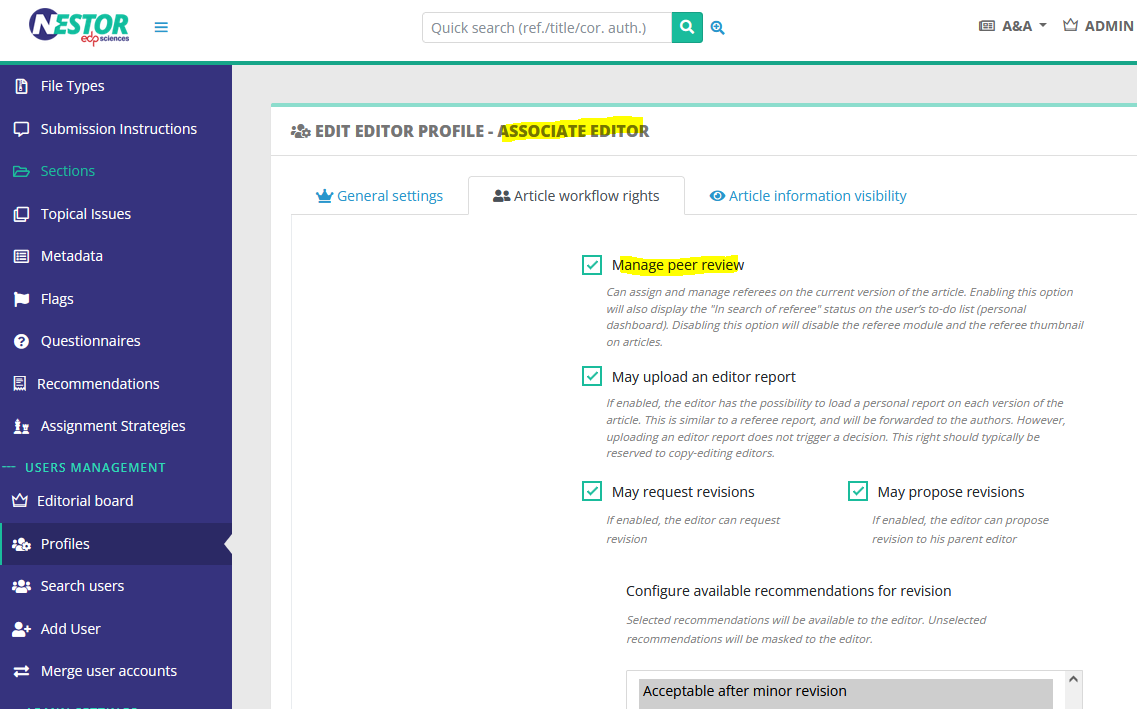
Sending the paper to referees
Once the above configurations are ok, the peer review workflow is functional. It is documented here.
Decisions: the recommendation system
Depending on your workflow needs, your journal can use very specific labels for decisions. Some decisions will be related to scientific corrections, others may be related to copyediting or language corrections. In Nestor those labels are called "recommendations". Here are a few common examples:
| Acceptance group |
Revision group |
Rejection group |
|
|
|
Those labels are freely configurable here:
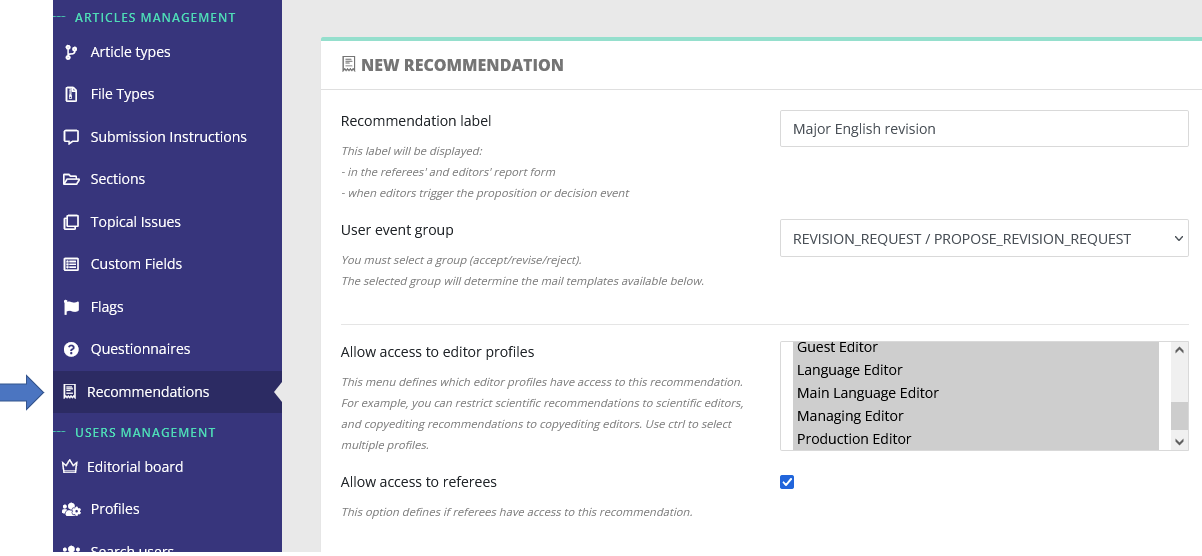
From this page, you will be able to set up:
- the decision label
- who has access to the recommendation (editors/referees). See also the dedicated page regarding decisions and proposals.
- which e-mail templates are linked to this recommendation
Configuration of questionnaires
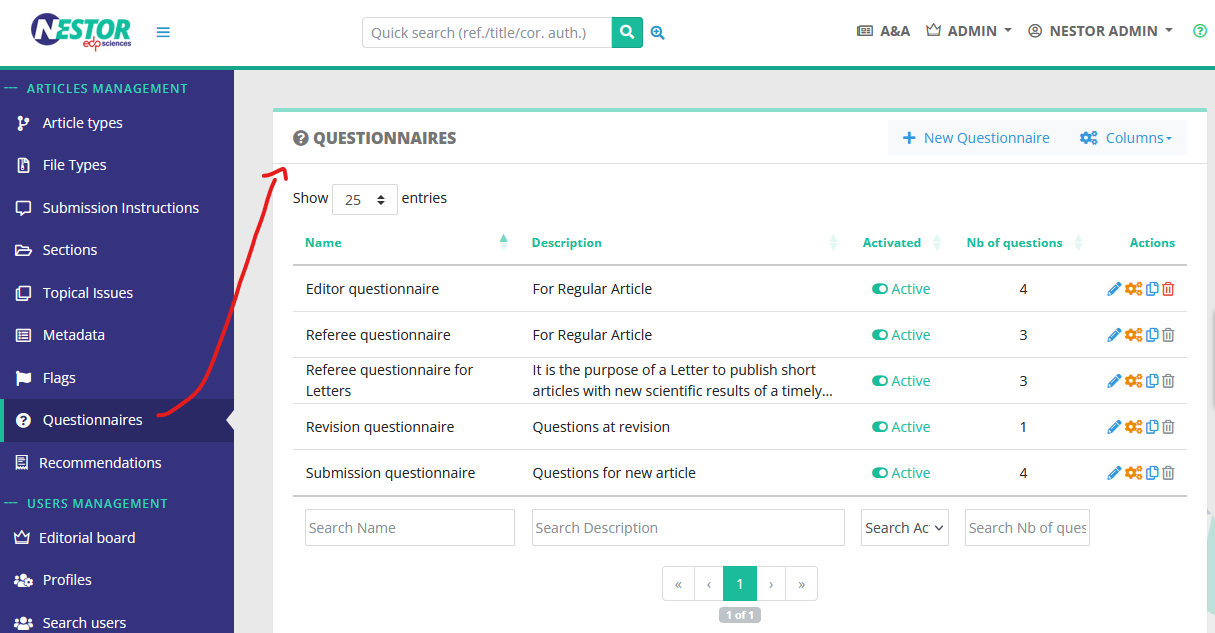
Writing in progress... ↁ_ↁ
Any enquiries? please contact us: support@nestor-edp.org