FAQ
- The editor tells me he cannot perform an action. How can I see his interface and help troubleshoot it?
- How to send files to Similarity Check?
- How can I set up automatic reminders?
The editor tells me he cannot perform an action. How can I see his interface and help troubleshoot it?
Administrators are allowed to log in as another user and perform actions on his/her behalf.
This allows the administrator to see exactly what the users experience, and helps to quickly troubleshoot problems. Note that users' passwords are crypted and remain undisclosed to the administrator.
The feature is available to the administrator via each user page. When clicking on a Nestor user, the administrator has access to this button:
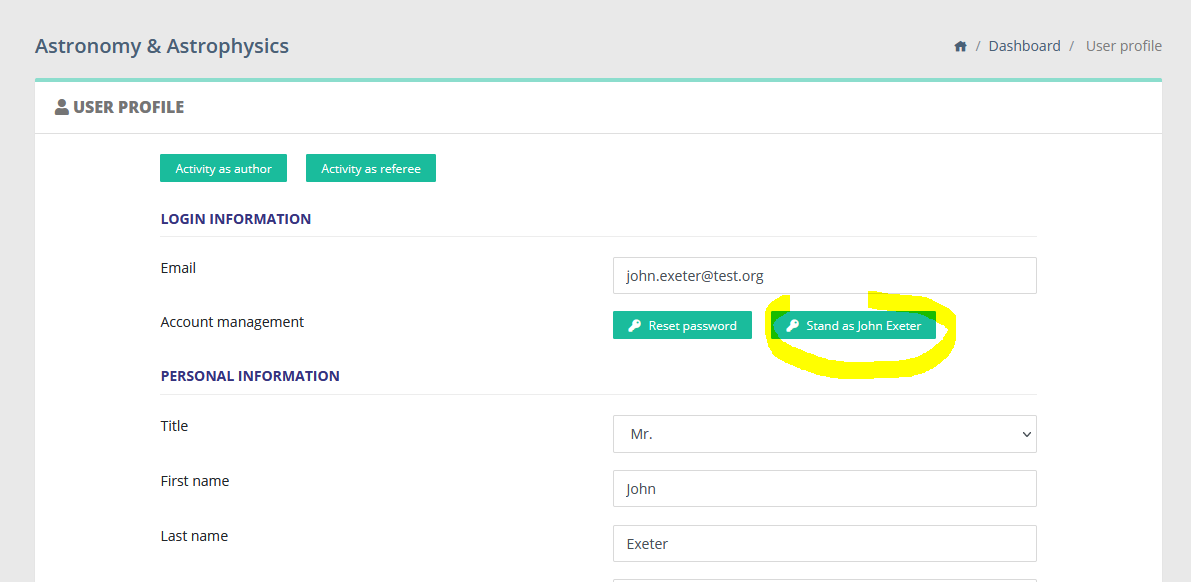
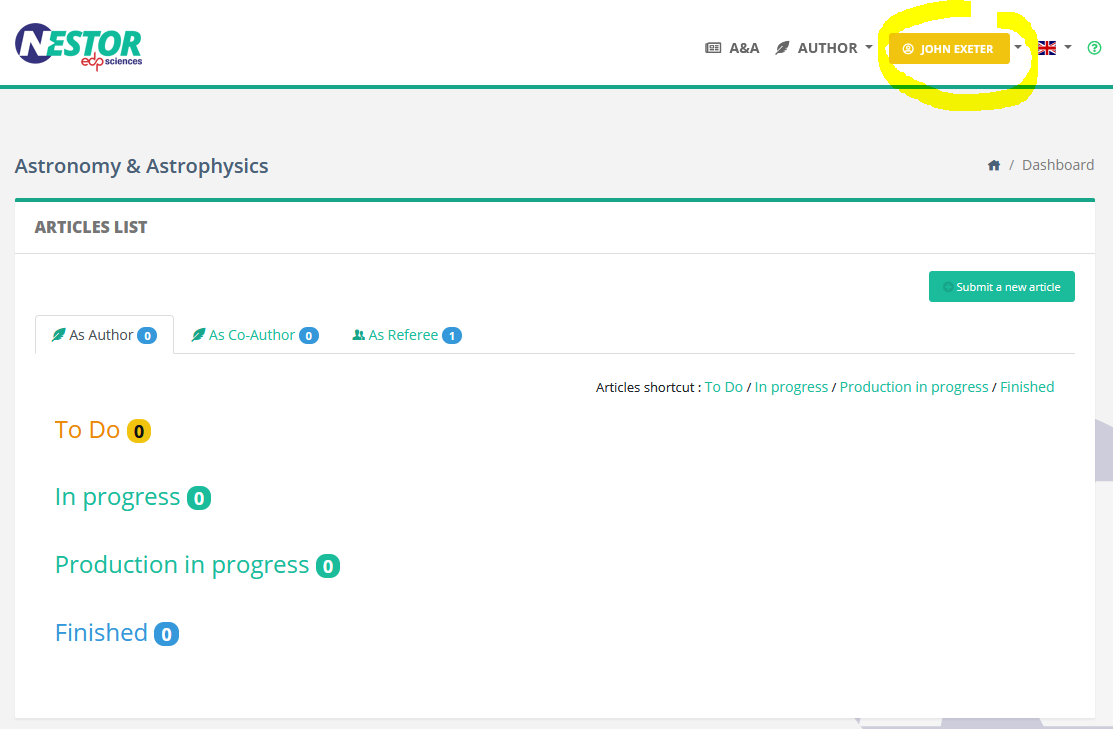
From that point on, the administrator can execute actions on behalf of this user.
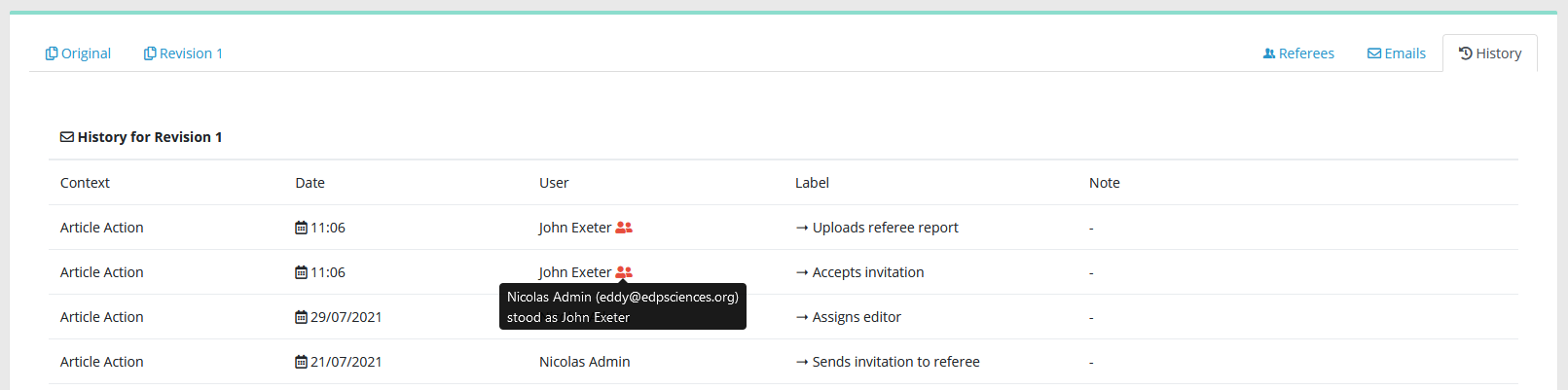
Any action recorded in the article history will appear as executed by the impersonated user, with a special note:
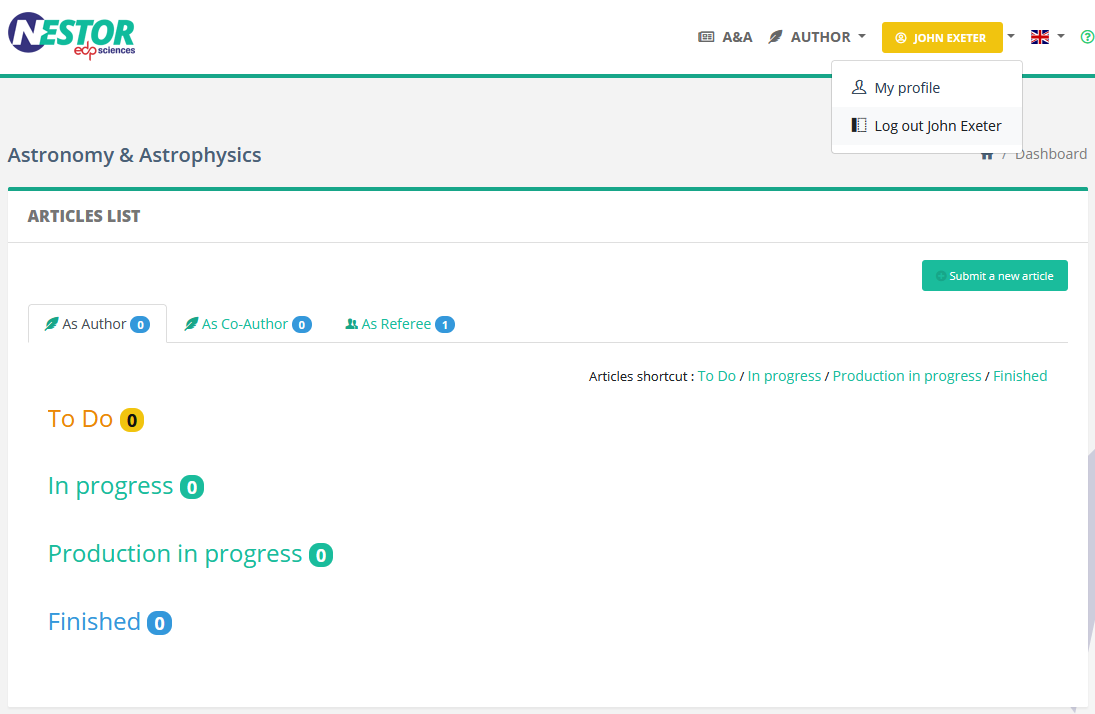
To leave the user account, the administrator simply has to log out as usual. He will be redirected to his own account:
How to send files to Similarity Check?
Nestor can send files to Similarity Check (SC). SC can be triggered either manually or automatically.
Automatic Similarity Check
Automatic SC is defined at the file type level. The conditions are the following:
- the auto SC box type must be checked in the file type
- this is the first version of the article
- the file is either DOC or PDF
- the file must not exceed 20 MB
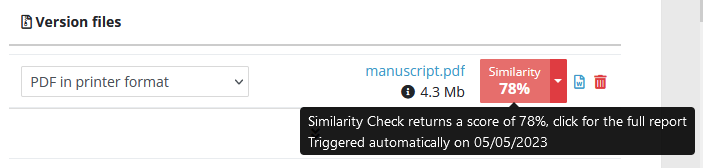
If all these conditions are met, the file is automatically sent to SC when the author completes the submission. This will return a similarity percentage that you can retrieve in the file module:
Manual Similarity Check
On an article, in the file management module, the SC button will appear if the following conditions are met:
- your profile must have the right to use SC
- the file is either DOC or PDF
- the file must not exceed 20 MB
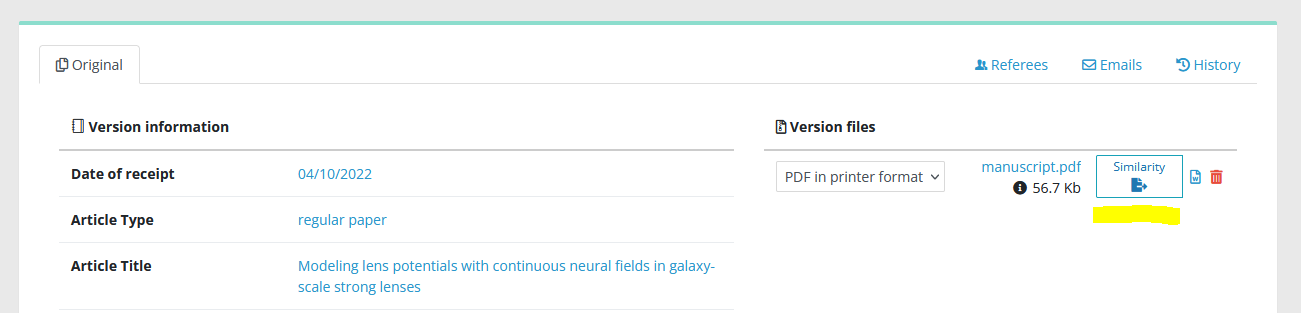
Push the button, and let simmer a few minutes…

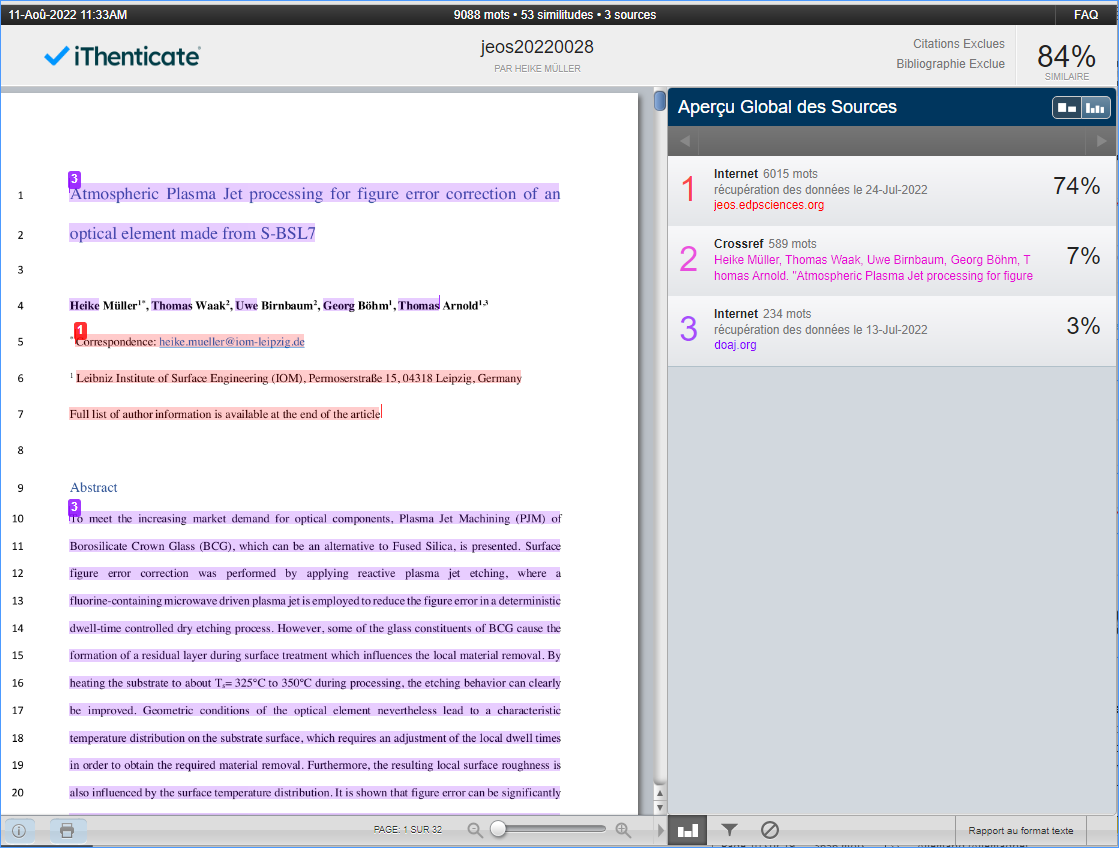
Nestor will then display the similarity result, clicking the percentage will lead you to the full report in iThenticate.
How can I set up automatic reminders?
Have a look at this page ʕ•ᴥ•ʔ