# Presentation of the general interface
# Menus
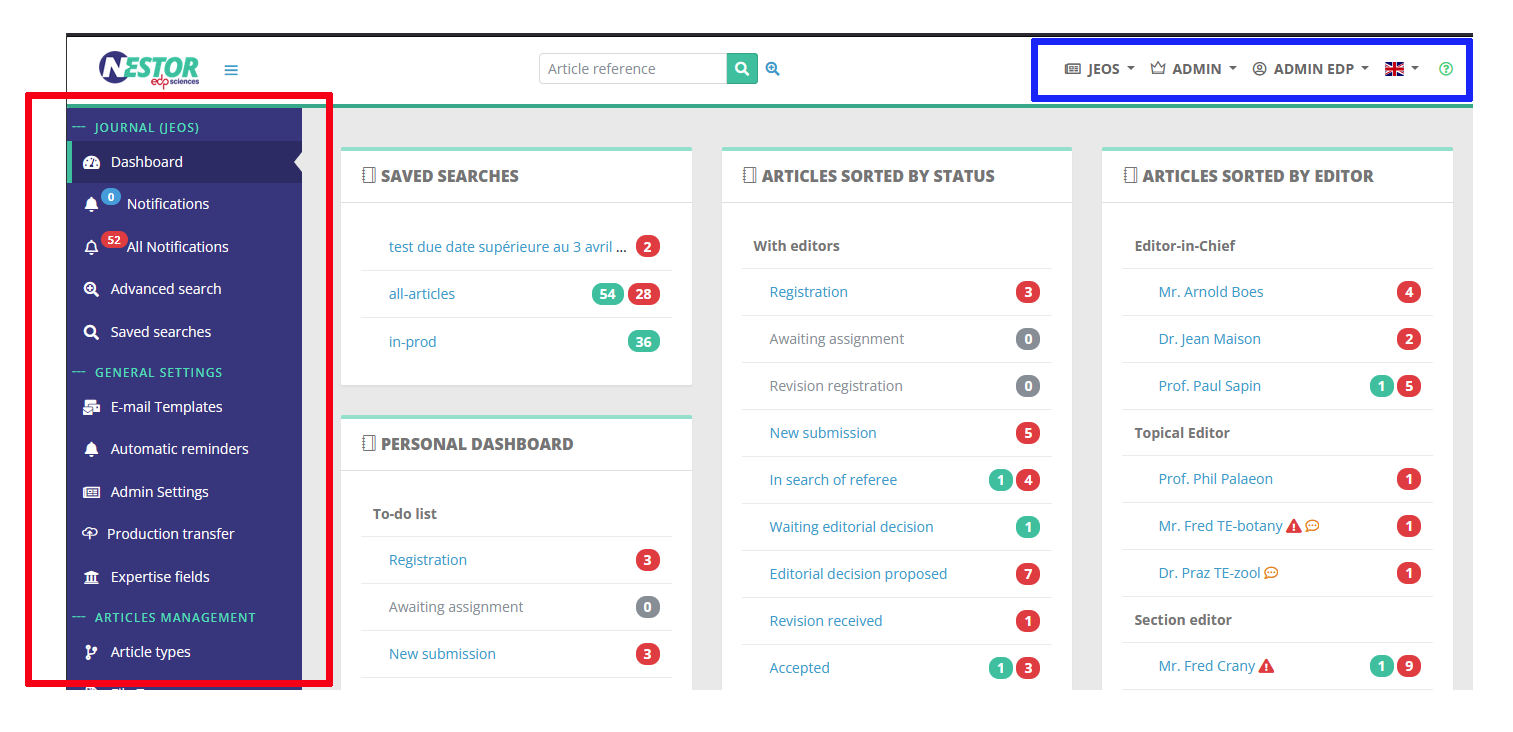
On the editorial home page, two menus are available:
- the left vertical menu, which features:
- search tools
- notification tools
- journal configuration tools (if your profile allows it)
- the upper horizontal menu, to manage your personal account
[](https://doc.nestor-edp.org/uploads/images/gallery/2023-05/k8ts3B9N1xYPuObO-image.png)
# Advanced and saved searches
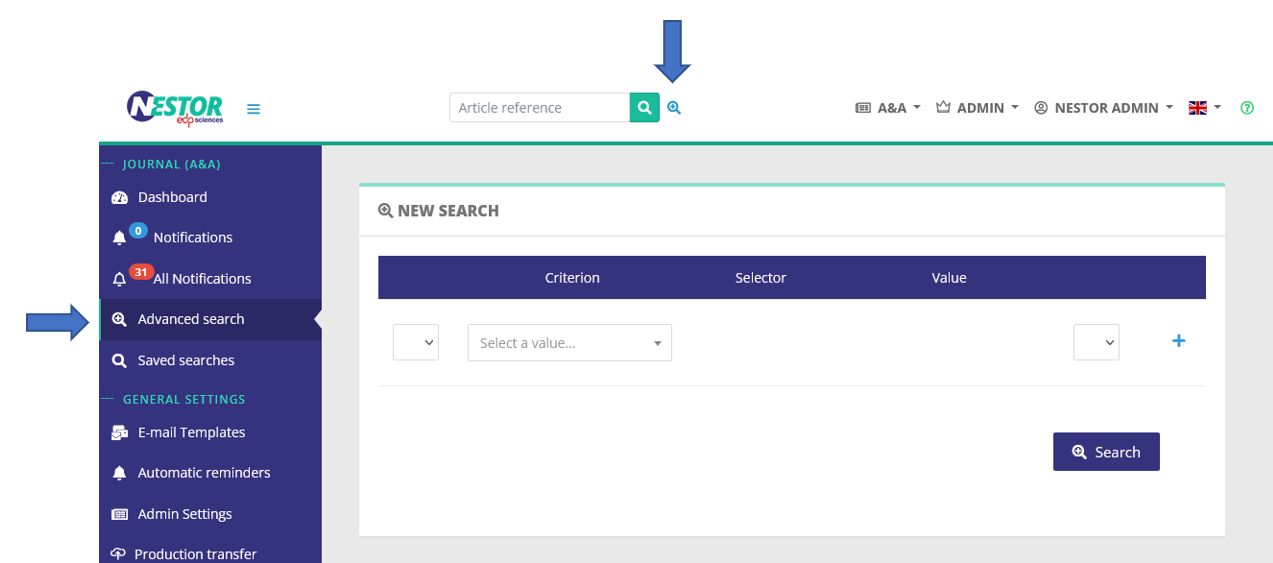
The advanced search is available through two buttons in your interface:
[](https://doc.nestor-edp.org/uploads/images/gallery/2023-06/Uk2yCCrdGZARxhlh-image.png)
### Criteria, operators and groups
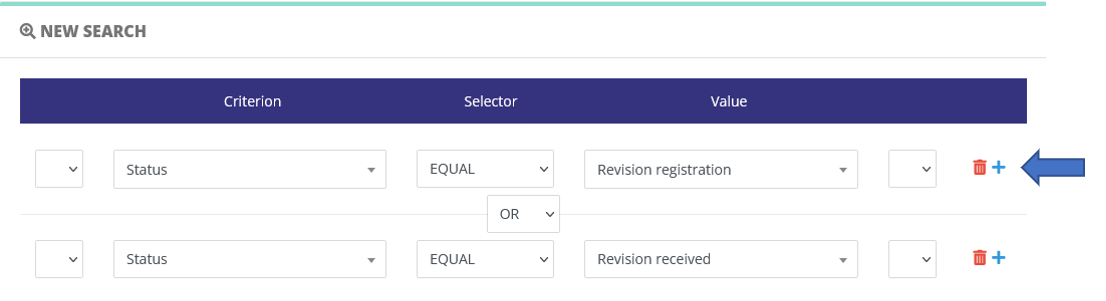
The advanced search allows you to look for articles by combining several criteria with AND and OR operators.
To add a criteria, click on the (+) icon:
[](https://doc.nestor-edp.org/uploads/images/gallery/2023-06/Q7UFOuh8wTOk4sO3-image.png)
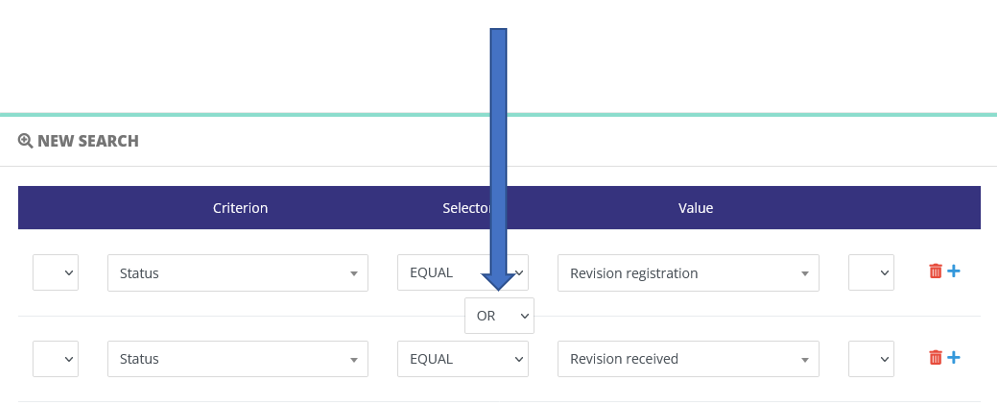
When several criteria are present, they must be combined with a boolean operator:
[](https://doc.nestor-edp.org/uploads/images/gallery/2023-06/IXc1LnqZFgWSZoxK-image.png)
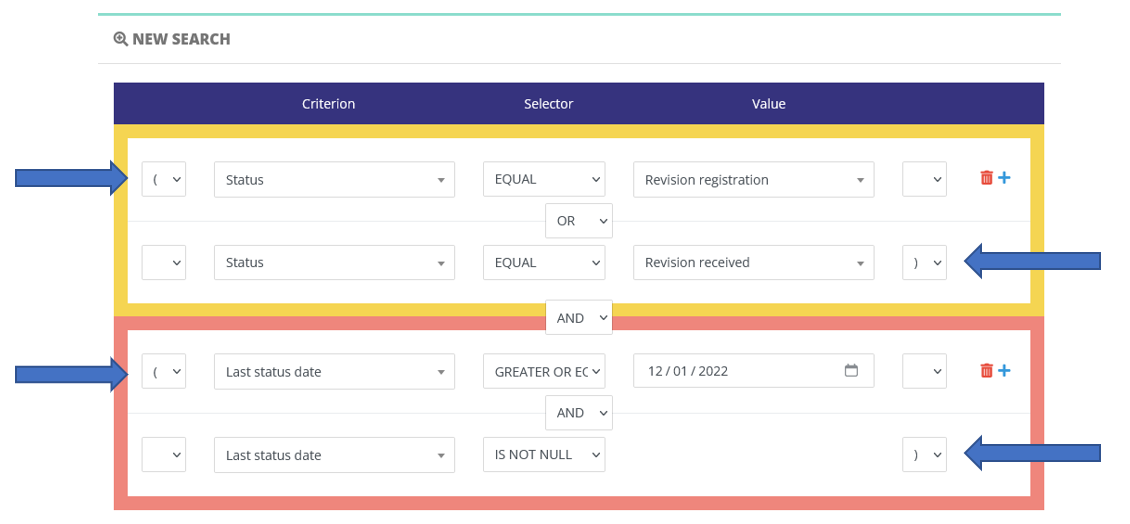
Criteria can be grouped to refine your search. Groups are created using parentheses:
[](https://doc.nestor-edp.org/uploads/images/gallery/2023-06/PloUDMMeNQDsPX9V-image.png)
### Advanced search: a case study
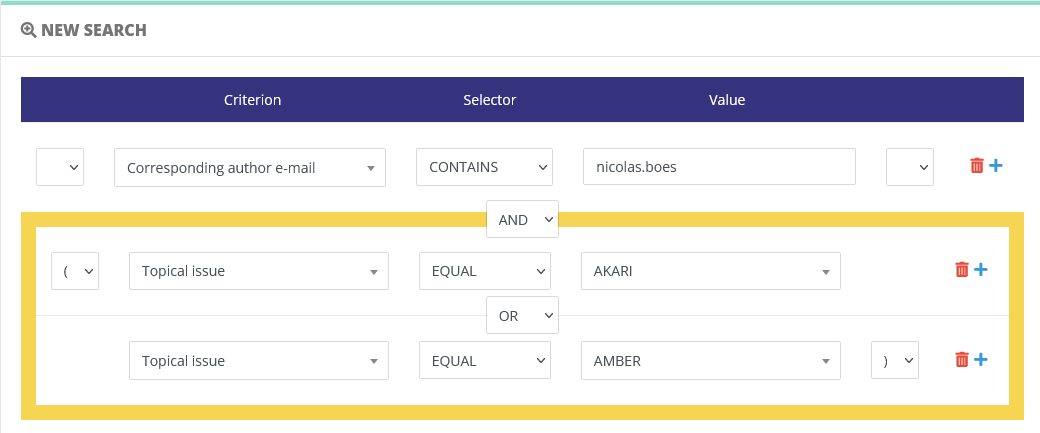
For example, let us search for papers:
- submitted by one specific author
- for two different special issues
The search request will look like this, where we specify:
- the author's login in the first line
- then search the topical issues by using a group:
[](https://doc.nestor-edp.org/uploads/images/gallery/2023-06/3mvvm67Bg68c78fw-image.png)
### Saving search criteria
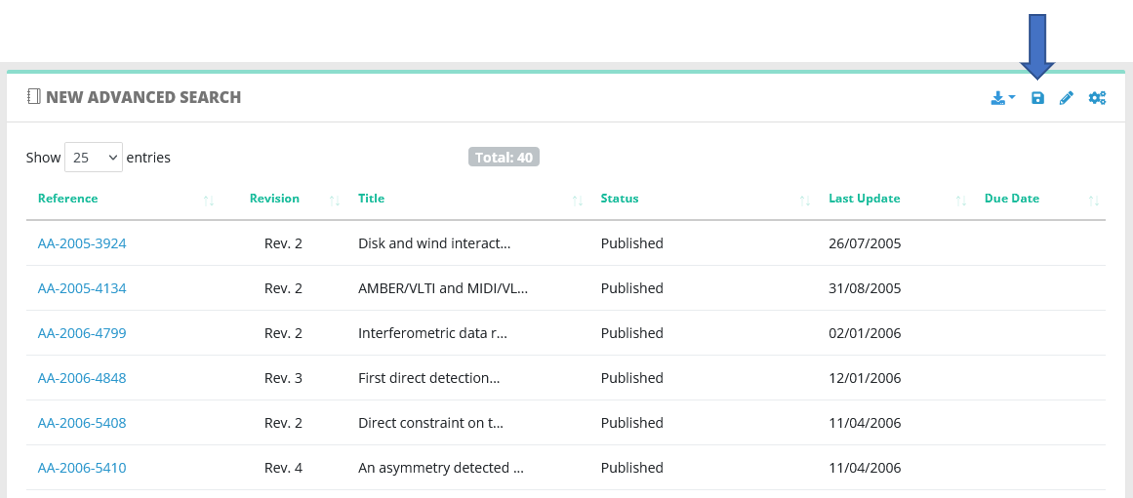
Once the search is launched and you visualize results, you can save the criteria:
[](https://doc.nestor-edp.org/uploads/images/gallery/2023-06/rR5Mru6vg1paSHoQ-image.png)
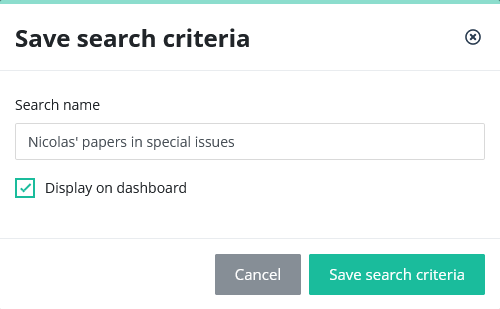
To save the search, you must input a name, and can optionnally display a shortcut in your dashboard:
[](https://doc.nestor-edp.org/uploads/images/gallery/2023-06/DzgAfjDUnhQt6Xmn-image.png)
You will retrieve your saved searches here:
[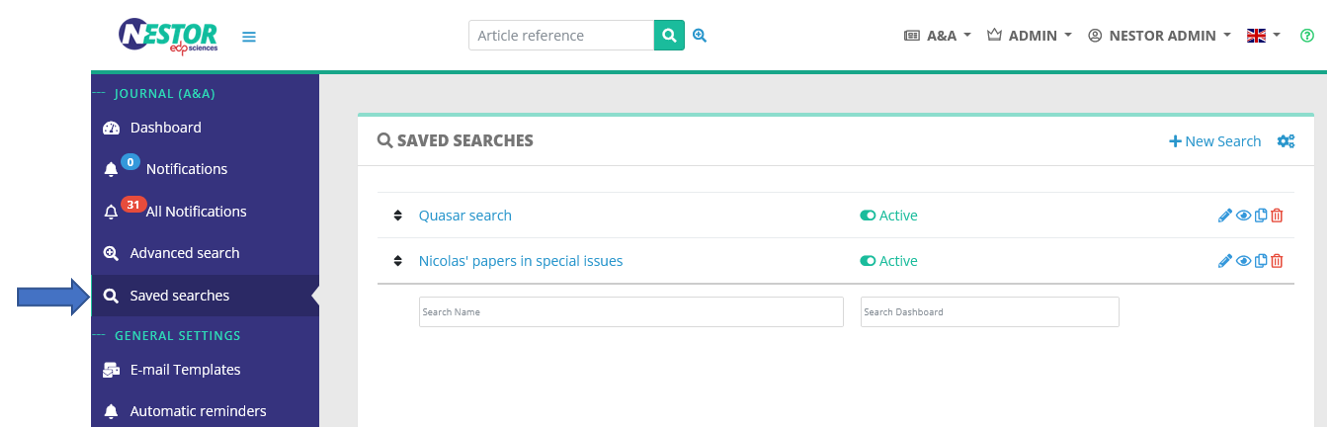](https://doc.nestor-edp.org/uploads/images/gallery/2023-06/BQvVngbkEWfykEql-image.png)
and in your dashboard if you activated the option:
[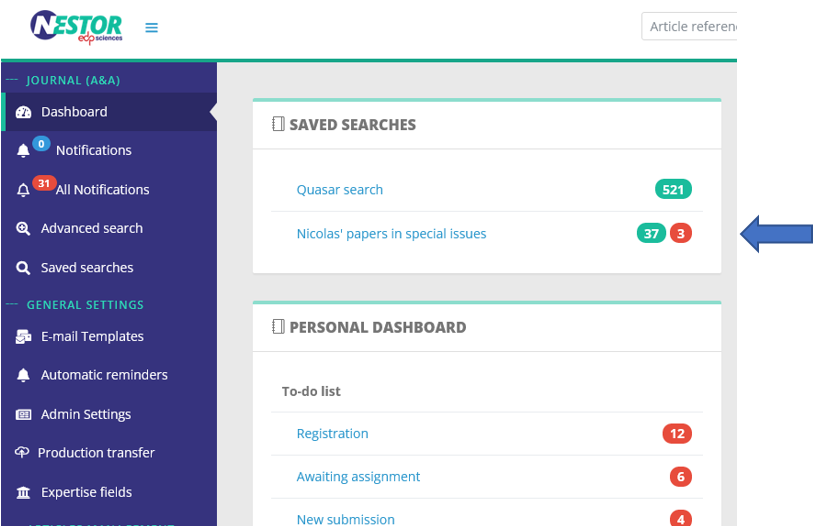](https://doc.nestor-edp.org/uploads/images/gallery/2023-06/UY3p9EnoOCOXx4TD-image.png)
### Editing/duplicating search criteria
Saved searches can be conveniently edited and duplicated when necessary, using those two buttons:
[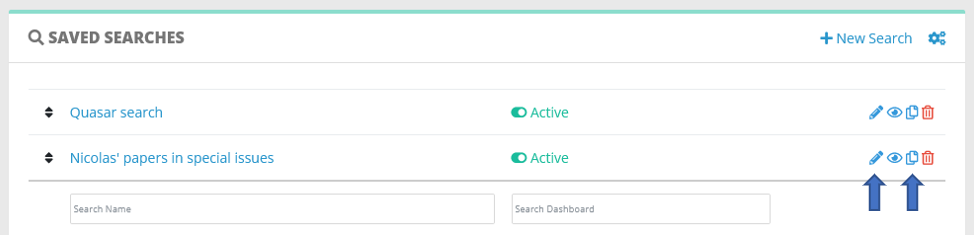](https://doc.nestor-edp.org/uploads/images/gallery/2023-06/sbpgDCPxgXx3nGpq-image.png)
# Dashboards, status and counters
Nestor dashboards offer a quick overview of the journal activity, sorting articles by status and counting them.
- **Red counters sum up articles where [the due date ](https://doc.nestor-edp.org/books/editor-guide/page/the-due-date)is exceeded
**
- **Green counters sum up articles where [the due date ](https://doc.nestor-edp.org/books/editor-guide/page/the-due-date)is not exceeded**
---
##### Standard dashboards
Every editor has access to:
- The saved searches area, which contains links to your [favorite searches](https://doc.nestor-edp.org/books/editor-guide/page/advanced-and-saved-searches "Advanced search").
- The personal dashboard, listing the articles you are [in charge of.](https://doc.nestor-edp.org/books/editor-guide/chapter/editor-assignment-and-responsibility)
[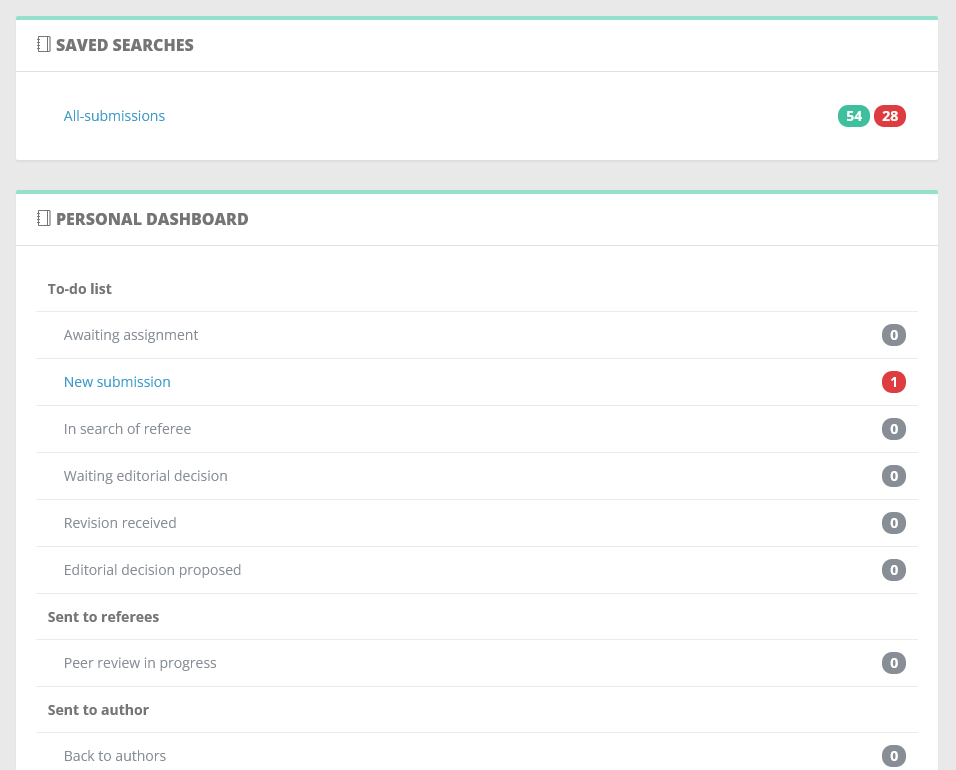](https://doc.nestor-edp.org/uploads/images/gallery/2023-05/zo9yhavZv7vekrZY-image.png)
---
##### A brief overview of the workflow
The workflow has been divided into functional steps called statuses. For each status, Nestor expects a reply from the indicated user, and use [the due date](https://doc.nestor-edp.org/books/editor-guide/page/the-due-date) to calculate delays.
Below is a diagram of the Nestor workflow. Blue boxes represent editorial statuses: these will appear in your to-do list and require your attention! Starred statuses allow you to take the common actions:
- ask for a revision
- take a final decision
- or send the paper to the referees
[](https://doc.nestor-edp.org/uploads/images/gallery/2025-08/oYKQs7anxBFJiMW2-image.png)
---
#### Special dashboards
Additionally, and according to your profile rights, you may have access to
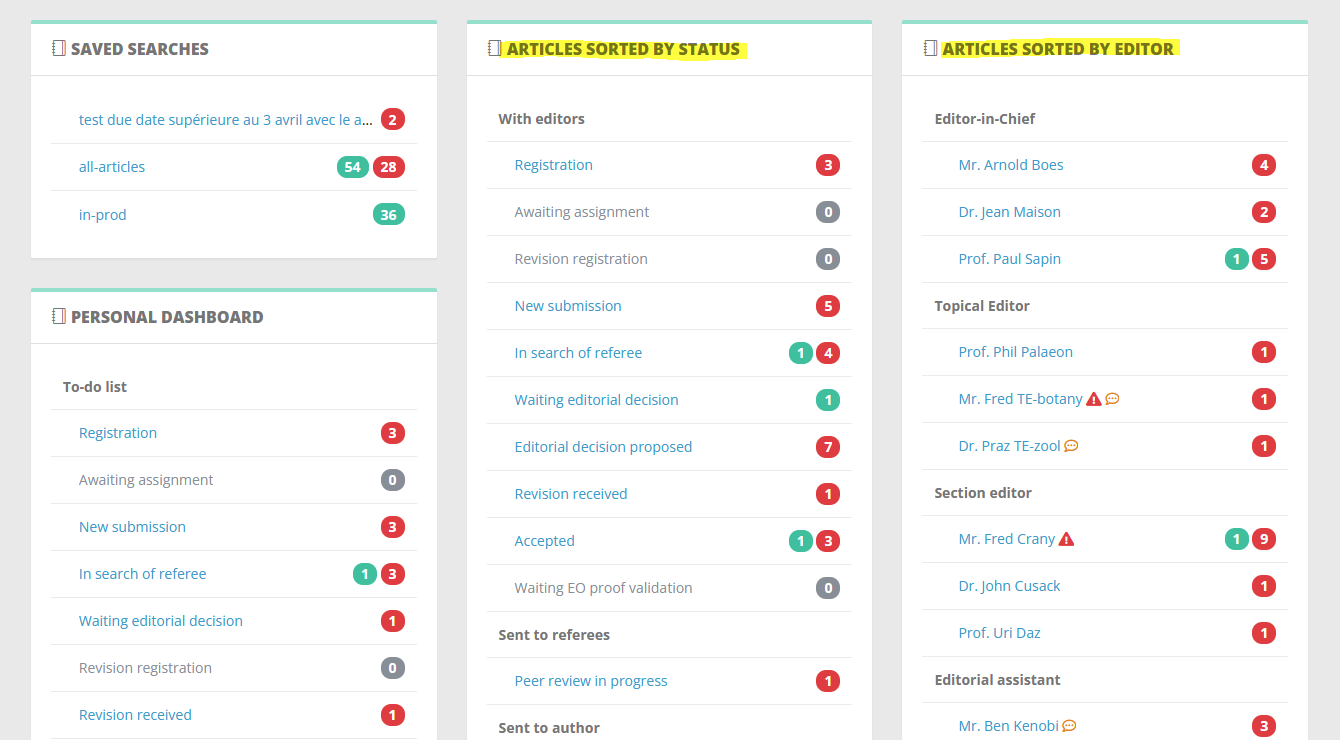
- A list of all articles sorted by status (more relevant for editorial offices)
- A list of all articles sorted by editors (usually used by editors-in-chief);
[](https://doc.nestor-edp.org/uploads/images/gallery/2023-05/RhMFbP8LTTrTNo7L-image.png)
# Articles lists: views and exports
#### Overview
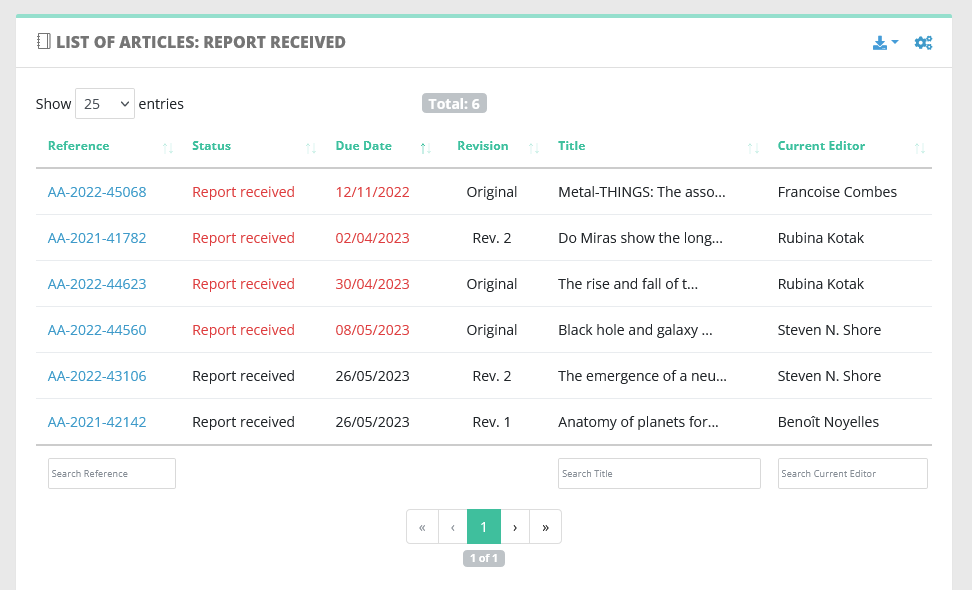
From the dashboard, clicking on a status will lead you to the list of articles matching the status:
[](https://doc.nestor-edp.org/uploads/images/gallery/2023-05/zIuJEqGKvvWUf8NY-image.png)
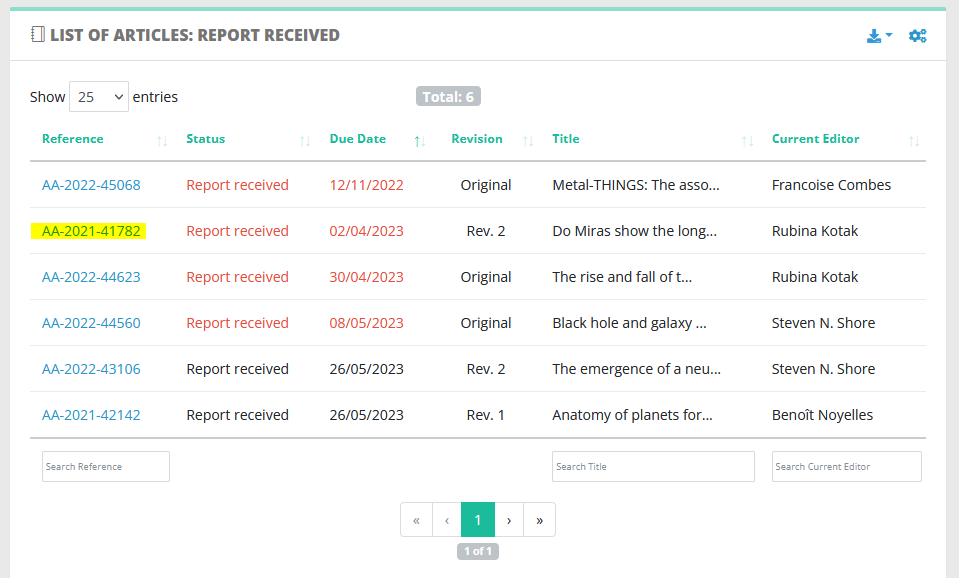
From this list, you can reach any article just by clicking on the reference. Articles with red statuses have their due date exceeded:
[](https://doc.nestor-edp.org/uploads/images/gallery/2023-05/CsT2bwd4DZUu9VPN-capture1.PNG)
#### Customizing displayed columns
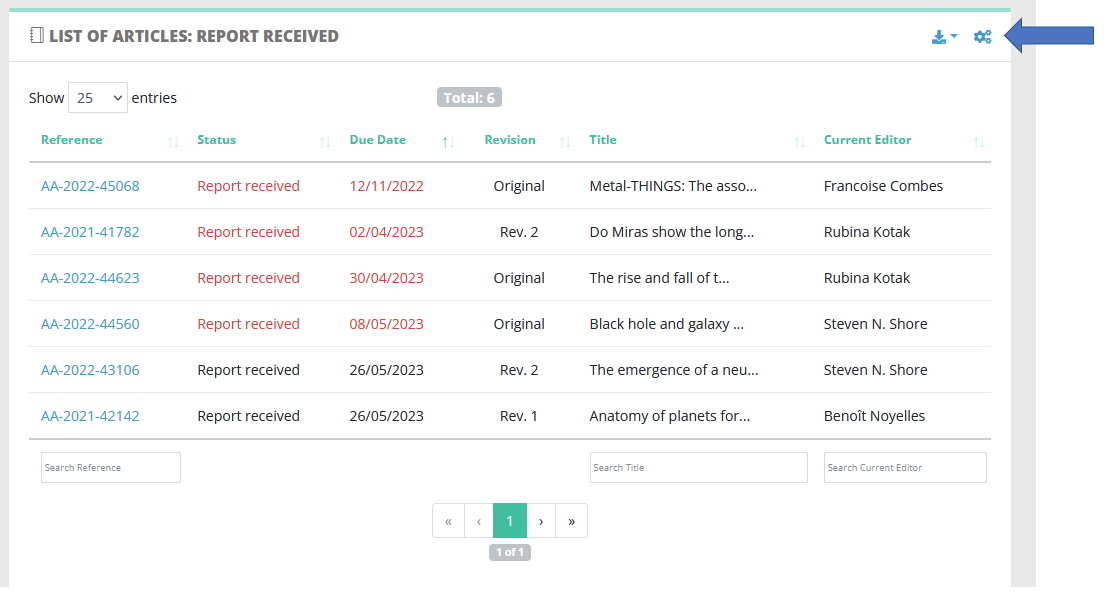
Columns can be customized to suit your needs:
[](https://doc.nestor-edp.org/uploads/images/gallery/2023-05/FGQAD5sbTMsLo1Ya-image.png)
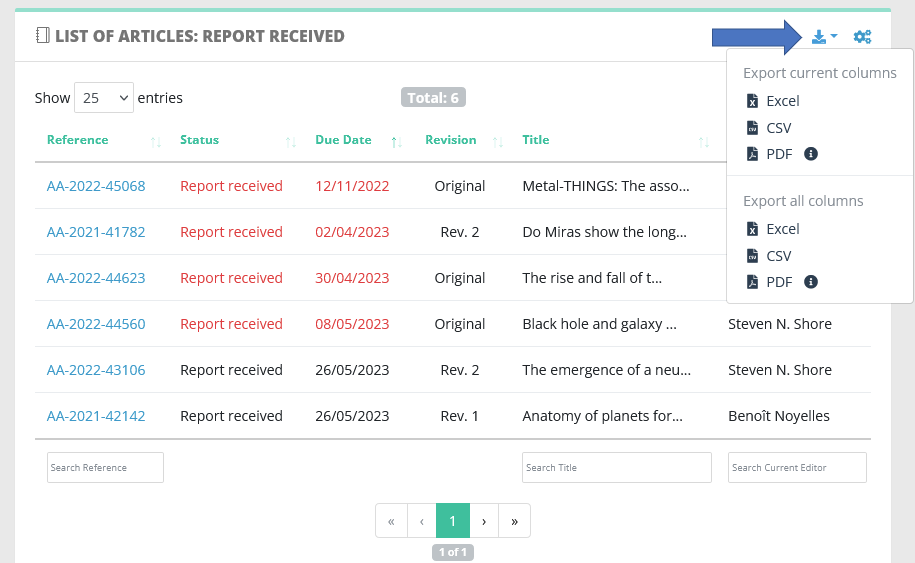
#### Exporting lists
Article lists can be easily exported using the export tool:
[](https://doc.nestor-edp.org/uploads/images/gallery/2023-05/sqTVO2RORVoA5xLC-image.png)