# Configuration guide

# Categorization of articles


# Article types

Article types are the main entry point to configure the workflow. They are created, edited, or deleted on this page:

[![image.png](https://doc.nestor-edp.org/uploads/images/gallery/2026-08/scaled-1680-/yRCYpZxrAyn0Z0uR-image.png)](https://doc.nestor-edp.org/uploads/images/gallery/2026-08/yRCYpZxrAyn0Z0uR-image.png)

Clicking on the edit icon [![image.png](https://doc.nestor-edp.org/uploads/images/gallery/2026-08/scaled-1680-/Gnq2Q5tnj0GhvpCQ-image.png) ](https://doc.nestor-edp.org/uploads/images/gallery/2026-08/Gnq2Q5tnj0GhvpCQ-image.png)will get you to the configuration for this article type:

- The [submission workflow](https://doc.nestor-edp.org/books/configuration-guide/page/submission) (information required to the authors during submission)
- The [technical check workflow](https://doc.nestor-edp.org/books/configuration-guide/page/technical-check)
- The [peer review workflow](https://doc.nestor-edp.org/books/configuration-guide/page/peer-review)
- Due dates for authors, editors and referees: this serve as a basis to compute the [status due date](https://doc.nestor-edp.org/books/editor-guide/page/the-due-date "The due date") and [reminders](https://doc.nestor-edp.org/books/configuration-guide/page/configuration-of-automatic-reminders "Configuration of automatic reminders")

# Standard categorizations

Nestor provides a wide choice of tools to categorize articles:

[![image.png](https://doc.nestor-edp.org/uploads/images/gallery/2023-06/scaled-1680-/w8wsArfxAWDPsiNu-image.png)](https://doc.nestor-edp.org/uploads/images/gallery/2023-06/w8wsArfxAWDPsiNu-image.png)

For a specific article, those categories are available and may be corrected in the [metadata module](https://doc.nestor-edp.org/books/editor-guide/page/the-metadata-module "The metadata module").

<table border="1" id="bkmrk-category-name-partic" style="border-collapse: collapse; width: 100%; height: 289.6px;"><colgroup><col style="width: 16.9356%;"></col><col style="width: 83.0644%;"></col></colgroup><tbody><tr style="height: 29.8px;"><td style="height: 29.8px;">**Category name**</td><td style="height: 29.8px;">**Particularities**  
</td></tr><tr style="height: 76.15px;"><td style="height: 76.15px;">Expertise fields</td><td style="height: 76.15px;">- Tree structure
- Used to categorize articles <span style="text-decoration: underline;">and</span> users, to improve editors/referees matches for a given article

</td></tr><tr style="height: 76.15px;"><td style="height: 76.15px;">Article types  
</td><td style="height: 76.15px;">- Flat list
- Used for [workflow configuration](https://doc.nestor-edp.org/books/configuration-guide/chapter/workflow-configuration)

</td></tr><tr style="height: 53.75px;"><td style="height: 53.75px;">Sections</td><td style="height: 53.75px;">- Flat list

</td></tr><tr style="height: 53.75px;"><td style="height: 53.75px;">Topical issues</td><td style="height: 53.75px;">- Flat list

</td></tr></tbody></table>

These categories can be updated automatically:

- - [when sending an e-mail](https://doc.nestor-edp.org/books/configuration-guide/page/attaching-rules-to-templates)
    - [when the author answers a submission questionnaire](https://doc.nestor-edp.org/books/configuration-guide/page/configuration-of-questionnaires)

These categories may be used in combination to:

- handle [specific workflows](https://doc.nestor-edp.org/books/configuration-guide/chapter/workflow-configuration)
- dispatch articles to editors with [automatic assignments](https://doc.nestor-edp.org/books/configuration-guide/page/editorial-assignments#bkmrk-automatic-assignment)
- perform [advanced searches](https://doc.nestor-edp.org/books/editor-guide/page/advanced-and-saved-searches) on articles
- display [visual flags](https://doc.nestor-edp.org/books/configuration-guide/page/flags) on article pages and article lists
- [process data](https://doc.nestor-edp.org/books/editor-guide/page/articles-lists-views-and-exports) about your journal

# Special categorizations: custom fields

Custom fields are a way to categorize articles in any way besides [standard categorizations](https://doc.nestor-edp.org/books/configuration-guide/page/standard-categorizations). They can be quite simple (text, date etc.), or they can be used to create special options related to your journal.

For a specific article, custom fields are available and may be corrected in the [metadata module](https://doc.nestor-edp.org/books/editor-guide/page/the-metadata-module "The metadata module").

[![image.png](https://doc.nestor-edp.org/uploads/images/gallery/2026-02/scaled-1680-/DZ0fuaUwlgxiJJTT-image.png)](https://doc.nestor-edp.org/uploads/images/gallery/2026-02/DZ0fuaUwlgxiJJTT-image.png)

---

Custom fields configuration is available here:

[![image.png](https://doc.nestor-edp.org/uploads/images/gallery/2026-02/scaled-1680-/vR6fhJLHSWEwzSNg-image.png)](https://doc.nestor-edp.org/uploads/images/gallery/2026-02/vR6fhJLHSWEwzSNg-image.png)

---

### Simple custom fields

There are five types of "simple" custom fields:

[![image.png](https://doc.nestor-edp.org/uploads/images/gallery/2023-05/scaled-1680-/o3SqDneEI39HxTLl-image.png)](https://doc.nestor-edp.org/uploads/images/gallery/2023-05/o3SqDneEI39HxTLl-image.png)

For example, let us imagine that for each article, I want to track the number of pages.

I can configure a custom field accepting only numbers, so:

![image.png](https://doc.nestor-edp.org/uploads/images/gallery/2023-05/scaled-1680-/J5QfSZnKPQYvCcRl-image.png)

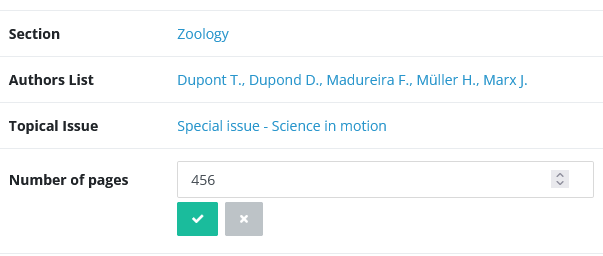
In the article page, I will retrieve my field and can input the relevant data for this article:

<table border="1" id="bkmrk--5" style="border-collapse: collapse; width: 74.321%;"><colgroup><col style="width: 100%;"></col></colgroup><tbody><tr><td>[![image.png](https://doc.nestor-edp.org/uploads/images/gallery/2023-05/scaled-1680-/ziVGFmSqBABKLSEX-image.png)](https://doc.nestor-edp.org/uploads/images/gallery/2023-05/ziVGFmSqBABKLSEX-image.png)

</td></tr></tbody></table>

---

### List custom fields

The custom fields **select / checkbox / radio** are used to create a flat list of selectable options. When creating such a custom field, you will have to provide the corresponding list of options:

[![image.png](https://doc.nestor-edp.org/uploads/images/gallery/2023-05/scaled-1680-/clW0kiuY4ztfhejm-image.png)](https://doc.nestor-edp.org/uploads/images/gallery/2023-05/clW0kiuY4ztfhejm-image.png)

The configured options will then be selectable in the article page:

[![image.png](https://doc.nestor-edp.org/uploads/images/gallery/2023-05/scaled-1680-/AxvJouvjaXpUNaGD-image.png)](https://doc.nestor-edp.org/uploads/images/gallery/2023-05/AxvJouvjaXpUNaGD-image.png)

---

### Custom fields and other tools

- Custom fields can be updated automatically: 
    - [when sending an e-mail](https://doc.nestor-edp.org/books/configuration-guide/page/attaching-rules-to-templates)
    - [when the author answers a submission questionnaire](https://doc.nestor-edp.org/books/configuration-guide/page/configuration-of-questionnaires)

- Custom fields can be used to:  
    
    - handle [specific workflows](https://doc.nestor-edp.org/books/configuration-guide/chapter/workflow-configuration)
    - dispatch articles to editors with [automatic assignments](https://doc.nestor-edp.org/books/configuration-guide/page/editorial-assignments#bkmrk-automatic-assignment)
    - perform [advanced searches](https://doc.nestor-edp.org/books/editor-guide/page/advanced-and-saved-searches) on articles
    - display [visual flags](https://doc.nestor-edp.org/books/configuration-guide/page/flags) on article pages and article lists
    - [process data](https://doc.nestor-edp.org/books/editor-guide/page/articles-lists-views-and-exports) about your journal

# File types

File types may be configured in the journal configuration, where file types are listed, and may be created, updated, or deleted:

[![image.png](https://doc.nestor-edp.org/uploads/images/gallery/2023-06/scaled-1680-/Y6mktLAX6wfFN2en-image.png)](https://doc.nestor-edp.org/uploads/images/gallery/2023-06/Y6mktLAX6wfFN2en-image.png)

Clicking on “Edit file type” will get you to the file type configuration, where the following options must be edited for any given file type:

- General setting (labels and activation)
- Workflow settings, related to submission and [Similarity Check](https://doc.nestor-edp.org/books/configuration-guide/page/how-to-send-files-to-similarity-check "How to send files to Similarity Check?")
- Automatic renaming and extension checks:
- [![image.png](https://doc.nestor-edp.org/uploads/images/gallery/2024-06/scaled-1680-/Lrtvs7oUdd7ANyu2-image.png)](https://doc.nestor-edp.org/uploads/images/gallery/2024-06/Lrtvs7oUdd7ANyu2-image.png)
- Visibility settings

# Flags

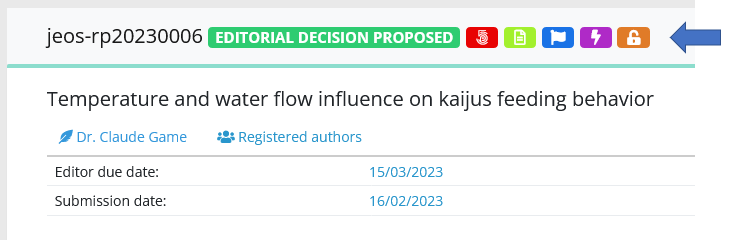
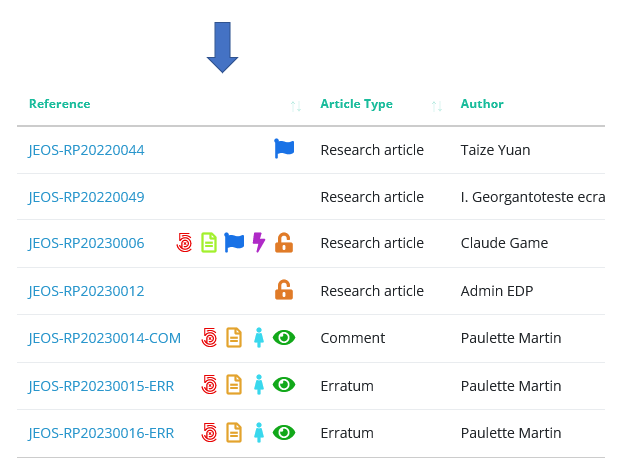
Flags are symbols displayed on articles, to help editors to identify important information. They are visible both in [articles pages](https://doc.nestor-edp.org/books/editor-guide/page/upper-area-the-main-information "Presentation of the article page") and in [articles lists](https://doc.nestor-edp.org/books/editor-guide/page/articles-lists-views-and-exports "Articles lists: views and exports").

<table border="1" id="bkmrk-flags-on-the-article" style="border-collapse: collapse; width: 100%; height: 111.8px;"><colgroup><col style="width: 50%;"></col><col style="width: 50%;"></col></colgroup><tbody><tr style="height: 35.4px;"><td style="height: 35.4px;">**Flags on the article page**  
</td><td style="height: 35.4px;">**Flags in article lists**  
</td></tr><tr style="height: 46.6px;"><td style="height: 46.6px;">In article pages, flags are displayed in the upper information area, near the reference and the status  
</td><td style="height: 46.6px;">In article lists, flags are displayed next to the reference  
</td></tr><tr style="height: 29.8px;"><td style="height: 29.8px;">[![image.png](https://doc.nestor-edp.org/uploads/images/gallery/2023-05/scaled-1680-/iDcrrxTk1gkD9maC-image.png)](https://doc.nestor-edp.org/uploads/images/gallery/2023-05/iDcrrxTk1gkD9maC-image.png)

</td><td style="height: 29.8px;">[![image.png](https://doc.nestor-edp.org/uploads/images/gallery/2023-05/scaled-1680-/hWQiJkFVwPhnZg56-image.png)](https://doc.nestor-edp.org/uploads/images/gallery/2023-05/hWQiJkFVwPhnZg56-image.png)

</td></tr></tbody></table>

### Configuring flags

Flags are based on the article metadata and [categorizations. ](https://doc.nestor-edp.org/books/configuration-guide/page/standard-categorizations)The following data can be flagged:

- Article type
- Section
- Topical issue
- Country
- Any [list custom field](https://doc.nestor-edp.org/books/configuration-guide/page/special-categorizations-custom-fields#bkmrk-list-custom-fields) (select, check boxes, radio buttons)

#### Flags: a case study

For example, we want to closely follow articles submitted for a 2023 special issue. Let us create this flag:

[![image.png](https://doc.nestor-edp.org/uploads/images/gallery/2023-05/scaled-1680-/ZgPrZ1k1CcoDHYOK-image.png)](https://doc.nestor-edp.org/uploads/images/gallery/2023-05/ZgPrZ1k1CcoDHYOK-image.png)

Any article included in this topical issue will be flagged accordingly:

[![image.png](https://doc.nestor-edp.org/uploads/images/gallery/2023-05/scaled-1680-/BuOuhuzcY4LLx7vP-image.png)](https://doc.nestor-edp.org/uploads/images/gallery/2023-05/BuOuhuzcY4LLx7vP-image.png)

# Data exports

Exporting data from Nestor is a simple process, please have a look [here](https://doc.nestor-edp.org/books/editor-guide/page/articles-lists-views-and-exports) :)

# Workflow configuration

The workflow is defined at the article type level. However, please also ensure that your users can execute relevant actions (such as technical checks, assignments, decisions...): check the next chapter for more details.

# Workflow summary

<span lang="EN-US" style="mso-bidi-font-family: Calibri; mso-ansi-language: EN-US;">The </span><span lang="EN-US" style="mso-bidi-font-family: Calibri; mso-ansi-language: EN-US;">workflow is divided into statuses, an article will go through a series of statuses to reach a final decision.</span>

<span lang="EN-US" style="mso-bidi-font-family: Calibri; mso-ansi-language: EN-US;">Below is a diagram of the Nestor workflow. </span><span lang="EN-US" style="mso-bidi-font-family: Calibri; mso-ansi-language: EN-US;">For each status, Nestor expects an action from the indicated user, and use [the due date](https://doc.nestor-edp.org/books/editor-guide/page/the-due-date) to calculate delays.</span>

Blue boxes represent editorial statuses: they will appear in editors' to-do list and require your attention!

[![image.png](https://doc.nestor-edp.org/uploads/images/gallery/2026-08/scaled-1680-/Baw7CPLDN5f4FaDL-image.png)](https://doc.nestor-edp.org/uploads/images/gallery/2026-08/Baw7CPLDN5f4FaDL-image.png)

Some parts of the workflow are highly configurable, namely:

- [the technical check ](https://doc.nestor-edp.org/books/configuration-guide/page/technical-check)(status; Registration / RV registration)
- [editors' assignments](https://doc.nestor-edp.org/books/configuration-guide/page/editorial-assignments) (status: awaiting assignment)
- [the peer review system](https://doc.nestor-edp.org/books/configuration-guide/page/peer-review) (status; in search of referee / peer review)
- [the decision workflow](https://doc.nestor-edp.org/books/configuration-guide/page/decisions-the-recommendation-system) (new submission / waiting decision / revision received)

Configuring these usually involves:

- Checking the workflow options in the [article type](https://doc.nestor-edp.org/books/configuration-guide/page/article-types), to ensure the workflow is enabled
- Checking the [editors' rights](https://doc.nestor-edp.org/books/configuration-guide/chapter/configuration-of-user-rights) according to their profile, to ensure at least one editor can handle the workflow
- Cheking relevant [mail templates](https://doc.nestor-edp.org/books/configuration-guide/chapter/configuration-of-e-mail-templates-and-reminders) triggered by workflow events, to ensure the letters format match your journal needs

# Submission

---

Before configuring the submission workflow, please ensure the following are defined properly in your journal:

- [File types](https://doc.nestor-edp.org/books/configuration-guide/page/file-types)! Many options are available here, such as auto-renaming, extension constraints, visibility etc
- [Article categorizations (metadata)](https://doc.nestor-edp.org/books/configuration-guide/chapter/categorization-of-articles)

---

### Article type configuration

Once the above are defined, the submission workflow is easily configured at the [article type level](https://doc.nestor-edp.org/books/configuration-guide/page/article-types), where specific file types and metadata may be requested at submission or revision.

Two practical examples:

- A cover letter may be mandatory on a regular article, but not on a preface article.
- A first submission will never require a reply to the referee, while a revised version will often needs one.

For each article type, you may configure:

- Required [files](https://doc.nestor-edp.org/books/configuration-guide/page/file-types)

[![image.png](https://doc.nestor-edp.org/uploads/images/gallery/2026-08/scaled-1680-/yTyFWyY5QDvXndZv-image.png)](https://doc.nestor-edp.org/uploads/images/gallery/2026-08/yTyFWyY5QDvXndZv-image.png)

- Required [metadata](https://doc.nestor-edp.org/books/configuration-guide/page/standard-categorizations)

[![image.png](https://doc.nestor-edp.org/uploads/images/gallery/2026-08/scaled-1680-/86bjQW8fXGdUjqEh-image.png)](https://doc.nestor-edp.org/uploads/images/gallery/2026-08/86bjQW8fXGdUjqEh-image.png)

- Co-authors registration workflow

[![image.png](https://doc.nestor-edp.org/uploads/images/gallery/2026-08/scaled-1680-/RcZd1Au9PBnaWrq3-image.png)](https://doc.nestor-edp.org/uploads/images/gallery/2026-08/RcZd1Au9PBnaWrq3-image.png)

<div data-alt="" data-collection="contentId-408027179" data-context-id="408027179" data-file-mime-type="image/png" data-file-name="Screenshot_2020-04-22 EDP NESTOR Editor Dashboard(1).png" data-file-size="299739" data-height="822" data-id="171e7ff3-073e-4262-ab5e-8ce52d915cfc" data-node-type="media" data-type="file" data-width="1346" id="bkmrk--4" style="display: inline-block; border-radius: 3px; background: #EBECF0; box-shadow: 0 1px 1px rgba(9, 30, 66, 0.2), 0 0 1px 0 rgba(9, 30, 66, 0.24);" title="Attachment">  
</div><div data-alt="" data-collection="contentId-408027179" data-context-id="408027179" data-file-mime-type="image/png" data-file-name="Screenshot_2020-04-22 EDP NESTOR Editor Dashboard(1).png" data-file-size="299739" data-height="822" data-id="171e7ff3-073e-4262-ab5e-8ce52d915cfc" data-node-type="media" data-type="file" data-width="1346" id="bkmrk--5" style="display: inline-block; border-radius: 3px; background: #EBECF0; box-shadow: 0 1px 1px rgba(9, 30, 66, 0.2), 0 0 1px 0 rgba(9, 30, 66, 0.24);" title="Attachment"></div><div data-alt="" data-collection="contentId-408027179" data-context-id="408027179" data-file-mime-type="image/png" data-file-name="Screenshot_2020-04-22 EDP NESTOR Editor Dashboard(1).png" data-file-size="299739" data-height="822" data-id="171e7ff3-073e-4262-ab5e-8ce52d915cfc" data-node-type="media" data-type="file" data-width="1346" id="bkmrk--6" style="display: inline-block; border-radius: 3px; background: #EBECF0; box-shadow: 0 1px 1px rgba(9, 30, 66, 0.2), 0 0 1px 0 rgba(9, 30, 66, 0.24);" title="Attachment"></div><div data-alt="" data-collection="contentId-408027179" data-context-id="408027179" data-file-mime-type="image/png" data-file-name="Screenshot_2020-04-22 EDP NESTOR Editor Dashboard(1).png" data-file-size="299739" data-height="822" data-id="171e7ff3-073e-4262-ab5e-8ce52d915cfc" data-node-type="media" data-type="file" data-width="1346" id="bkmrk--7" style="display: inline-block; border-radius: 3px; background: #EBECF0; box-shadow: 0 1px 1px rgba(9, 30, 66, 0.2), 0 0 1px 0 rgba(9, 30, 66, 0.24);" title="Attachment"></div><div data-alt="" data-collection="contentId-408027179" data-context-id="408027179" data-file-mime-type="image/png" data-file-name="Screenshot_2020-04-22 EDP NESTOR Editor Dashboard(1).png" data-file-size="299739" data-height="822" data-id="171e7ff3-073e-4262-ab5e-8ce52d915cfc" data-node-type="media" data-type="file" data-width="1346" id="bkmrk--8" style="display: inline-block; border-radius: 3px; background: #EBECF0; box-shadow: 0 1px 1px rgba(9, 30, 66, 0.2), 0 0 1px 0 rgba(9, 30, 66, 0.24);" title="Attachment"></div><div data-alt="" data-collection="contentId-408027179" data-context-id="408027179" data-file-mime-type="image/png" data-file-name="Screenshot_2020-04-22 EDP NESTOR Editor Dashboard(1).png" data-file-size="299739" data-height="822" data-id="171e7ff3-073e-4262-ab5e-8ce52d915cfc" data-node-type="media" data-type="file" data-width="1346" id="bkmrk--9" style="display: inline-block; border-radius: 3px; background: #EBECF0; box-shadow: 0 1px 1px rgba(9, 30, 66, 0.2), 0 0 1px 0 rgba(9, 30, 66, 0.24);" title="Attachment"></div><div data-alt="" data-collection="contentId-408027179" data-context-id="408027179" data-file-mime-type="image/png" data-file-name="Screenshot_2020-04-22 EDP NESTOR Editor Dashboard(1).png" data-file-size="299739" data-height="822" data-id="171e7ff3-073e-4262-ab5e-8ce52d915cfc" data-node-type="media" data-type="file" data-width="1346" id="bkmrk--10" style="display: inline-block; border-radius: 3px; background: #EBECF0; box-shadow: 0 1px 1px rgba(9, 30, 66, 0.2), 0 0 1px 0 rgba(9, 30, 66, 0.24);" title="Attachment"></div><div data-alt="" data-collection="contentId-408027179" data-context-id="408027179" data-file-mime-type="image/png" data-file-name="Screenshot_2020-04-22 EDP NESTOR Editor Dashboard(1).png" data-file-size="299739" data-height="822" data-id="171e7ff3-073e-4262-ab5e-8ce52d915cfc" data-node-type="media" data-type="file" data-width="1346" id="bkmrk--11" style="display: inline-block; border-radius: 3px; background: #EBECF0; box-shadow: 0 1px 1px rgba(9, 30, 66, 0.2), 0 0 1px 0 rgba(9, 30, 66, 0.24);" title="Attachment"></div>---

### Configuration of the submission questionnaire

First, configure your questions to the author [here](https://doc.nestor-edp.org/books/configuration-guide/page/configuration-of-questionnaires):

[![image.png](https://doc.nestor-edp.org/uploads/images/gallery/2026-08/scaled-1680-/p2dQisyWSaTFHjrQ-image.png)](https://doc.nestor-edp.org/uploads/images/gallery/2026-08/p2dQisyWSaTFHjrQ-image.png)

Then, set up the questionnaire in each relevant [article type](https://doc.nestor-edp.org/books/configuration-guide/page/article-types):

[![image.png](https://doc.nestor-edp.org/uploads/images/gallery/2026-08/scaled-1680-/UhgB0jBaQOM0SySb-image.png)](https://doc.nestor-edp.org/uploads/images/gallery/2026-08/UhgB0jBaQOM0SySb-image.png)

###   


---

### Configuration of submission instructions 

During the submission process, the author may be guided during each step of the submission. For this purpose, you may configure specific instructions here:

[![image.png](https://doc.nestor-edp.org/uploads/images/gallery/2026-08/scaled-1680-/SSIBjdlLgmAlUIy8-image.png)](https://doc.nestor-edp.org/uploads/images/gallery/2026-08/SSIBjdlLgmAlUIy8-image.png)

These instructions will be displayed to the author in the submission tunnel:

[![image.png](https://doc.nestor-edp.org/uploads/images/gallery/2026-08/scaled-1680-/1AsiPSPCrBhOT7Jh-image.png)](https://doc.nestor-edp.org/uploads/images/gallery/2026-08/1AsiPSPCrBhOT7Jh-image.png)

---

### Configuration of submission e-mails

E-mails triggered by the article submission are configurable in the [mail configuration](https://doc.nestor-edp.org/books/configuration-guide/chapter/configuration-of-e-mail-templates-and-reminders).

[![image.png](https://doc.nestor-edp.org/uploads/images/gallery/2026-08/scaled-1680-/fEyaX2hY2JQzryqk-image.png)](https://doc.nestor-edp.org/uploads/images/gallery/2026-08/fEyaX2hY2JQzryqk-image.png)

Submission e-mails can be triggered to these recipients:

- the corresponding author, typically an acknowledgement of receipt
- the co-authors
- [the current editor](https://doc.nestor-edp.org/books/editor-guide/page/current-editor-and-to-do-list)
- other editors according to their profile, typically all people of the Editorial Office

The events triggering submission mails are:

- Submission of the article (for the first version)
- Article revision (any other version)

# Technical check

---

### Article type configuration

The technical check workflow is first defined at the [article type level](https://doc.nestor-edp.org/books/configuration-guide/page/article-types). For each article type, you can enable/disable the technical check, and set up the time granted to the author to satisfy the technical check:

[![image.png](https://doc.nestor-edp.org/uploads/images/gallery/2026-08/scaled-1680-/yqIvl3cI0hVNDVRE-image.png)](https://doc.nestor-edp.org/uploads/images/gallery/2026-08/yqIvl3cI0hVNDVRE-image.png)

---

### Profile configuration

Once article types are configured, you must ensure <span style="text-decoration: underline;">at least one person</span> can perform the technical check action.

- To do so, at least one [editor profile](https://doc.nestor-edp.org/books/configuration-guide/page/editor-profiles) must have the right to handle technical checks:[![image.png](https://doc.nestor-edp.org/uploads/images/gallery/2026-08/scaled-1680-/MF0UqQn6WjE4uKCM-image.png)](https://doc.nestor-edp.org/uploads/images/gallery/2026-08/MF0UqQn6WjE4uKCM-image.png)
- Then, ensure this person account is set up with this profile:[![image.png](https://doc.nestor-edp.org/uploads/images/gallery/2026-08/scaled-1680-/XeEbcgksZ2I9gRd2-image.png)](https://doc.nestor-edp.org/uploads/images/gallery/2026-08/XeEbcgksZ2I9gRd2-image.png)

---

### Configuration of technical check e-mails

Once technical check is set up, new submissions/revisions will feature those two actions:

[![image.png](https://doc.nestor-edp.org/uploads/images/gallery/2026-08/scaled-1680-/1PxCA4ohTBBPuvwp-image.png)](https://doc.nestor-edp.org/uploads/images/gallery/2026-08/1PxCA4ohTBBPuvwp-image.png)

These actions trigger e-mails, whose templates are configurable in the [mail configuration](https://doc.nestor-edp.org/books/configuration-guide/chapter/configuration-of-e-mail-templates-and-reminders):

[![image.png](https://doc.nestor-edp.org/uploads/images/gallery/2026-08/scaled-1680-/6SMXN9LfWTVw02Ia-image.png)](https://doc.nestor-edp.org/uploads/images/gallery/2026-08/6SMXN9LfWTVw02Ia-image.png)

TC e-mails can be triggered only to the corresponding author, who will need to correct his paper accordingly.

NB A special event exists to notify the editor when the author revises after a technical check:

[![image.png](https://doc.nestor-edp.org/uploads/images/gallery/2026-08/scaled-1680-/Ohem94nmoTD1mhWB-image.png)](https://doc.nestor-edp.org/uploads/images/gallery/2026-08/Ohem94nmoTD1mhWB-image.png)

# Editorial assignments

---

### Manual assignments

Configuring a manual assignment is done at the [profile](https://doc.nestor-edp.org/books/configuration-guide/chapter/configuration-of-user-rights) level. For a given profile:

- ensure it can <span style="text-decoration: underline;">manage editor assignment</span>,
- and check which profiles he <span style="text-decoration: underline;">can see</span>.

For example, an Editor-in-Chief will usually have the right to assign:

- himself or another EIC
- an associate editor
- a guest editor

[![image.png](https://doc.nestor-edp.org/uploads/images/gallery/2026-08/scaled-1680-/6N52nPv7slxoDl4y-image.png)](https://doc.nestor-edp.org/uploads/images/gallery/2026-08/6N52nPv7slxoDl4y-image.png)

##### Configuration of manual assignments e-mails

- A default template is provided in Nestor. This is an editor template linked to the event 'Assigned article'.
- Go to the [template configuration](https://doc.nestor-edp.org/books/configuration-guide/page/overview-of-the-template-configuration)
- Those templates must be linked to the relevant profile (cf screenshot above)

This allows e.g. the Editorial Office to access more specific assignment letters (compared to an EiC).

---

### Automatic assignment strategies

Automatic assignments are defined on this dedicated page:

[![L1PuPaf8hec0UBa3-image.png](https://doc.nestor-edp.org/uploads/images/gallery/2026-09/scaled-1680-/7IxmEF5S4x7QasfA-l1pupaf8hec0uba3-image.png)](https://doc.nestor-edp.org/uploads/images/gallery/2026-09/7IxmEF5S4x7QasfA-l1pupaf8hec0uba3-image.png)

When an article lands in the status "Awaiting assignment", Nestor will check the strategies defined here and apply them if the criteria are met. The goal is to quickly dispatch articles to relevant editors based on the article metadata. The dispatch criteria can be any [standard](https://doc.nestor-edp.org/books/configuration-guide/page/standard-categorizations) or [custom field](https://doc.nestor-edp.org/books/configuration-guide/page/special-categorizations-custom-fields).

Stragegies are sorted by priority, with upper strategies having higher priority. As soon as a criteria is met, the strategy is applied, and lower strategies are ignored. A strategy with inactive editors will always be ignored (see <span class="box">⚠</span> in the screenshot)

For example in the screenshot above, a paper with:

- no topical issue
- in section "3. Cosmology"
- and which is a regular paper

will match the second strategy and be dispatched to Pascale and Thierry.

##### Configuration of automatic assignments e-mails

- A default template is provided in Nestor. This is an editor template linked to the event 'Automatic assignment'.
- This template will be used by Nestor to send automatic assignment letter! You can edit it.

---

### Strategies and filiation links

<span style="color: rgb(224, 62, 45);">**It is recommended to have a decision-making editor close to the rightmost editor**</span>, so that any [proposal](https://doc.nestor-edp.org/books/editor-guide/page/taking-the-editorial-decision#bkmrk-proposals-and-decisi) is passed on and a decision can be reached quickly. For a given strategy, multiple editors can be assigned on the fly:

[![image.png](https://doc.nestor-edp.org/uploads/images/gallery/2026-08/scaled-1680-/M0Xy2NWKEIkdFcOT-image.png)](https://doc.nestor-edp.org/uploads/images/gallery/2026-08/M0Xy2NWKEIkdFcOT-image.png)

When there are multiple editors in a strategy, Nestor will assign them sequentially from left to right and apply [responsability rules](https://doc.nestor-edp.org/books/editor-guide/page/how-does-editorial-responsibility-switch).

As such, the rightmost editor in the strategy will always be the [current editor](https://doc.nestor-edp.org/books/editor-guide/page/current-editor-and-to-do-list) and receive the assignment notification. His parent editors are merely put in cc of the notification. This is extremely useful to assign several affiliated editors to handle e.g. a special issue:

Editor-in-Chief &gt; Associate Editor &gt; Guest Editor (= [current](https://doc.nestor-edp.org/books/editor-guide/page/current-editor-and-to-do-list))

- All editors in the strategy have access to the article and can perform actions
- The strategy assumes the EIC assigns the Associate Editor, who assigns the guest editor

In that example, the Guest-Editor will be responsible for handling the peer review, and his decision proposal can be subject to validation by his parent (in the screenshot above: the Associate Editor).

# Peer review

---

### Configuration of the referee questionnaire

First, configure your questions to the referee here:

[![image.png](https://doc.nestor-edp.org/uploads/images/gallery/2026-08/scaled-1680-/CBrg7MCy6zdFkVpA-image.png)](https://doc.nestor-edp.org/uploads/images/gallery/2026-08/CBrg7MCy6zdFkVpA-image.png)

---

### Article type configuration

Once the questionnaire is ready, activate the peer review and set up the questionnaire in each relevant [article type. ](https://doc.nestor-edp.org/books/configuration-guide/page/article-types)

For each article type, you can enable/disable the peer review and set up the time granted to referees to answer invitations and send reports:

[![image.png](https://doc.nestor-edp.org/uploads/images/gallery/2026-08/scaled-1680-/0cEbN0txaoES7qew-image.png)](https://doc.nestor-edp.org/uploads/images/gallery/2026-08/0cEbN0txaoES7qew-image.png)

The numbers of mandatory review defines how Nestor handles the statuses transition, [as defined here](https://doc.nestor-edp.org/books/editor-guide/page/managing-invited-referees#bkmrk--8).

---

### Profile configuration

Once article types are configured, you must ensure profiles have the right to manage the peer review:

[![image.png](https://doc.nestor-edp.org/uploads/images/gallery/2026-08/scaled-1680-/4yZQRLoiTcRxopm0-image.png)](https://doc.nestor-edp.org/uploads/images/gallery/2026-08/4yZQRLoiTcRxopm0-image.png)

---

### Sending the paper to referees

Once the above configurations are ok, the peer review workflow is functional. It is documented [here](https://doc.nestor-edp.org/books/editor-guide/chapter/peer-review-management).

# Decisions: the recommendation system

Depending on your workflow needs, your journal can use very specific labels for decisions. Some decisions will be related to scientific corrections, others may be related to copyediting or language corrections. In Nestor those labels are called "**recommendations**". Here are a few common examples:

<table border="1" id="bkmrk-acceptance-revision-" style="border-collapse: collapse; width: 99.7531%; height: 136px;"><colgroup><col style="width: 33.3745%;"></col><col style="width: 33.3745%;"></col><col style="width: 33.3745%;"></col></colgroup><tbody><tr style="height: 29.8px;"><td style="height: 29.8px;">**Acceptance group**  
</td><td style="height: 29.8px;">**Revision group**  
</td><td style="height: 29.8px;">**Rejection group**  
</td></tr><tr style="height: 115.35px;"><td style="height: 115.35px;">- Provisory acceptance
- Acceptance

</td><td style="height: 115.35px;">- Minor revision
- Major revision
- English revision
- Proofreading revision
- etc.

</td><td style="height: 115.35px;">- Direct rejection
- Rejection after refereeing
- Rejection for plagiarism
- Rejection for serial publication
- etc.

</td></tr></tbody></table>

Those labels are freely configurable here:

[![image.png](https://doc.nestor-edp.org/uploads/images/gallery/2023-05/scaled-1680-/VCqvCJqgm7HaecxV-image.png)](https://doc.nestor-edp.org/uploads/images/gallery/2023-05/VCqvCJqgm7HaecxV-image.png)

From this page, you will be able to set up:

- the decision label
- who has access to the recommendation (editors/referees). See also the dedicated page regarding [decisions and proposals](https://doc.nestor-edp.org/books/configuration-guide/page/editor-profile-decisions-and-proposals).
- which [e-mail templates](https://doc.nestor-edp.org/books/configuration-guide/chapter/configuration-of-e-mail-templates-and-reminders) are linked to this recommendation

# Configuration of questionnaires

[![image.png](https://doc.nestor-edp.org/uploads/images/gallery/2026-02/scaled-1680-/PCBqS1V99k3OqVJM-image.png)](https://doc.nestor-edp.org/uploads/images/gallery/2026-02/PCBqS1V99k3OqVJM-image.png)

Writing in progress... ↁ\_ↁ

Any enquiries? please contact us: <support@nestor-edp.org>

# Configuration of user rights


# The author and the referee profile

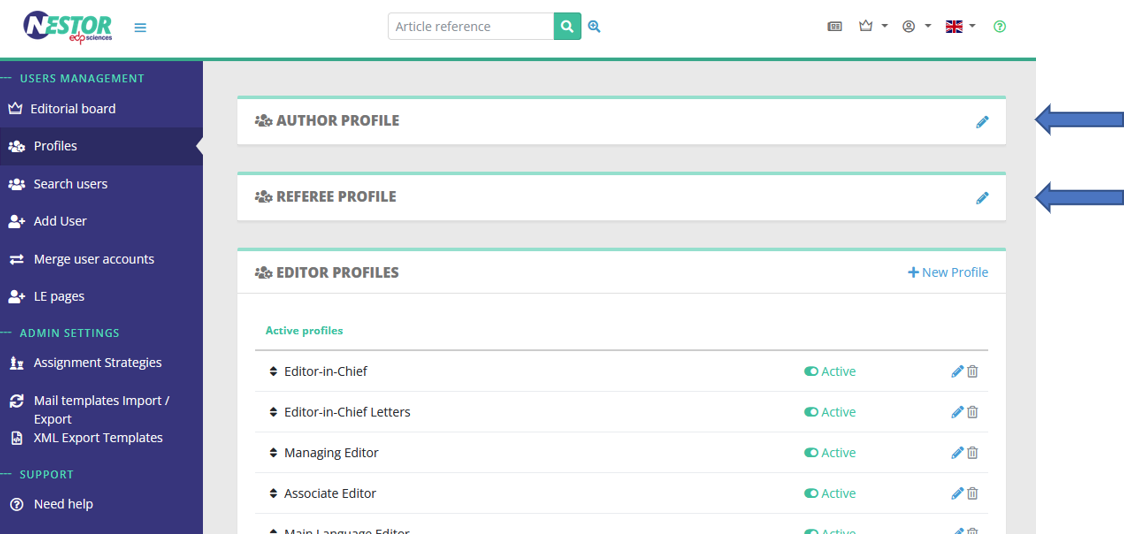
In Nestor, all users are considered potential authors or referees. Consequently, author and referee profiles are unique. For a given journal:

- when submitting a paper, all users will share the configuration of the author profile
- when reviewing a paper, all users will share the configuration of the referee profile

The main focus of those pages is the visibility regarding peer review. Those configurations can be found here:

<table border="1" id="bkmrk-" style="border-collapse: collapse; width: 100%;"><colgroup><col style="width: 99.8765%;"></col></colgroup><tbody><tr><td>[![image.png](https://doc.nestor-edp.org/uploads/images/gallery/2023-05/scaled-1680-/2J4JuyIJSzyAkayY-image.png)](https://doc.nestor-edp.org/uploads/images/gallery/2023-05/2J4JuyIJSzyAkayY-image.png)

</td></tr></tbody></table>

- Open peer review (author profile)

[![image.png](https://doc.nestor-edp.org/uploads/images/gallery/2023-05/scaled-1680-/JlIumqUAxAAGBufA-image.png)](https://doc.nestor-edp.org/uploads/images/gallery/2023-05/JlIumqUAxAAGBufA-image.png)

- Single/double blind (referee profile)

[![image.png](https://doc.nestor-edp.org/uploads/images/gallery/2023-05/scaled-1680-/k5HmgARZpmHCDMvY-image.png)](https://doc.nestor-edp.org/uploads/images/gallery/2023-05/k5HmgARZpmHCDMvY-image.png)

---

Note that other settings may interest you:

- file types visibility is set up directly in the [file type configuration](https://doc.nestor-edp.org/books/configuration-guide/page/file-types)
- visibility during the submission process is treated independently [here](https://doc.nestor-edp.org/books/configuration-guide/page/submission)

# Editor profiles

Contrary to the author and referee profile, editor profiles are not unique. It is very common for a journal to configure several profiles, with different sets of rights. The reason is that editor profiles are used by people with different tasks as regards articles. Common examples of profiles are:

- Editor-in-Chief
- Editorial assistant
- Associate editor
- Copyediting editor
- Production editor

The configuration can be found here:

[![image.png](https://doc.nestor-edp.org/uploads/images/gallery/2023-05/scaled-1680-/SbDiVJ2oUIXZJAj1-image.png)](https://doc.nestor-edp.org/uploads/images/gallery/2023-05/SbDiVJ2oUIXZJAj1-image.png)

---

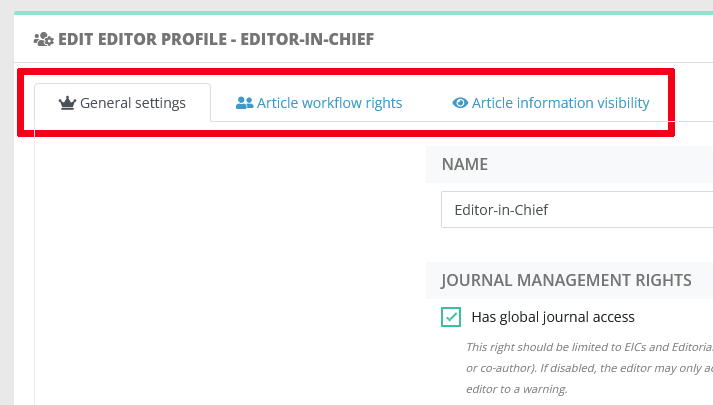
Each editor profile has specific settings. Settings are sorted by family:

<table border="1" id="bkmrk--2" style="border-collapse: collapse; width: 100%;"><colgroup><col style="width: 99.8765%;"></col></colgroup><tbody><tr><td>[![image.png](https://doc.nestor-edp.org/uploads/images/gallery/2023-05/scaled-1680-/HRfNkrqoWNzV7qHR-image.png)](https://doc.nestor-edp.org/uploads/images/gallery/2023-05/HRfNkrqoWNzV7qHR-image.png)</td></tr></tbody></table>

- **General settings** define global journal rights for this profile:  
    
    - Access to global information and dashboards
    - Access to administrative rights: does the user can configure the journal?
    - How does [editorial responsibility](https://doc.nestor-edp.org/books/editor-guide/page/editor-in-charge-and-personal-dashboard) switch for this profile?

- **Article workflow rights** define how this profile can interact with an article, especially: 
    - Can this profile assign other editors? (see [configuration](https://doc.nestor-edp.org/books/configuration-guide/page/editorial-assignments) and [workflow](https://doc.nestor-edp.org/books/editor-guide/page/assigning-editors))
    - Can this profile invite referees? (see [configuration](https://doc.nestor-edp.org/books/configuration-guide/page/peer-review) and [workflow](https://doc.nestor-edp.org/books/editor-guide/chapter/peer-review-management))
    - Proposing or taking decisions (see [configuration](https://doc.nestor-edp.org/books/configuration-guide/page/editor-profile-decisions-and-proposals) and [workflow](https://doc.nestor-edp.org/books/editor-guide/page/taking-the-editorial-decision))

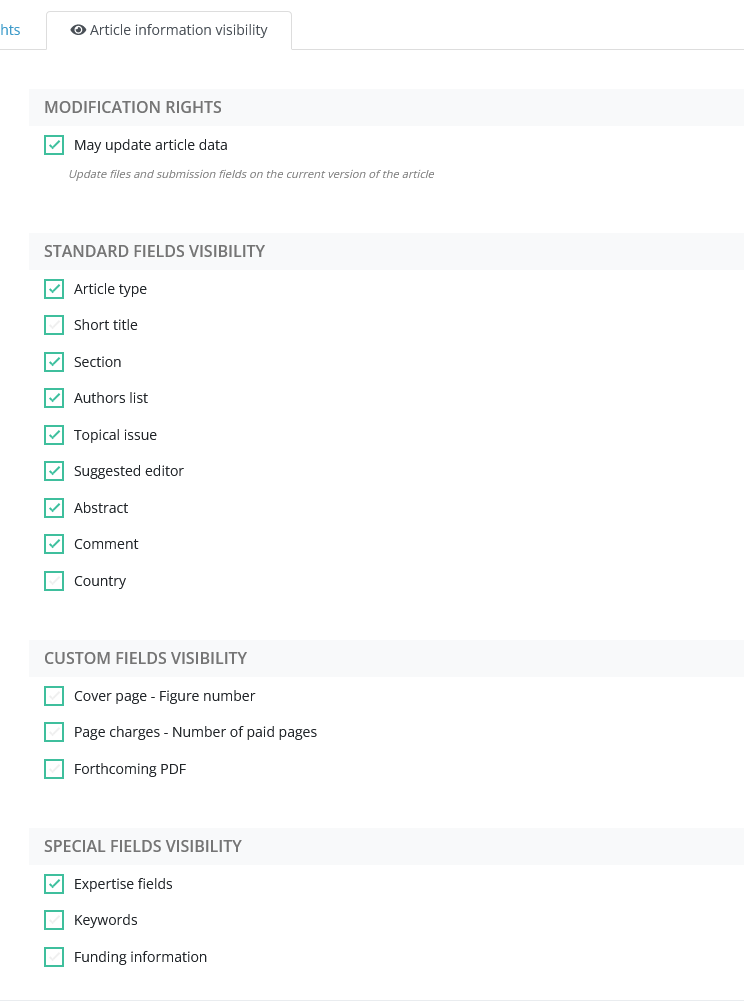
- **Article information visibility** defines what the profile can see on an article. Indeed, an article can store a lot of different information, sometimes not relevant to all editors. Typically, scientific profiles might not be interested by production or copyediting notes. For this purpose, the profile visibility can be finely tuned here:

<table border="1" id="bkmrk--3" style="border-collapse: collapse; width: 100%;"><colgroup><col style="width: 99.8765%;"></col></colgroup><tbody><tr><td>[![image.png](https://doc.nestor-edp.org/uploads/images/gallery/2023-05/scaled-1680-/csDFLL5ofPmi20SG-image.png)](https://doc.nestor-edp.org/uploads/images/gallery/2023-05/csDFLL5ofPmi20SG-image.png)

</td></tr></tbody></table>

# Granting editor rights to someone

To grant an editor access to someone, you must first access the user page. Just click on someone's name in an article or in search results:

[![image.png](https://doc.nestor-edp.org/uploads/images/gallery/2023-05/scaled-1680-/qstaLm0k9bVZQpKZ-image.png)](https://doc.nestor-edp.org/uploads/images/gallery/2023-05/qstaLm0k9bVZQpKZ-image.png)

In the user account page, you may simply assign the editor profile here:

[![image.png](https://doc.nestor-edp.org/uploads/images/gallery/2023-05/scaled-1680-/oVRB4xtXb8dVF1MW-image.png)](https://doc.nestor-edp.org/uploads/images/gallery/2023-05/oVRB4xtXb8dVF1MW-image.png)

# Disabling/removing an editor

When an editor leaves your editorial board, it is recommended to just disable his profile:

[![image.png](https://doc.nestor-edp.org/uploads/images/gallery/2024-10/scaled-1680-/8zoHSaYQdSEFi89u-image.png)](https://doc.nestor-edp.org/uploads/images/gallery/2024-10/8zoHSaYQdSEFi89u-image.png)

This way:

- The user will still have access to his editing history.
- And most importantly can still finish the editorial process on pending articles where he/she is already assigned.

Note that disabling the profile as indicated will:

- disable most journal management rights for this editor
- the editor will no longer be assignable on new articles

# Editor profile: decisions and proposals

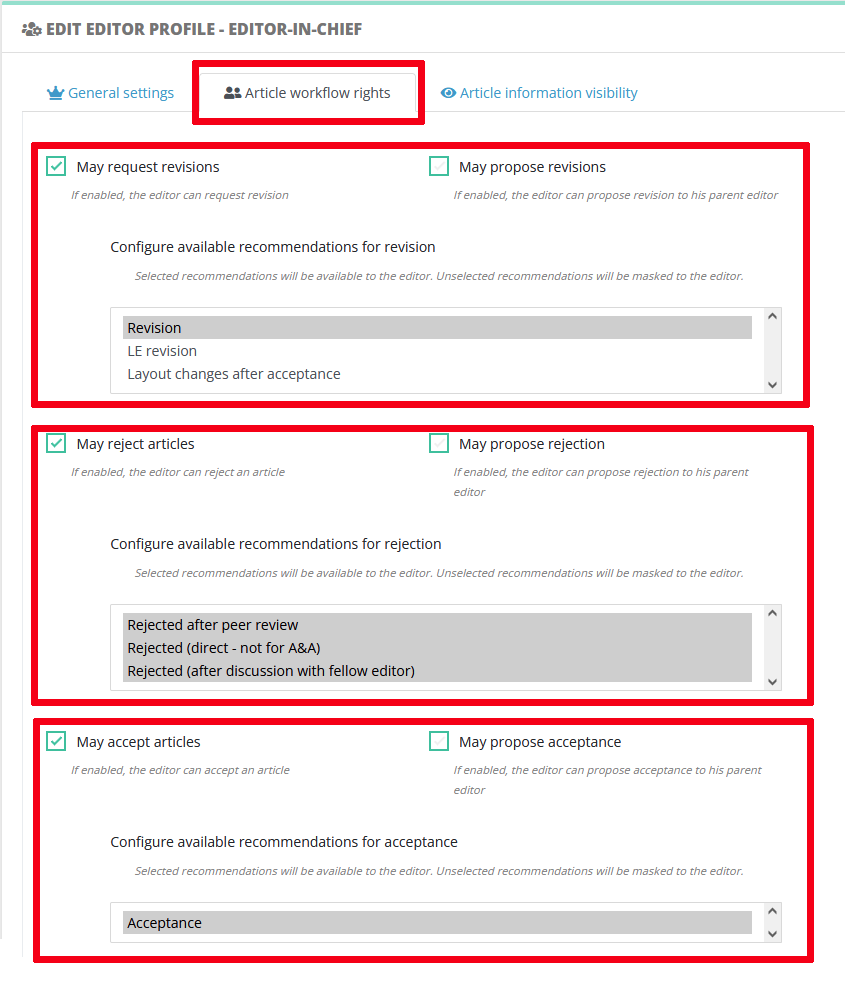
Depending on his/her profile, an editor can either **propose** or **take** a decision on a version (cf. the [related editor guide](https://doc.nestor-edp.org/books/editor-guide/chapter/editorial-decisions-and-proposals)).

This is defined in the article workflow rights:

<table border="1" id="bkmrk-" style="border-collapse: collapse; width: 100%;"><colgroup><col style="width: 99.8765%;"></col></colgroup><tbody><tr><td>[![image.png](https://doc.nestor-edp.org/uploads/images/gallery/2023-05/scaled-1680-/CwxVwjeSi8XgLiXI-image.png)](https://doc.nestor-edp.org/uploads/images/gallery/2023-05/CwxVwjeSi8XgLiXI-image.png)

</td></tr></tbody></table>

---

##### Decisions and proposals: purposes  


Your journal may or may not allow associate editors to send decisions directly. It sometimes happen that the decision to author is subject to approval by the Editor-in-Chief.

<table border="1" id="bkmrk-examples-of-acceptan" style="border-collapse: collapse; width: 100%;"><colgroup><col style="width: 99.8765%;"></col></colgroup><tbody><tr><td>  
Example 1

Some journals have a straightforward acceptance workflow:

- The [editor in charge ](https://doc.nestor-edp.org/books/editor-guide/page/editor-in-charge-and-personal-dashboard)**sends the final decision** directly to the author**.**

---

Example 2

Other journals apply a more stringent procedure, where:

- The [editor in charge](https://doc.nestor-edp.org/books/editor-guide/page/editor-in-charge-and-personal-dashboard) **proposes** acceptance to the Editor-in-Chief
- The EIC checks the proposal and **sends the final decision** of acceptance

</td></tr></tbody></table>

---

##### Technical differences

<table border="1" id="bkmrk-decisions-proposals-" style="border-collapse: collapse; width: 100%; height: 257.65px;"><colgroup><col style="width: 50%;"></col><col style="width: 50%;"></col></colgroup><tbody><tr style="height: 72.85px;"><td class="align-center" style="height: 72.85px;">**Decisions**

</td><td class="align-center" style="height: 72.85px;"><span style="color: rgb(0, 0, 0);">**Proposals**</span>

</td></tr><tr style="height: 29.8px;"><td style="height: 29.8px;">Trigger an editable message from Editor to Author</td><td style="height: 29.8px;">**<span style="color: rgb(224, 62, 45);">Trigger an editable message from Editor to his parent (assigning) editor</span>**  
</td></tr><tr style="height: 35.4px;"><td style="height: 35.4px;">Is recorded in the [decision module](https://doc.nestor-edp.org/books/editor-guide/page/the-editorial-decision-module)

</td><td style="height: 35.4px;">Is recorded in the [decision module](https://doc.nestor-edp.org/books/editor-guide/page/the-editorial-decision-module)</td></tr><tr style="height: 30.2px;"><td style="height: 30.2px;">Article changes status according to the decision  
</td><td style="height: 30.2px;"><span style="color: rgb(224, 62, 45);">**Article change status to "Decision proposed"**</span>

</td></tr><tr style="height: 29.8px;"><td style="height: 29.8px;">The current editor does not change  
</td><td style="height: 29.8px;"><span style="color: rgb(224, 62, 45);">**The parent (assigning) editor becomes current (see also [responsabililty swiches](https://doc.nestor-edp.org/books/editor-guide/page/how-does-editorial-responsibility-switch))**</span>  
</td></tr></tbody></table>

---

##### Link with the recommendation system  


When configuring editor rights, please take care of selecting the available recommendations for this profile. See also the dedicated page for setting up [recommendations](https://doc.nestor-edp.org/books/configuration-guide/page/decisions-the-recommendation-system).

# Editor profile: responsibility (in charge)

Writing in progress... ↁ\_ↁ

Any enquiries? please contact us: <support@nestor-edp.org>

# Landing pages at connection

The behaviour of Nestor at login differs according to the user's profile and activity.

Depending on the following priorities, the user will either land on the author, referee or editor dashboard:

- If the user is editor of the journal, he/she will always land on the editor dashboard
- Otherwise, if the user has pending articles as referee, landing on the referee dashboard
- Otherwise, if the user has active articles as author, landing on the author dashboard
- Otherwise, if the user has active articles as coauthor, landing on the coauthor dashboard
- If none of the above apply, the user will land on the author dashboard.

Switching dasboard is done via the selection menu in the upper right:

[![image.png](https://doc.nestor-edp.org/uploads/images/gallery/2026-09/scaled-1680-/VwLyo8b6CFLhuEVS-image.png)](https://doc.nestor-edp.org/uploads/images/gallery/2026-09/VwLyo8b6CFLhuEVS-image.png)

# Configuration of e-mail templates and reminders


# Overview of the template configuration

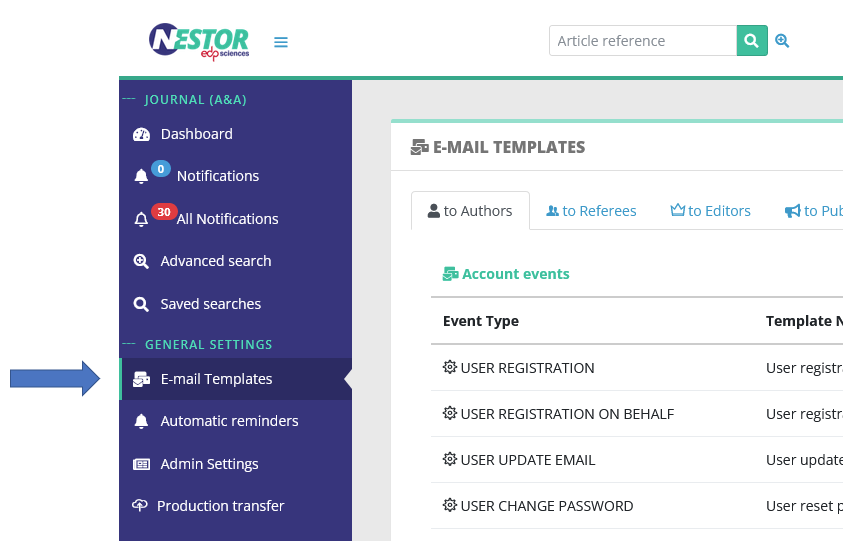
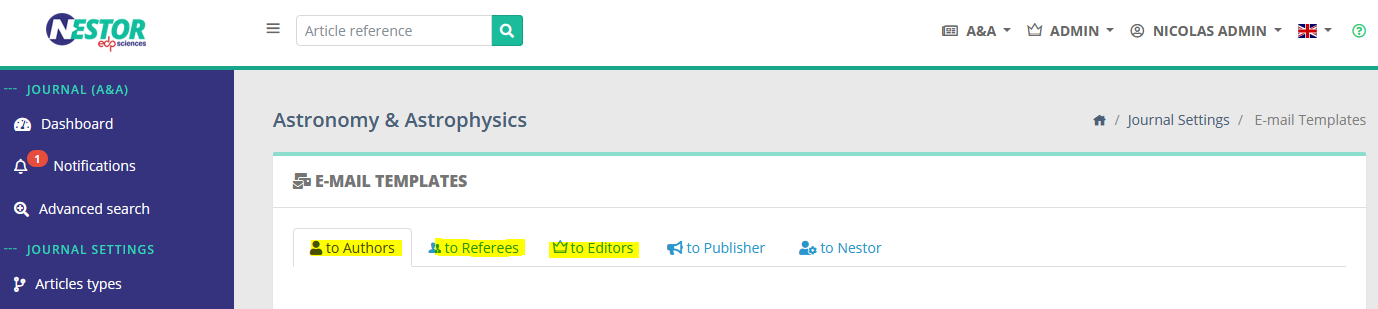
All templates linked to your journal are stored in the templates configuration:

<table border="1" id="bkmrk-" style="border-collapse: collapse; width: 100%;"><colgroup><col style="width: 99.8765%;"></col></colgroup><tbody><tr><td>[![image.png](https://doc.nestor-edp.org/uploads/images/gallery/2023-05/scaled-1680-/nvZlx42CbyHAjyFQ-image.png)](https://doc.nestor-edp.org/uploads/images/gallery/2023-05/nvZlx42CbyHAjyFQ-image.png)

</td></tr></tbody></table>

---

Existing templates are sorted:

- First, by recipient. Each family of recipient gets a thumbnail, where all templates are stored for this family:

<table border="1" id="bkmrk--1" style="border-collapse: collapse; width: 100%;"><colgroup><col style="width: 99.8765%;"></col></colgroup><tbody><tr><td>[![image.png](https://doc.nestor-edp.org/uploads/images/gallery/2023-01/scaled-1680-/66PdYiP9OeTQsUF0-image.png)](https://doc.nestor-edp.org/uploads/images/gallery/2023-01/66PdYiP9OeTQsUF0-image.png)</td></tr></tbody></table>

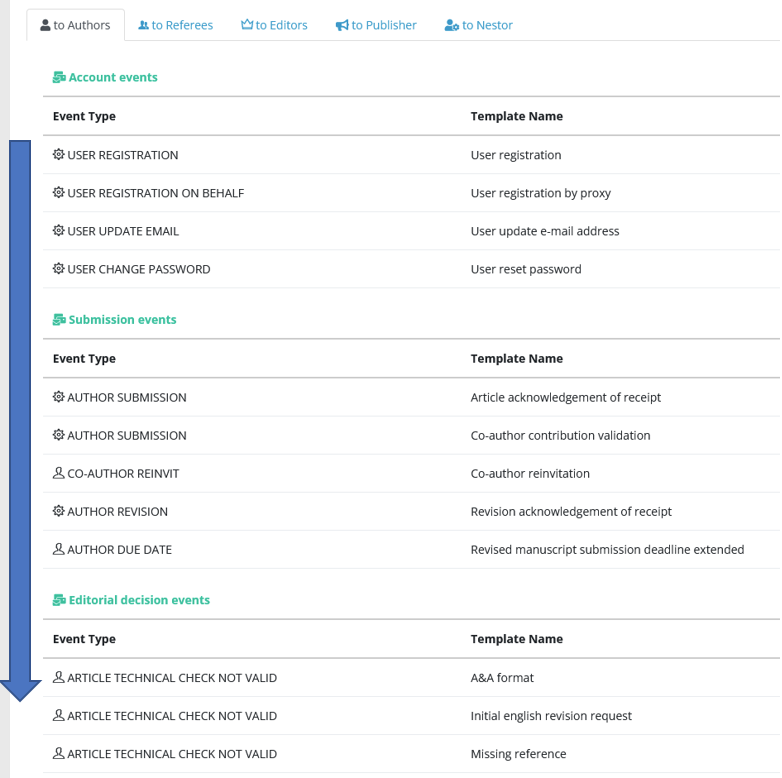
- Second, by chronological order in the worflow process:
    
    
    - starting with account creation
    - following with peer review and decision events
    - up until production

<table border="1" id="bkmrk--2" style="border-collapse: collapse; width: 100%;"><colgroup><col style="width: 99.8765%;"></col></colgroup><tbody><tr><td>[![image.png](https://doc.nestor-edp.org/uploads/images/gallery/2023-05/scaled-1680-/4cwbfIcGT0SaRRXK-image.png)](https://doc.nestor-edp.org/uploads/images/gallery/2023-05/4cwbfIcGT0SaRRXK-image.png)

</td></tr></tbody></table>

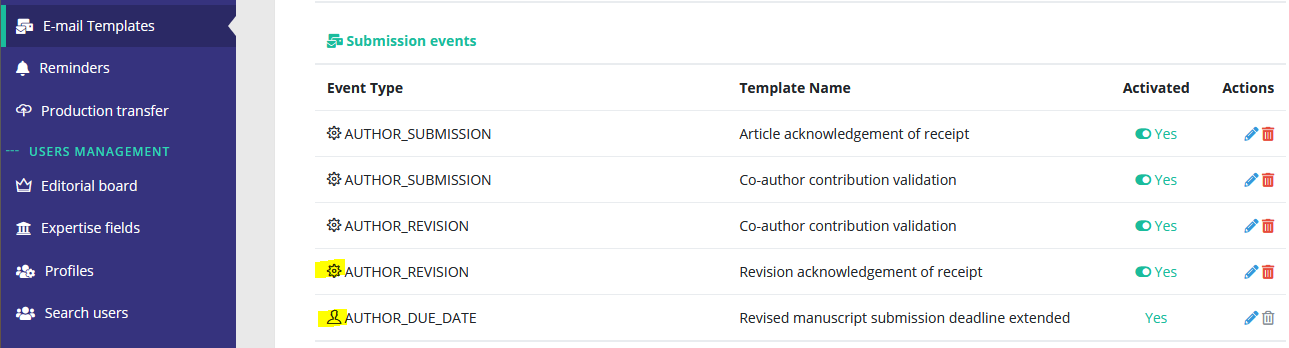
- Note that [editable and automatic e-mails ](https://doc.nestor-edp.org/books/configuration-guide/page/editable-automated-e-mails)are distinguished by the following icons:

<table border="1" id="bkmrk--3" style="border-collapse: collapse; width: 100%;"><colgroup><col style="width: 99.8765%;"></col></colgroup><tbody><tr><td>[![image.png](https://doc.nestor-edp.org/uploads/images/gallery/2023-01/scaled-1680-/ybo4oWye6rSBjteB-image.png)](https://doc.nestor-edp.org/uploads/images/gallery/2023-01/ybo4oWye6rSBjteB-image.png)</td></tr></tbody></table>

<div data-layout="center" data-node-type="mediaSingle" data-width="" id="bkmrk--21"><div data-alt="" data-collection="contentId-2057797641" data-context-id="2057797641" data-file-mime-type="image/png" data-file-name="Capture.PNG" data-file-size="50341" data-height="261" data-id="5b936473-246e-412a-aa68-c24f017f008c" data-node-type="media" data-type="file" data-width="967" style="display: inline-block; border-radius: 3px; background: #EBECF0; box-shadow: 0 1px 1px rgba(9, 30, 66, 0.2), 0 0 1px 0 rgba(9, 30, 66, 0.24);" title="Attachment">  
</div></div>

# Editable / automated e-mails

E-mails are the primary mean of communication through Nestor:

- Authors and editors may not check the sytem regularly, and overlook their to-do list.
- Referees may not have an active account, and by nature will take action only when prompted by e-mail

Consequently, understanding and properly configuring the mail engine will ensure your users are timely informed of their ongoing workload.

---

##### Actions &amp; types of e-mails

When people work in Nestor, the system will detect important events and generate e-mails according to your configuration.

E-mails can be of two types:

- Editable e-mails
- Automated e-mails

Some events only generate editable e-mails, while others only generate automated e-mails. A few events can generate both types. In those rare cases, Nestor will guide you during the template creation:

[![image.png](https://doc.nestor-edp.org/uploads/images/gallery/2023-05/scaled-1680-/TbLo8QEz8BxQIkCi-image.png)](https://doc.nestor-edp.org/uploads/images/gallery/2023-05/TbLo8QEz8BxQIkCi-image.png)

---

##### Editable e-mails

Editable e-mails are triggered when a user wants to specifically get in touch with another user. Most common cases are:

- the Editor-in-Chief assigns an associate editor
- the associate editor invites a referee
- the associate editor requests a revision to the authors

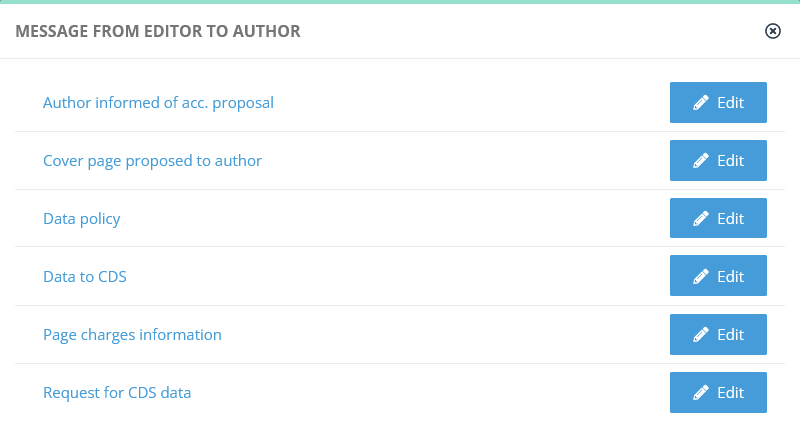
Several templates can be linked to the same event. In this case, the user will have to select which template is the most relevant for the situation:

<table border="1" id="bkmrk--0" style="border-collapse: collapse; width: 100%;"><colgroup><col style="width: 99.8765%;"></col></colgroup><tbody><tr><td>[![image.png](https://doc.nestor-edp.org/uploads/images/gallery/2023-05/scaled-1680-/hHuv1EvBpHlW8MrW-image.png)](https://doc.nestor-edp.org/uploads/images/gallery/2023-05/hHuv1EvBpHlW8MrW-image.png)

</td></tr></tbody></table>

After selecting the relevant template, the user has access to an editing box, where the template can be corrected before sending the mail:

<table border="1" id="bkmrk--3" style="border-collapse: collapse; width: 100%;"><colgroup><col style="width: 99.8765%;"></col></colgroup><tbody><tr><td>[![image.png](https://doc.nestor-edp.org/uploads/images/gallery/2023-05/scaled-1680-/4nbQabIDTuAPQhiV-image.png)](https://doc.nestor-edp.org/uploads/images/gallery/2023-05/4nbQabIDTuAPQhiV-image.png)

</td></tr></tbody></table>

---

##### Automated e-mails  


Some specific events will trigger automatic e-mails. Most common cases are:

- the author submits his revision &gt; can trigger an automatic mail to the current editor
- the referee declines the invitation to review &gt; can trigger an automatic mail to the current editor
- the article is published online &gt; can trigger an automatic mail to the corresponding author, or a co-author

The following events are used by the system for account management. Please take caution when editing templates linked to these:

<table border="1" id="bkmrk-name-of-the-event-de" style="border-collapse: collapse; width: 100%; height: 178.8px;"><colgroup><col style="width: 30.926%;"></col><col style="width: 69.1976%;"></col></colgroup><tbody><tr style="height: 29.8px;"><td style="height: 29.8px;">**Name of the event**  
</td><td style="height: 29.8px;">**Description**  
</td></tr><tr style="height: 29.8px;"><td style="height: 29.8px;">USER\_REGISTRATION</td><td style="height: 29.8px;">E-mail sent when an author creates his account  
</td></tr><tr style="height: 29.8px;"><td style="height: 29.8px;">USER\_REGISTRATION\_ON\_BEHALF</td><td style="height: 29.8px;">E-mail sent when the editorial office creates an account for someone else  
</td></tr><tr style="height: 29.8px;"><td style="height: 29.8px;">USER\_UPDATE\_EMAIL</td><td style="height: 29.8px;">E-mail sent when a user updates his mail address (= login)  
</td></tr><tr style="height: 29.8px;"><td style="height: 29.8px;">USER\_CHANGE\_PASSWORD</td><td style="height: 29.8px;">E-mail sent to a user requesting a password reset  
</td></tr></tbody></table>

<div data-layout="center" data-node-type="mediaSingle" data-width="" id="bkmrk--23"><div data-alt="" data-collection="contentId-2057797641" data-context-id="2057797641" data-file-mime-type="image/png" data-file-name="edit.PNG" data-file-size="49354" data-height="260" data-id="6314c49d-6769-4527-af13-c04d99888d33" data-node-type="media" data-type="file" data-width="964" style="display: inline-block; border-radius: 3px; background: #EBECF0; box-shadow: 0 1px 1px rgba(9, 30, 66, 0.2), 0 0 1px 0 rgba(9, 30, 66, 0.24);" title="Attachment">  
</div></div>

# Creating a new e-mail template

Creating an e-mail template is straightforward, just click here:

[![image.png](https://doc.nestor-edp.org/uploads/images/gallery/2023-05/scaled-1680-/ZrwNOpLIjSNMjqle-image.png)](https://doc.nestor-edp.org/uploads/images/gallery/2023-05/ZrwNOpLIjSNMjqle-image.png)

You will be prompted with the template creation form, where you first must select an event. It is very important to select the correct event, as the system will use your template only when this event is detected:

[![image.png](https://doc.nestor-edp.org/uploads/images/gallery/2023-01/scaled-1680-/AJrJ6rSG9dQZfdxv-image.png)](https://doc.nestor-edp.org/uploads/images/gallery/2023-01/AJrJ6rSG9dQZfdxv-image.png)

After selecting the event, Nestor will prefill the form with possible configurations to help you set up the template.

# Drafting templates with variables!

Writing in progress... ↁ\_ↁ

Any enquiries? please contact us: <support@nestor-edp.org>

---

#### Modifying date formats

{{ "now"|date("m/d/Y") }}

---

#### Test variables

{% if article.articleType.code == 'LETTER' %}letter{% else %}paper{% endif %}

{% if articleEntity.finalDecision == 'CLOSED' %}

{% elseif articleEntity.finalDecision == 'WITHDRAWN' %}

##### Coauthor variables

<span data-testid="issue-activity-feed.feed-display-with-intersection-observer"><span class="prismjs css-1ilmmim" data-code-lang="" data-ds--code--code-block="">`{% if recipient.isPending %}`</span></span>

<span data-testid="issue-activity-feed.feed-display-with-intersection-observer"><span class="prismjs css-1ilmmim" data-code-lang="" data-ds--code--code-block="">`{% if recipient.hasValidated %}`</span></span>

<span data-testid="issue-activity-feed.feed-display-with-intersection-observer"><span class="prismjs css-1ilmmim" data-code-lang="" data-ds--code--code-block="">`<span class="">{% if recipient.validOrcid %}</span>`</span></span>

# Drafting templates with conditions!

Nestor uses a [programming language](https://twig.symfony.com/) to generate text in messages. You can harness this and use branching conditions in your templates: [https://twig.symfony.com/doc/2.x/tags/index.html](https://twig.symfony.com/doc/2.x/tags/index.html). The configuration is a bit technical, but will result in:

- modulable texts
- cleaner interfaces
- less technical support

The description below gives one typical example, but the possibilities are endless.

---

#### E-mail conditions: a case study

Let us consider the case of the acceptance letter, where we want to:

- use some general text to inform the author that the article is accepted
- IF certain conditions are met, modify a few parts of the text

For this purpose, we could create two different templates:

<table border="1" id="bkmrk-template-of-acceptan" style="border-collapse: collapse; width: 100%; height: 266.8px;"><colgroup><col style="width: 50%;"></col><col style="width: 50%;"></col></colgroup><tbody><tr style="height: 29.8px;"><td style="height: 29.8px;">**Template for a "regular article"**  
</td><td style="height: 29.8px;">**Template for a "note to the editor"**  
</td></tr><tr style="height: 237px;"><td style="height: 237px;">Dear author,

Congratulations on being accepted! We have received all source files and your <span style="color: rgb(224, 62, 45);">paper is now in the hands of the copy editor.</span>

You will receive the galley proofs in about <span style="color: rgb(224, 62, 45);">two weeks</span>.

Best regards,

The Editorial Office

</td><td style="height: 237px;">Dear author,

Congratulations on being accepted! We have received all source files and your <span style="color: rgb(224, 62, 45);">note to the editor is about to be published!</span>

You will receive the galley proofs <span style="color: rgb(224, 62, 45);">by tomorrow</span>.

Best regards,

The Editorial Office

</td></tr></tbody></table>

This presents the following downsides:

- now we have two similar templates to maintain
- this clutters the editor interface:

<table border="1" id="bkmrk--0" style="border-collapse: collapse; width: 100%;"><colgroup><col style="width: 99.8765%;"></col></colgroup><tbody><tr><td>[![image.png](https://doc.nestor-edp.org/uploads/images/gallery/2023-05/scaled-1680-/z2BUVu6ctrcjXy6Q-image.png)](https://doc.nestor-edp.org/uploads/images/gallery/2023-05/z2BUVu6ctrcjXy6Q-image.png)

</td></tr></tbody></table>

---

Instead, let us create one single template, inserting cool conditions when needed:

<table border="1" id="bkmrk-global-template-of-a" style="border-collapse: collapse; width: 100%;"><tbody><tr><td>**Global template**  
</td></tr><tr><td>Dear author,

Congratulations on being accepted! We have received all source files and your <span style="color: rgb(224, 62, 45);">{% if article.articleType.code == 'REGULAR' %}paper is now in the hands of the copy editor{% else %}note to the editor is about to be published!{% endif %}</span>.

You will receive the galley proofs in about <span style="color: rgb(224, 62, 45);">{% if article.articleType.code == 'REGULAR' %}two weeks{% else %}by tomorrow{% endif %}.</span>

Best regards,  
The Editorial Office

</td></tr></tbody></table>

This results in a single template to maintain, and a cleaner editor interface:

[![image.png](https://doc.nestor-edp.org/uploads/images/gallery/2023-05/scaled-1680-/CH6Gc0xjAMsYisV7-image.png)](https://doc.nestor-edp.org/uploads/images/gallery/2023-05/CH6Gc0xjAMsYisV7-image.png)

# Attaching rules to templates

In Nestor, critical actions will trigger a message and update the article status / dates when necessary. There are also cases when sending an e-mail should trigger an update of the article data, such as the section, or typically, a custom field.

---

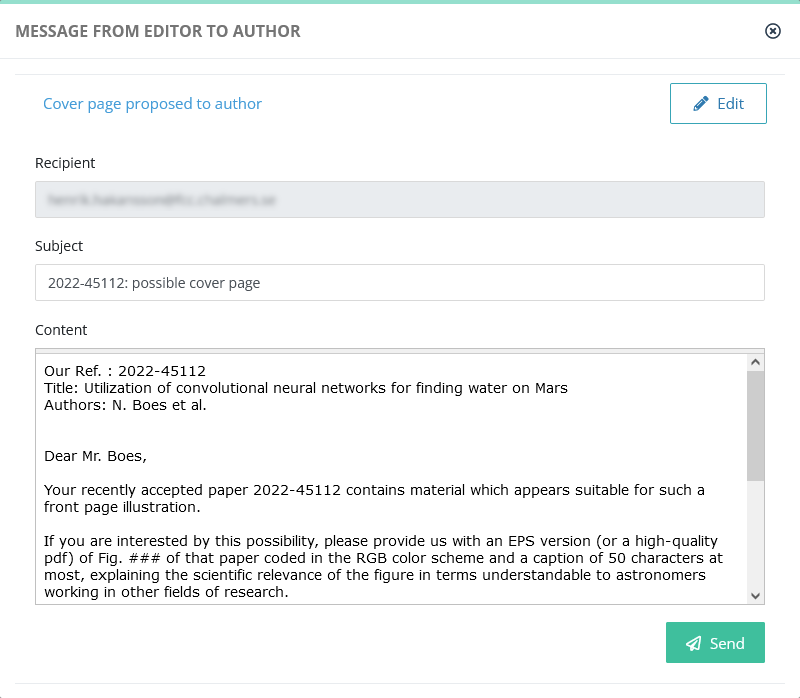
#### E-mail rules: a case study

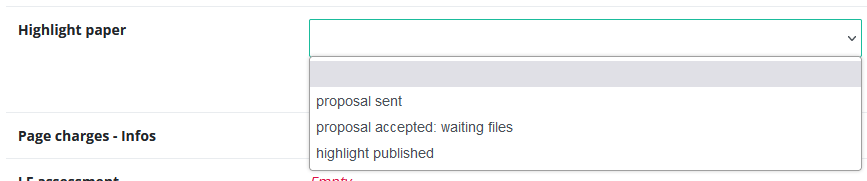
Let us consider this case, where a journal has a special procedure to highlight good papers on the journal website. For this purpose, the editorial office keeps track of the procedure, by using an article [custom field](https://doc.nestor-edp.org/books/configuration-guide/page/standard-categorizations):

<table border="1" id="bkmrk--0" style="border-collapse: collapse; width: 100%;"><colgroup><col style="width: 99.8765%;"></col></colgroup><tbody><tr><td>[![image.png](https://doc.nestor-edp.org/uploads/images/gallery/2023-05/scaled-1680-/la9NvRpiAp4ldelG-image.png)](https://doc.nestor-edp.org/uploads/images/gallery/2023-05/la9NvRpiAp4ldelG-image.png)

</td></tr></tbody></table>

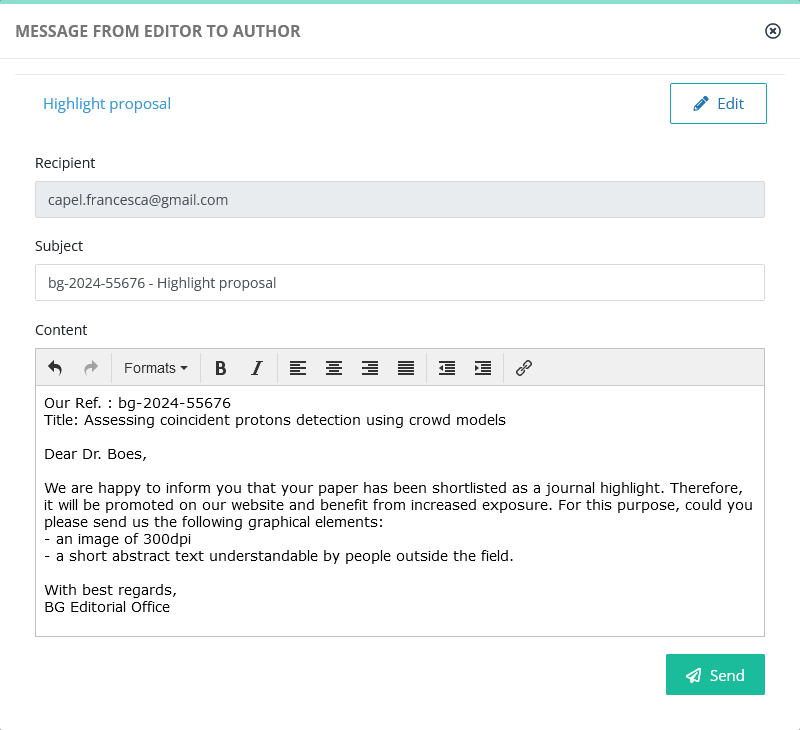
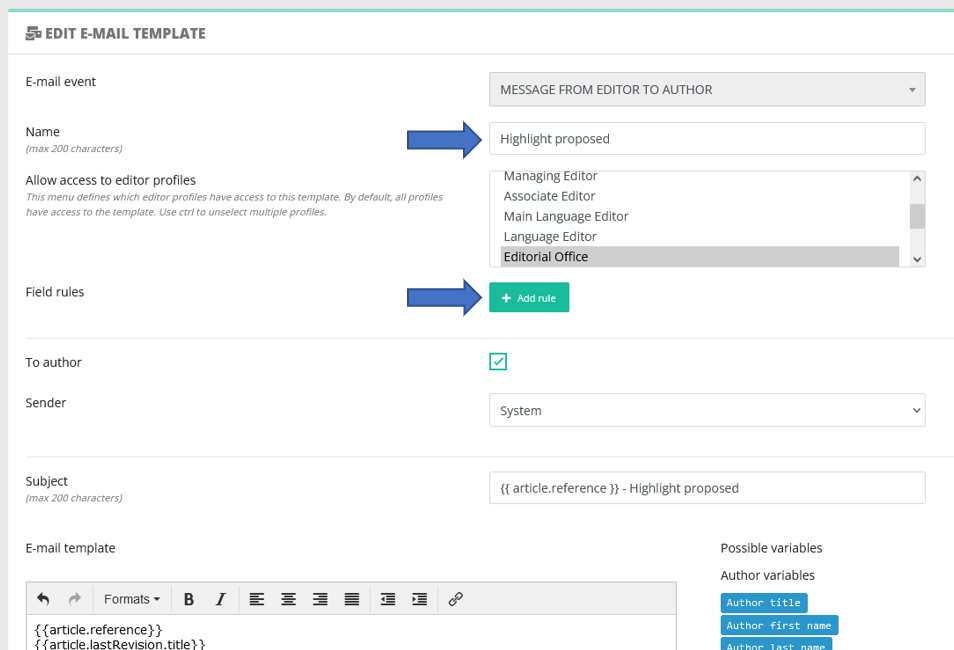
We want the above field to be set automatically to "proposal sent" when sending this message :

<table border="1" id="bkmrk--2" style="border-collapse: collapse; width: 100%;"><colgroup><col style="width: 99.8765%;"></col></colgroup><tbody><tr><td>[![image.png](https://doc.nestor-edp.org/uploads/images/gallery/2023-05/scaled-1680-/aP1iDesE6BW6tLWm-image.png)](https://doc.nestor-edp.org/uploads/images/gallery/2023-05/aP1iDesE6BW6tLWm-image.png)</td></tr></tbody></table>

Resulting automatically in:

<table border="1" id="bkmrk--4" style="border-collapse: collapse; width: 57.5309%; height: 83px;"><colgroup><col style="width: 100%;"></col></colgroup><tbody><tr><td>[![image.png](https://doc.nestor-edp.org/uploads/images/gallery/2023-05/scaled-1680-/bas8F2C2y0ak6EYs-image.png)](https://doc.nestor-edp.org/uploads/images/gallery/2023-05/bas8F2C2y0ak6EYs-image.png)</td></tr></tbody></table>

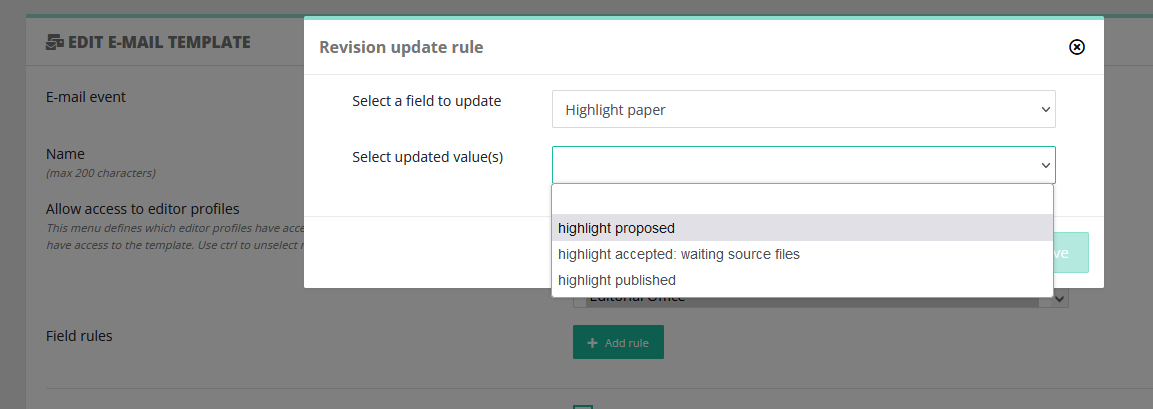
To do so, the Editorial Office can configure an update rule in the template configuration:

<table border="1" id="bkmrk--5" style="border-collapse: collapse; width: 100%;"><colgroup><col style="width: 99.8765%;"></col></colgroup><tbody><tr><td>[![image.png](https://doc.nestor-edp.org/uploads/images/gallery/2023-05/scaled-1680-/73ibMVNlk8cgLtCk-image.png)](https://doc.nestor-edp.org/uploads/images/gallery/2023-05/73ibMVNlk8cgLtCk-image.png)</td></tr></tbody></table>

<table border="1" id="bkmrk--6" style="border-collapse: collapse; width: 100%;"><colgroup><col style="width: 99.8765%;"></col></colgroup><tbody><tr><td>[![image.png](https://doc.nestor-edp.org/uploads/images/gallery/2023-05/scaled-1680-/aESOien1qD61MFTc-image.png)](https://doc.nestor-edp.org/uploads/images/gallery/2023-05/aESOien1qD61MFTc-image.png)</td></tr></tbody></table>

After saving the configuration, each time this e-mail is sent, the "Highlight paper" value of the article will be set to "highlight proposed".

# Notification bells

[![image.png](https://doc.nestor-edp.org/uploads/images/gallery/2023-05/scaled-1680-/G1rqI2gPncqdgISL-image.png)](https://doc.nestor-edp.org/uploads/images/gallery/2023-05/G1rqI2gPncqdgISL-image.png)

Important e-mails are sometimes lost in the crowd and overlooked by editors. This is especially true for e-mails outside of the workflow, dealing with particular cases etc. Notifications are here to prevent this! Nestor tracks e-mails tagged as "important" and highlights them in the recipient interface.

- In the home page, editors will retrieve important e-mails they have received via the notifications menu:

[![image.png](https://doc.nestor-edp.org/uploads/images/gallery/2023-05/scaled-1680-/63SftkFotQSXk7j6-image.png)](https://doc.nestor-edp.org/uploads/images/gallery/2023-05/63SftkFotQSXk7j6-image.png)

- In each article, they will retrieve them in the message history:

[![image.png](https://doc.nestor-edp.org/uploads/images/gallery/2023-05/scaled-1680-/nmM1K7wXAVMNtYTj-image.png)](https://doc.nestor-edp.org/uploads/images/gallery/2023-05/nmM1K7wXAVMNtYTj-image.png)

---

### Setting up notification bells

##### Automatic notification bells

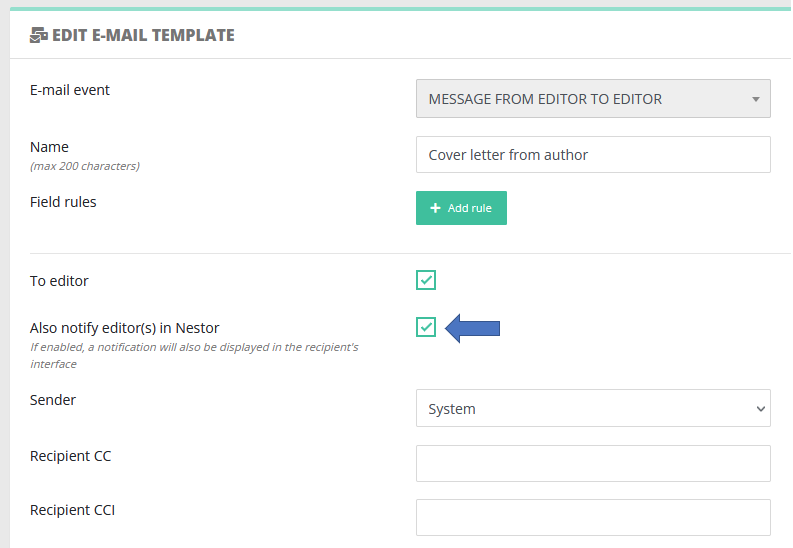
Nestor can tag an e-mail as "important" as soon as the mail is sent. To do so, the template must be configured accordingly:

<table border="1" id="bkmrk--4" style="border-collapse: collapse; width: 100%;"><colgroup><col style="width: 99.8765%;"></col></colgroup><tbody><tr><td>[![image.png](https://doc.nestor-edp.org/uploads/images/gallery/2023-05/scaled-1680-/33Hok5KdYn198Q96-image.png)](https://doc.nestor-edp.org/uploads/images/gallery/2023-05/33Hok5KdYn198Q96-image.png)</td></tr></tbody></table>

In this example:

- when the editorial office sends this message to an editor
- then, this message will be tagged with a bell in the recipient editor interface (in the message history).

##### Manual notifications

Regardless of the template configuration, notification bells can be set up manually on specific e-mails, when needed.

Note that an editor can see and uncheck important mails **if he/she is the recipient.** He cannot vizualize/uncheck notification bells on other e-mails (to other users). For example below, connected as Phil Palaeon, checking the message history of article jeos20220021. We observe notification bells appear only if I am the recipient:

[![image.png](https://doc.nestor-edp.org/uploads/images/gallery/2023-05/scaled-1680-/xQ8NueaAqOIe4mMi-image.png)](https://doc.nestor-edp.org/uploads/images/gallery/2023-05/xQ8NueaAqOIe4mMi-image.png)

#####   


### Profile right: access to all notifications

The right below allows the editorial office to have complete control over every user notifications in the journal:

[![image.png](https://doc.nestor-edp.org/uploads/images/gallery/2023-05/scaled-1680-/AT4gs6yyyoDbFoZr-image.png)](https://doc.nestor-edp.org/uploads/images/gallery/2023-05/AT4gs6yyyoDbFoZr-image.png)

- First, this right unlocks a special view on all active notifications in the journal (regardless of the recipient)

[![image.png](https://doc.nestor-edp.org/uploads/images/gallery/2023-05/scaled-1680-/4AvTt5h7knpkoAXc-image.png)](https://doc.nestor-edp.org/uploads/images/gallery/2023-05/4AvTt5h7knpkoAXc-image.png)

- Second in the message history, the Editorial Office can check/uncheck any mail deemed important (even when the EO is not recipient):

[![image.png](https://doc.nestor-edp.org/uploads/images/gallery/2023-05/scaled-1680-/ur9Cl4OyOtemHXOW-image.png)](https://doc.nestor-edp.org/uploads/images/gallery/2023-05/ur9Cl4OyOtemHXOW-image.png)

# Configuration of automatic reminders

Automatic reminders are configured here, they are sorted by family of recipients:

[![image.png](https://doc.nestor-edp.org/uploads/images/gallery/2023-05/scaled-1680-/RiOZODFLCQrkz5o3-image.png)](https://doc.nestor-edp.org/uploads/images/gallery/2023-05/RiOZODFLCQrkz5o3-image.png)

---

##### Author and referee reminders

Author and referee reminders work similarly. Every morning after coffee, Nestor will check all articles submitted in the journal:

- for each article, Nestor evaluates if an action is expected from the author or referees
- if so --&gt; Nestor checks the author/referee due date
- it compares today's date with with the delay configured in the reminder
- if the delay is met, Nestor triggers an automatic e-mail

<table border="1" id="bkmrk-example-1---reminder" style="border-collapse: collapse; width: 100%;"><colgroup><col style="width: 99.8765%;"></col></colgroup><tbody><tr><td>Example 1 - Reminder for a revision

- In my journal, one article is in revision: the author has a due date to revise (May 17)
- The reminder configuration indicates: remind delayed author 3 days before due date
- Nestor will send an e-mail to this author on May 14 (8am), reminding him to submit his revision

</td></tr><tr><td>Example 2 - Reminder for a referee report

- In my journal, one article is in peer review: the referee has a due date to send his report (June 12)
- The reminder configuration indicates: remind delayed referees 1 day after due date
- Nestor will send an e-mail to this referee on June 13 (8am), reminding him to upload his report

</td></tr></tbody></table>

---

##### Editor reminders

Editor reminders work differently: editors usually work on several manuscripts at the same time, so it is not possible to send them one e-mail for each manuscript. Instead, Nestor will regularly send a summary of the [editor to-do list](https://doc.nestor-edp.org/books/editor-guide/page/current-editor-and-to-do-list), in this format:

[![image.png](https://doc.nestor-edp.org/uploads/images/gallery/2023-05/scaled-1680-/UdqBtxRMXTmdQNrz-image.png)](https://doc.nestor-edp.org/uploads/images/gallery/2023-05/UdqBtxRMXTmdQNrz-image.png)

Note that editor reminders are configured by profile: this way you can remind different profiles using different frequencies. Typically EIC do not need to be reminded as often as Associate Editors. In the screenshot below, we can observe that:

- This reminder will send an e-mail only to Editors-in-Chief
- On May 18
- And then, every 7 days (May 25, June 1 etc.)

[![image.png](https://doc.nestor-edp.org/uploads/images/gallery/2023-05/scaled-1680-/SL1Pa0G0co3zH5BQ-image.png)](https://doc.nestor-edp.org/uploads/images/gallery/2023-05/SL1Pa0G0co3zH5BQ-image.png)

NB the template letter selection will propose all templates linked to the event EDITOR AUTOMATIC REMINDER. Make sure these templates include the variable {{ editorReminderList }}

If an editor complains about receiving too many automatic reminders, note that he/she can disable the reminders in his own account (check "[configure e-mail alerts](https://doc.nestor-edp.org/books/editor-guide/page/faq)" in the editor guide).

# Creating a request for revision (to the author)

A request of revision must be created with the event: "Request for revision":

[![image.png](https://doc.nestor-edp.org/uploads/images/gallery/2026-06/scaled-1680-/NWvhqaULAq2fdel6-image.png)](https://doc.nestor-edp.org/uploads/images/gallery/2026-06/NWvhqaULAq2fdel6-image.png)

Once the template is created, it must also be linked to a specific [recommendation:](https://doc.nestor-edp.org/books/configuration-guide/page/decisions-the-recommendation-system)

[![image.png](https://doc.nestor-edp.org/uploads/images/gallery/2026-06/scaled-1680-/9qk8s2dj0TdW3HIm-image.png)](https://doc.nestor-edp.org/uploads/images/gallery/2026-06/9qk8s2dj0TdW3HIm-image.png)

# Statistics

#### Day-to-day statistics

To prepare statistics on articles, you can use [advanced searches](https://doc.nestor-edp.org/books/editor-guide/page/advanced-and-saved-searches "Advanced and saved searches") and [data exports](https://doc.nestor-edp.org/books/editor-guide/page/articles-lists-views-and-exports#bkmrk-exporting-lists "Articles lists: views and exports") to get the source data. From then on, you can handle common statistics requests using [pivot tables](https://en.wikipedia.org/wiki/Pivot_table) in your favorite spreadsheet program.

---

#### Delay computations

Concerning delay computation between two dates, use the following formulas in Excel (to use column headers, [format your data as a table](https://support.microsoft.com/en-us/office/create-and-format-tables-e81aa349-b006-4f8a-9806-5af9df0ac664)).

<table border="1" id="bkmrk-%C2%A0-a-b-c-1-submission" style="border-collapse: collapse; width: 97.4074%; height: 79px;"><colgroup><col style="width: 4.80481%;"></col><col style="width: 20.5706%;"></col><col style="width: 21.6216%;"></col><col style="width: 53.003%;"></col></colgroup><tbody><tr style="height: 29.8px;"><td class="align-center" style="width: 53.5pt; height: 29.8px;">**1**</td><td class="align-center" style="width: 53.5pt; height: 29.8px;">Submission date  
</td><td class="align-center" style="width: 113pt; height: 29.8px;">Final decision date  
</td><td class="align-center" style="width: 60pt; height: 29.8px;">From submission to final decision (formula)</td></tr><tr style="height: 29.8px;"><td class="align-center" height="20" style="height: 29.8px; width: 53.5pt;" width="142">**2**</td><td class="align-center" height="20" style="height: 29.8px; width: 53.5pt;" width="142">25/05/2023</td><td class="align-center" style="width: 113pt; height: 29.8px;" width="151">27/06/2023</td><td align="right" class="xl64 align-center" style="width: 60pt; height: 29.8px;" width="80">24</td></tr><tr style="height: 29.8px;"><td class="align-center" height="20" style="height: 29.8px;">**3**</td><td class="align-center" height="20" style="height: 29.8px;">25/05/2023</td><td class="align-center" style="height: 29.8px;">  
</td><td class="xl64 align-center" style="height: 29.8px;">  
</td></tr></tbody></table>


---

##### Standard formula

```
=IF(OR(A2="",B2=""),"",DAYS(A2,B2))
```

French Excel version

```
=SI(OU(A2="";B2="");"";JOURS(A2;B2))
```

---

##### Recommended: column headers, needs data to be [formatted as a table](https://support.microsoft.com/en-us/office/create-and-format-tables-e81aa349-b006-4f8a-9806-5af9df0ac664)

See example below:

- Any missing date will output a null result (= no delay computed)
- A negative result highlights a workflow issue, and is thus output as N/A

Formula

```
=IF(
    OR([@[Publication date]]="", [@[Submission date]]=""),
    "",
    IF(
        [@[Publication date]] - [@[Submission date]] >= 0,
        [@[Publication date]] - [@[Submission date]],
        "N/A"
    )
)
```

French Excel version

```
=SI(
    OU([@[Publication date]]=""; [@[Submission date]]="");
    "";
    SI(
        [@[Publication date]] - [@[Submission date]] >= 0;
        [@[Publication date]] - [@[Submission date]];
        "N/A"
    )
)
```

<table border="0" cellpadding="0" cellspacing="0" id="bkmrk-production-date-publ" style="border-collapse: collapse; width: 810px; height: 169.5px;" width="981"><colgroup><col style="width: 279px;" width="144"></col><col style="width: 254px;" width="130"></col><col style="width: 276px;" width="143"></col></colgroup><tbody><tr style="height: 46.6px;"><td class="xl65" height="20" style="height: 46.6px; width: 108pt; font-size: 11pt; color: white; font-weight: bold; text-decoration: none; font-family: Calibri; border-width: medium 0.5pt 1.5pt; border-style: none solid solid; border-color: currentcolor white white; background: rgb(21, 96, 130);" width="144">Submission date</td><td class="xl65 align-left" style="width: 98pt; font-size: 11pt; color: white; font-weight: bold; text-decoration: none; font-family: Calibri; border-width: medium medium 1.5pt 0.5pt; border-style: none none solid solid; border-color: currentcolor currentcolor white white; background: rgb(21, 96, 130); height: 46.6px;" width="130">Publication date</td><td class="xl67" style="width: 107pt; height: 46.6px;" width="143">Submission to publication, with the above formula

</td></tr><tr style="height: 31.1px;"><td height="20" style="height: 31.1px; font-size: 11pt; color: black; font-weight: 400; text-decoration: none; font-family: Calibri; border: 0.5pt solid white; background: rgb(131, 204, 235);">04/11/2025</td><td align="right" class="xl66 align-left" style="font-size: 11pt; color: black; font-weight: 400; text-decoration: none; font-family: Calibri; border-width: 0.5pt medium 0.5pt 0.5pt; border-style: solid none solid solid; border-color: white currentcolor white white; background: rgb(131, 204, 235); height: 31.1px;">02/01/2026</td><td align="right" class="xl68" style="height: 31.1px;">59</td></tr><tr style="height: 30.6px;"><td height="20" style="height: 30.6px; font-size: 11pt; color: black; font-weight: 400; text-decoration: none; font-family: Calibri; border: 0.5pt solid white; background: rgb(192, 230, 245);">07/11/2025</td><td align="right" class="xl66 align-left" style="font-size: 11pt; color: black; font-weight: 400; text-decoration: none; font-family: Calibri; border-width: 0.5pt medium 0.5pt 0.5pt; border-style: solid none solid solid; border-color: white currentcolor white white; background: rgb(192, 230, 245); height: 30.6px;">03/01/2026</td><td align="right" class="xl68" style="height: 30.6px;">57</td></tr><tr style="height: 30.6px;"><td height="20" style="height: 30.6px; font-size: 11pt; color: black; font-weight: 400; text-decoration: none; font-family: Calibri; border: 0.5pt solid white; background: rgb(131, 204, 235);">15/11/2025</td><td class="xl66 align-left" style="font-size: 11pt; color: black; font-weight: 400; text-decoration: none; font-family: Calibri; border-width: 0.5pt medium 0.5pt 0.5pt; border-style: solid none solid solid; border-color: white currentcolor white white; background: rgb(131, 204, 235); height: 30.6px;">  
</td><td class="xl68" style="height: 30.6px;">  
</td></tr><tr style="height: 30.6px;"><td height="20" style="height: 30.6px; font-size: 11pt; color: black; font-weight: 400; text-decoration: none; font-family: Calibri; border-width: 0.5pt 0.5pt medium; border-style: solid solid none; border-color: white white currentcolor; background: rgb(192, 230, 245);">17/11/2025</td><td class="xl66 align-left" style="font-size: 11pt; color: black; font-weight: 400; text-decoration: none; font-family: Calibri; border-width: 0.5pt medium medium 0.5pt; border-style: solid none none solid; border-color: white currentcolor currentcolor white; background: rgb(192, 230, 245); height: 30.6px;">15/11/2025</td><td class="xl68" style="height: 30.6px;"> N/A</td></tr></tbody></table>

# FAQ


# The editor tells me he cannot perform an action. How can I see his interface and help troubleshoot it?

Administrators are allowed to log in as another user and perform actions on his/her behalf.

This allows the administrator to see exactly what the users experience, and helps to quickly troubleshoot problems. Note that users' passwords are crypted and remain undisclosed to the administrator.

The feature is available to the administrator via each user page. When clicking on a Nestor user, the administrator has access to this button:

[![image.png](https://doc.nestor-edp.org/uploads/images/gallery/2023-01/scaled-1680-/1GLyecPJK7p4F4gM-image.png)](https://doc.nestor-edp.org/uploads/images/gallery/2023-01/1GLyecPJK7p4F4gM-image.png)

<div data-layout="center" data-node-type="mediaSingle" data-width="" id="bkmrk--1"><div data-alt="" data-collection="contentId-2057895937" data-context-id="2057895937" data-file-mime-type="image/png" data-file-name="user2.PNG" data-file-size="28154" data-height="437" data-id="0ef91914-c1be-434f-912e-f695f9827935" data-node-type="media" data-type="file" data-width="893" style="display: inline-block; border-radius: 3px; background: #EBECF0; box-shadow: 0 1px 1px rgba(9, 30, 66, 0.2), 0 0 1px 0 rgba(9, 30, 66, 0.24);" title="Attachment">  
</div></div>Clicking this button connects the administrator with this user account:

[![image.png](https://doc.nestor-edp.org/uploads/images/gallery/2023-01/scaled-1680-/B57NfDrxMO2fVtnC-image.png)](https://doc.nestor-edp.org/uploads/images/gallery/2023-01/B57NfDrxMO2fVtnC-image.png)

<div data-layout="center" data-node-type="mediaSingle" data-width="" id="bkmrk--3"><div data-alt="" data-collection="contentId-2057895937" data-context-id="2057895937" data-file-mime-type="image/png" data-file-name="user3.PNG" data-file-size="41435" data-height="547" data-id="1fd01832-13c1-4c0f-9a98-4069470e8af6" data-node-type="media" data-type="file" data-width="835" style="display: inline-block; border-radius: 3px; background: #EBECF0; box-shadow: 0 1px 1px rgba(9, 30, 66, 0.2), 0 0 1px 0 rgba(9, 30, 66, 0.24);" title="Attachment">  
</div></div>From that point on, the administrator can execute actions on behalf of this user.

Any action recorded in the article history will appear as executed by the impersonated user, with a special note:

[![image.png](https://doc.nestor-edp.org/uploads/images/gallery/2023-01/scaled-1680-/MAyvj8i1agNqzDMA-image.png)](https://doc.nestor-edp.org/uploads/images/gallery/2023-01/MAyvj8i1agNqzDMA-image.png)

<div data-layout="center" data-node-type="mediaSingle" data-width="100" id="bkmrk--6"><div data-alt="" data-collection="contentId-2057895937" data-context-id="2057895937" data-file-mime-type="image/png" data-file-name="123.png" data-file-size="40716" data-height="96" data-id="85348a34-ee64-41b0-8d91-5da99ad13102" data-node-type="media" data-type="file" data-width="387" style="display: inline-block; border-radius: 3px; background: #EBECF0; box-shadow: 0 1px 1px rgba(9, 30, 66, 0.2), 0 0 1px 0 rgba(9, 30, 66, 0.24);" title="Attachment">  
</div></div>To leave the user account, the administrator simply has to log out as usual. He will be redirected to his own account:

[![image.png](https://doc.nestor-edp.org/uploads/images/gallery/2023-01/scaled-1680-/uzirZfoCf4ZqhhsW-image.png)](https://doc.nestor-edp.org/uploads/images/gallery/2023-01/uzirZfoCf4ZqhhsW-image.png)

<div data-layout="center" data-node-type="mediaSingle" data-width="100" id="bkmrk--9"><div data-alt="" data-collection="contentId-2057895937" data-context-id="2057895937" data-file-mime-type="image/png" data-file-name="logout.png" data-file-size="55971" data-height="171" data-id="789dda31-a181-49af-b77a-abada999dac0" data-node-type="media" data-type="file" data-width="263" style="display: inline-block; border-radius: 3px; background: #EBECF0; box-shadow: 0 1px 1px rgba(9, 30, 66, 0.2), 0 0 1px 0 rgba(9, 30, 66, 0.24);" title="Attachment">  
</div></div>

# How to send files to Similarity Check?

Nestor can send files to Similarity Check (SC). SC can be triggered either manually or automatically.

---

##### Automatic Similarity Check

Automatic SC is defined at the [file type](https://doc.nestor-edp.org/books/configuration-guide/page/file-types) level. The conditions are the following:

- the auto SC box type must be checked in the file type
- this is the first version of the article
- the file is either DOC or PDF
- the file must not exceed 20 MB

If all these conditions are met, the file is automatically sent to SC when the author completes the submission. This will return a similarity percentage that you can retrieve in the file module:

[![image.png](https://doc.nestor-edp.org/uploads/images/gallery/2023-05/scaled-1680-/nmrfKZ5KCWhUMgQT-image.png)](https://doc.nestor-edp.org/uploads/images/gallery/2023-05/nmrfKZ5KCWhUMgQT-image.png)

#####   


---

##### Manual Similarity Check

On an article, in the [file management module](https://doc.nestor-edp.org/books/editor-guide/page/the-file-management-module/edit), the <span lang="DE" style="mso-bidi-font-family: Calibri; mso-ansi-language: DE;">SC button will appear if the following conditions are met:</span>

- your [profile ](https://doc.nestor-edp.org/books/configuration-guide/page/editor-profile-decisions-and-proposals)must have the right to use SC
- the file is either DOC or PDF
- the file must not exceed 20 MB

[![Capture3.PNG](https://doc.nestor-edp.org/uploads/images/gallery/2023-05/scaled-1680-/2cu83q2TPvIkFFUV-capture3.PNG)](https://doc.nestor-edp.org/uploads/images/gallery/2023-05/2cu83q2TPvIkFFUV-capture3.PNG)

<span lang="DE" style="mso-bidi-font-family: Calibri; mso-ansi-language: DE;">Push the button, and let simmer a few minutes…</span>

---

[![Screenshot 2023-05-05 at 15-23-43 EDP NESTOR Editor dashboard.png](https://doc.nestor-edp.org/uploads/images/gallery/2023-05/scaled-1680-/JUlwujAfZqmvHYE4-screenshot-2023-05-05-at-15-23-43-edp-nestor-editor-dashboard.png)](https://doc.nestor-edp.org/uploads/images/gallery/2023-05/JUlwujAfZqmvHYE4-screenshot-2023-05-05-at-15-23-43-edp-nestor-editor-dashboard.png)

<span lang="DE" style="mso-bidi-font-family: Calibri; mso-ansi-language: DE;">Nestor will then display the similarity result, clicking the percentage will lead you to the full report in iThenticate.</span>

---

[![image.png](https://doc.nestor-edp.org/uploads/images/gallery/2023-05/scaled-1680-/nmrfKZ5KCWhUMgQT-image.png)](https://doc.nestor-edp.org/uploads/images/gallery/2023-05/nmrfKZ5KCWhUMgQT-image.png)

---

[![image.png](https://doc.nestor-edp.org/uploads/images/gallery/2023-02/scaled-1680-/C0zLuJ9AN6Yk0fwp-image.png)](https://doc.nestor-edp.org/uploads/images/gallery/2023-02/C0zLuJ9AN6Yk0fwp-image.png)

# How can I set up automatic reminders?

Have a look at [this page](https://doc.nestor-edp.org/books/configuration-guide/page/configuration-of-automatic-reminders) ʕ•ᴥ•ʔ