# Categorization of articles


# Article types

Article types are the main entry point to configure the workflow. They are created, edited, or deleted on this page:

[![image.png](https://doc.nestor-edp.org/uploads/images/gallery/2026-08/scaled-1680-/yRCYpZxrAyn0Z0uR-image.png)](https://doc.nestor-edp.org/uploads/images/gallery/2026-08/yRCYpZxrAyn0Z0uR-image.png)

Clicking on the edit icon [![image.png](https://doc.nestor-edp.org/uploads/images/gallery/2026-08/scaled-1680-/Gnq2Q5tnj0GhvpCQ-image.png) ](https://doc.nestor-edp.org/uploads/images/gallery/2026-08/Gnq2Q5tnj0GhvpCQ-image.png)will get you to the configuration for this article type:

- The [submission workflow](https://doc.nestor-edp.org/books/configuration-guide/page/submission) (information required to the authors during submission)
- The [technical check workflow](https://doc.nestor-edp.org/books/configuration-guide/page/technical-check)
- The [peer review workflow](https://doc.nestor-edp.org/books/configuration-guide/page/peer-review)
- Due dates for authors, editors and referees: this serve as a basis to compute the [status due date](https://doc.nestor-edp.org/books/editor-guide/page/the-due-date "The due date") and [reminders](https://doc.nestor-edp.org/books/configuration-guide/page/configuration-of-automatic-reminders "Configuration of automatic reminders")

# Standard categorizations

Nestor provides a wide choice of tools to categorize articles:

[![image.png](https://doc.nestor-edp.org/uploads/images/gallery/2023-06/scaled-1680-/w8wsArfxAWDPsiNu-image.png)](https://doc.nestor-edp.org/uploads/images/gallery/2023-06/w8wsArfxAWDPsiNu-image.png)

For a specific article, those categories are available and may be corrected in the [metadata module](https://doc.nestor-edp.org/books/editor-guide/page/the-metadata-module "The metadata module").

<table border="1" id="bkmrk-category-name-partic" style="border-collapse: collapse; width: 100%; height: 289.6px;"><colgroup><col style="width: 16.9356%;"></col><col style="width: 83.0644%;"></col></colgroup><tbody><tr style="height: 29.8px;"><td style="height: 29.8px;">**Category name**</td><td style="height: 29.8px;">**Particularities**  
</td></tr><tr style="height: 76.15px;"><td style="height: 76.15px;">Expertise fields</td><td style="height: 76.15px;">- Tree structure
- Used to categorize articles <span style="text-decoration: underline;">and</span> users, to improve editors/referees matches for a given article

</td></tr><tr style="height: 76.15px;"><td style="height: 76.15px;">Article types  
</td><td style="height: 76.15px;">- Flat list
- Used for [workflow configuration](https://doc.nestor-edp.org/books/configuration-guide/chapter/workflow-configuration)

</td></tr><tr style="height: 53.75px;"><td style="height: 53.75px;">Sections</td><td style="height: 53.75px;">- Flat list

</td></tr><tr style="height: 53.75px;"><td style="height: 53.75px;">Topical issues</td><td style="height: 53.75px;">- Flat list

</td></tr></tbody></table>

These categories can be updated automatically:

- - [when sending an e-mail](https://doc.nestor-edp.org/books/configuration-guide/page/attaching-rules-to-templates)
    - [when the author answers a submission questionnaire](https://doc.nestor-edp.org/books/configuration-guide/page/configuration-of-questionnaires)

These categories may be used in combination to:

- handle [specific workflows](https://doc.nestor-edp.org/books/configuration-guide/chapter/workflow-configuration)
- dispatch articles to editors with [automatic assignments](https://doc.nestor-edp.org/books/configuration-guide/page/editorial-assignments#bkmrk-automatic-assignment)
- perform [advanced searches](https://doc.nestor-edp.org/books/editor-guide/page/advanced-and-saved-searches) on articles
- display [visual flags](https://doc.nestor-edp.org/books/configuration-guide/page/flags) on article pages and article lists
- [process data](https://doc.nestor-edp.org/books/editor-guide/page/articles-lists-views-and-exports) about your journal

# Special categorizations: custom fields

Custom fields are a way to categorize articles in any way besides [standard categorizations](https://doc.nestor-edp.org/books/configuration-guide/page/standard-categorizations). They can be quite simple (text, date etc.), or they can be used to create special options related to your journal.

For a specific article, custom fields are available and may be corrected in the [metadata module](https://doc.nestor-edp.org/books/editor-guide/page/the-metadata-module "The metadata module").

[![image.png](https://doc.nestor-edp.org/uploads/images/gallery/2026-02/scaled-1680-/DZ0fuaUwlgxiJJTT-image.png)](https://doc.nestor-edp.org/uploads/images/gallery/2026-02/DZ0fuaUwlgxiJJTT-image.png)

---

Custom fields configuration is available here:

[![image.png](https://doc.nestor-edp.org/uploads/images/gallery/2026-02/scaled-1680-/vR6fhJLHSWEwzSNg-image.png)](https://doc.nestor-edp.org/uploads/images/gallery/2026-02/vR6fhJLHSWEwzSNg-image.png)

---

### Simple custom fields

There are five types of "simple" custom fields:

[![image.png](https://doc.nestor-edp.org/uploads/images/gallery/2023-05/scaled-1680-/o3SqDneEI39HxTLl-image.png)](https://doc.nestor-edp.org/uploads/images/gallery/2023-05/o3SqDneEI39HxTLl-image.png)

For example, let us imagine that for each article, I want to track the number of pages.

I can configure a custom field accepting only numbers, so:

![image.png](https://doc.nestor-edp.org/uploads/images/gallery/2023-05/scaled-1680-/J5QfSZnKPQYvCcRl-image.png)

In the article page, I will retrieve my field and can input the relevant data for this article:

<table border="1" id="bkmrk--5" style="border-collapse: collapse; width: 74.321%;"><colgroup><col style="width: 100%;"></col></colgroup><tbody><tr><td>[![image.png](https://doc.nestor-edp.org/uploads/images/gallery/2023-05/scaled-1680-/ziVGFmSqBABKLSEX-image.png)](https://doc.nestor-edp.org/uploads/images/gallery/2023-05/ziVGFmSqBABKLSEX-image.png)

</td></tr></tbody></table>

---

### List custom fields

The custom fields **select / checkbox / radio** are used to create a flat list of selectable options. When creating such a custom field, you will have to provide the corresponding list of options:

[![image.png](https://doc.nestor-edp.org/uploads/images/gallery/2023-05/scaled-1680-/clW0kiuY4ztfhejm-image.png)](https://doc.nestor-edp.org/uploads/images/gallery/2023-05/clW0kiuY4ztfhejm-image.png)

The configured options will then be selectable in the article page:

[![image.png](https://doc.nestor-edp.org/uploads/images/gallery/2023-05/scaled-1680-/AxvJouvjaXpUNaGD-image.png)](https://doc.nestor-edp.org/uploads/images/gallery/2023-05/AxvJouvjaXpUNaGD-image.png)

---

### Custom fields and other tools

- Custom fields can be updated automatically: 
    - [when sending an e-mail](https://doc.nestor-edp.org/books/configuration-guide/page/attaching-rules-to-templates)
    - [when the author answers a submission questionnaire](https://doc.nestor-edp.org/books/configuration-guide/page/configuration-of-questionnaires)

- Custom fields can be used to:  
    
    - handle [specific workflows](https://doc.nestor-edp.org/books/configuration-guide/chapter/workflow-configuration)
    - dispatch articles to editors with [automatic assignments](https://doc.nestor-edp.org/books/configuration-guide/page/editorial-assignments#bkmrk-automatic-assignment)
    - perform [advanced searches](https://doc.nestor-edp.org/books/editor-guide/page/advanced-and-saved-searches) on articles
    - display [visual flags](https://doc.nestor-edp.org/books/configuration-guide/page/flags) on article pages and article lists
    - [process data](https://doc.nestor-edp.org/books/editor-guide/page/articles-lists-views-and-exports) about your journal

# File types

File types may be configured in the journal configuration, where file types are listed, and may be created, updated, or deleted:

[![image.png](https://doc.nestor-edp.org/uploads/images/gallery/2023-06/scaled-1680-/Y6mktLAX6wfFN2en-image.png)](https://doc.nestor-edp.org/uploads/images/gallery/2023-06/Y6mktLAX6wfFN2en-image.png)

Clicking on “Edit file type” will get you to the file type configuration, where the following options must be edited for any given file type:

- General setting (labels and activation)
- Workflow settings, related to submission and [Similarity Check](https://doc.nestor-edp.org/books/configuration-guide/page/how-to-send-files-to-similarity-check "How to send files to Similarity Check?")
- Automatic renaming and extension checks:
- [![image.png](https://doc.nestor-edp.org/uploads/images/gallery/2024-06/scaled-1680-/Lrtvs7oUdd7ANyu2-image.png)](https://doc.nestor-edp.org/uploads/images/gallery/2024-06/Lrtvs7oUdd7ANyu2-image.png)
- Visibility settings

# Flags

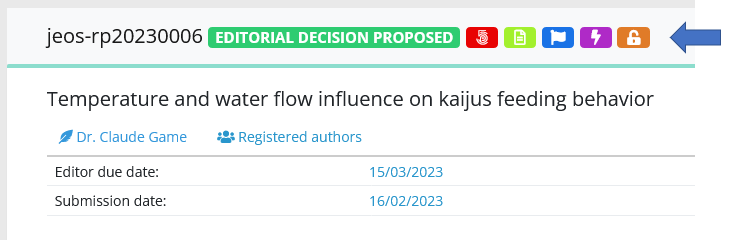
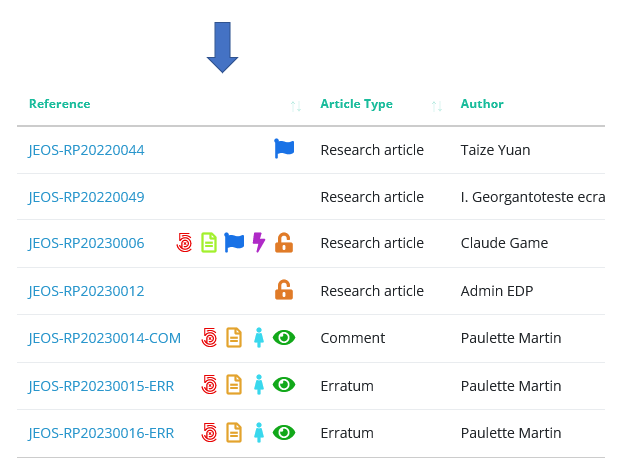
Flags are symbols displayed on articles, to help editors to identify important information. They are visible both in [articles pages](https://doc.nestor-edp.org/books/editor-guide/page/upper-area-the-main-information "Presentation of the article page") and in [articles lists](https://doc.nestor-edp.org/books/editor-guide/page/articles-lists-views-and-exports "Articles lists: views and exports").

<table border="1" id="bkmrk-flags-on-the-article" style="border-collapse: collapse; width: 100%; height: 111.8px;"><colgroup><col style="width: 50%;"></col><col style="width: 50%;"></col></colgroup><tbody><tr style="height: 35.4px;"><td style="height: 35.4px;">**Flags on the article page**  
</td><td style="height: 35.4px;">**Flags in article lists**  
</td></tr><tr style="height: 46.6px;"><td style="height: 46.6px;">In article pages, flags are displayed in the upper information area, near the reference and the status  
</td><td style="height: 46.6px;">In article lists, flags are displayed next to the reference  
</td></tr><tr style="height: 29.8px;"><td style="height: 29.8px;">[![image.png](https://doc.nestor-edp.org/uploads/images/gallery/2023-05/scaled-1680-/iDcrrxTk1gkD9maC-image.png)](https://doc.nestor-edp.org/uploads/images/gallery/2023-05/iDcrrxTk1gkD9maC-image.png)

</td><td style="height: 29.8px;">[![image.png](https://doc.nestor-edp.org/uploads/images/gallery/2023-05/scaled-1680-/hWQiJkFVwPhnZg56-image.png)](https://doc.nestor-edp.org/uploads/images/gallery/2023-05/hWQiJkFVwPhnZg56-image.png)

</td></tr></tbody></table>

### Configuring flags

Flags are based on the article metadata and [categorizations. ](https://doc.nestor-edp.org/books/configuration-guide/page/standard-categorizations)The following data can be flagged:

- Article type
- Section
- Topical issue
- Country
- Any [list custom field](https://doc.nestor-edp.org/books/configuration-guide/page/special-categorizations-custom-fields#bkmrk-list-custom-fields) (select, check boxes, radio buttons)

#### Flags: a case study

For example, we want to closely follow articles submitted for a 2023 special issue. Let us create this flag:

[![image.png](https://doc.nestor-edp.org/uploads/images/gallery/2023-05/scaled-1680-/ZgPrZ1k1CcoDHYOK-image.png)](https://doc.nestor-edp.org/uploads/images/gallery/2023-05/ZgPrZ1k1CcoDHYOK-image.png)

Any article included in this topical issue will be flagged accordingly:

[![image.png](https://doc.nestor-edp.org/uploads/images/gallery/2023-05/scaled-1680-/BuOuhuzcY4LLx7vP-image.png)](https://doc.nestor-edp.org/uploads/images/gallery/2023-05/BuOuhuzcY4LLx7vP-image.png)

# Data exports

Exporting data from Nestor is a simple process, please have a look [here](https://doc.nestor-edp.org/books/editor-guide/page/articles-lists-views-and-exports) :)