Categorization of articles
- Article types
- Standard categorizations
- Special categorizations: custom fields
- File types
- Flags
- Data exports
Article types
Article types are the main entry point to configure the workflow. They are created, edited, or deleted on this page:
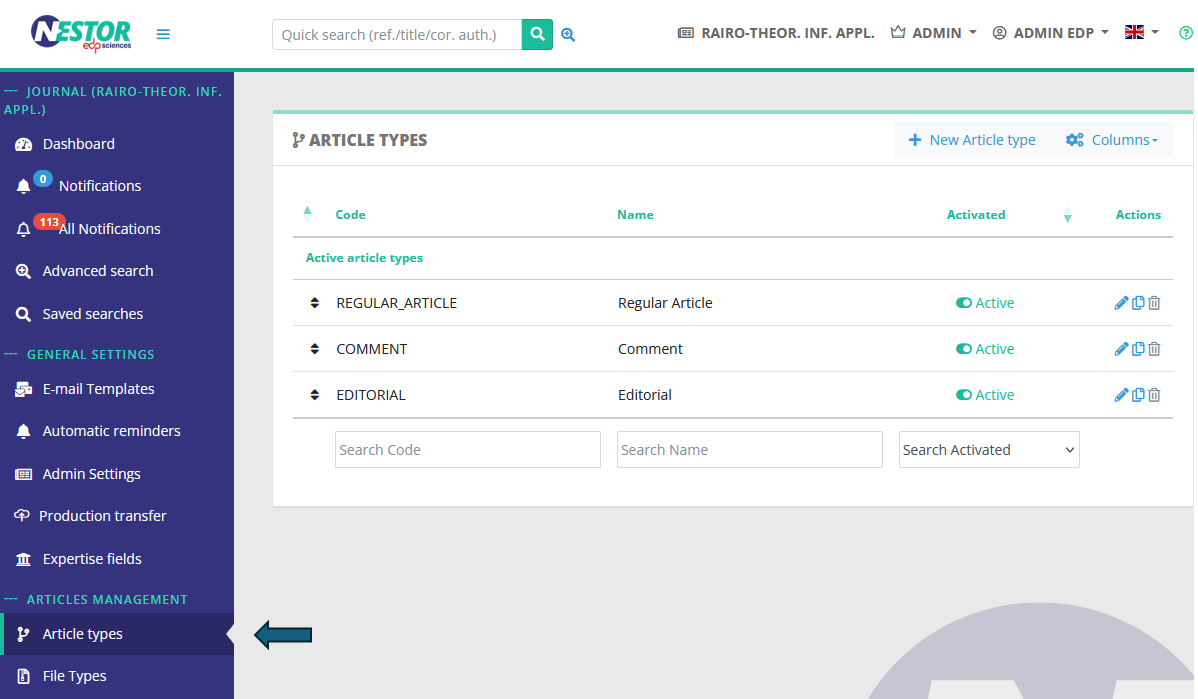
Clicking on the edit icon  will get you to the configuration for this article type:
-
The submission workflow (information required to the authors during submission)
- The technical check workflow
- The peer review workflow
- Due dates for authors, editors and referees: this serve as a basis to compute the status due date and reminders
Standard categorizations
Nestor provides a wide choice of tools to categorize articles:
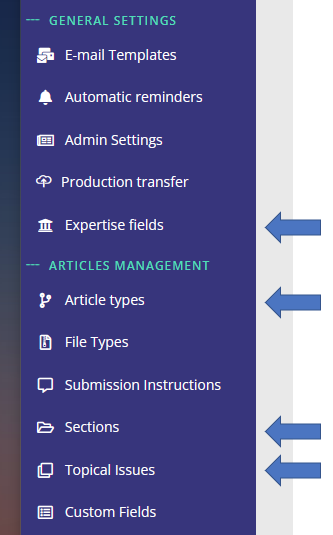
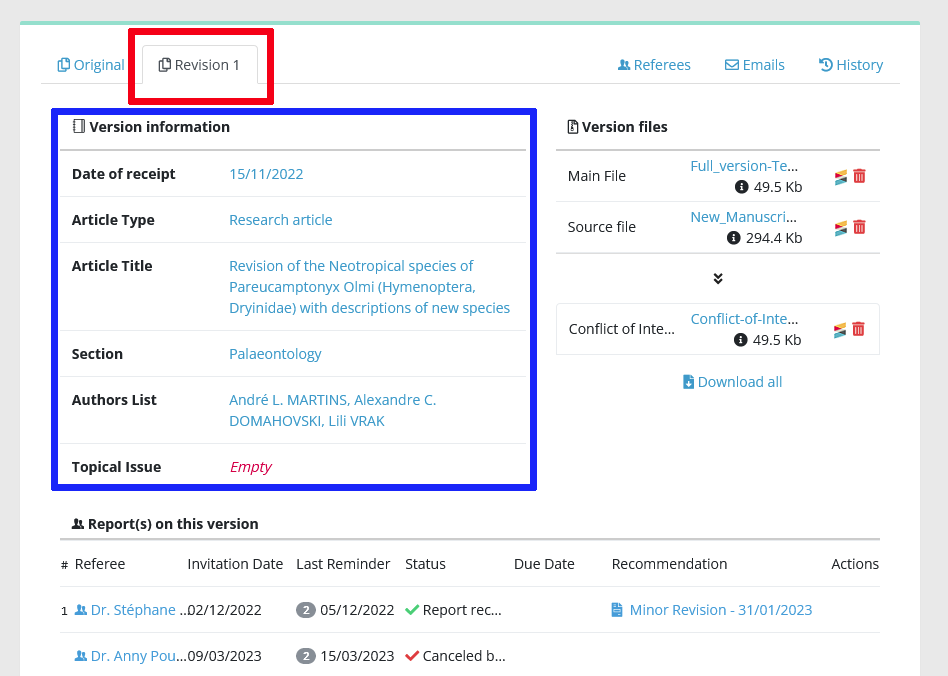
For a specific article, those categories are available and may be corrected in the metadata module.
| Category name | Particularities |
| Expertise fields |
|
| Article types |
|
| Sections |
|
| Topical issues |
|
These categories can be updated automatically:
These categories may be used in combination to:
- handle specific workflows
- dispatch articles to editors with automatic assignments
- perform advanced searches on articles
- display visual flags on article pages and article lists
- process data about your journal
Special categorizations: custom fields
Custom fields are a way to categorize articles in any way besides standard categorizations. They can be quite simple (text, date etc.), or they can be used to create special options related to your journal.
For a specific article, custom fields are available and may be corrected in the metadata module.
Custom fields configuration is available here:
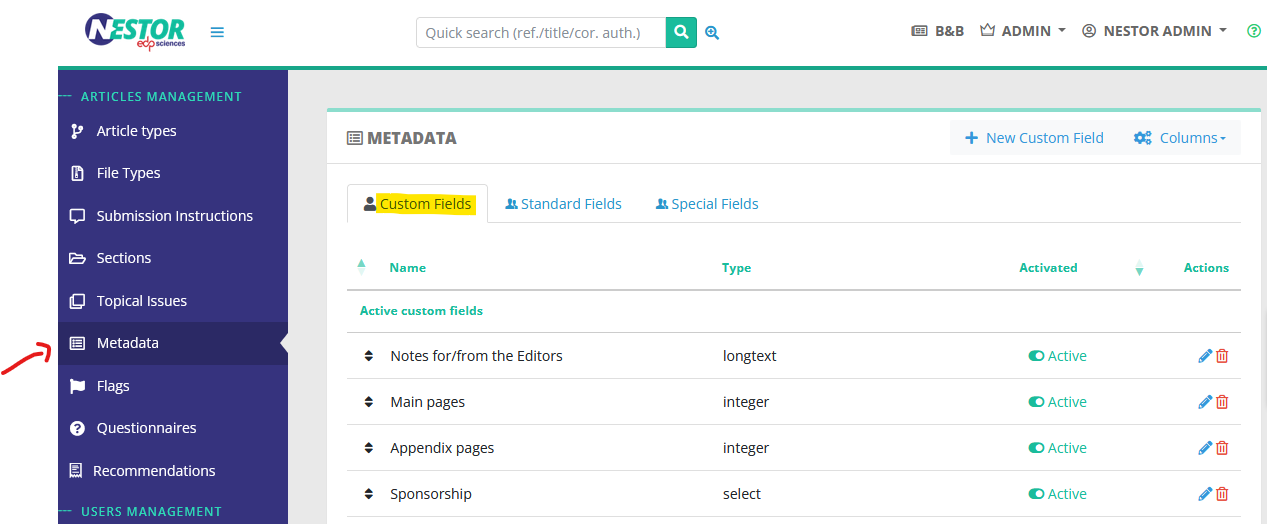
Simple custom fields
There are five types of "simple" custom fields:
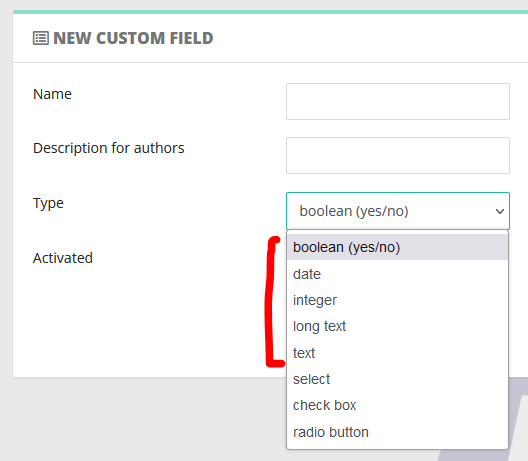
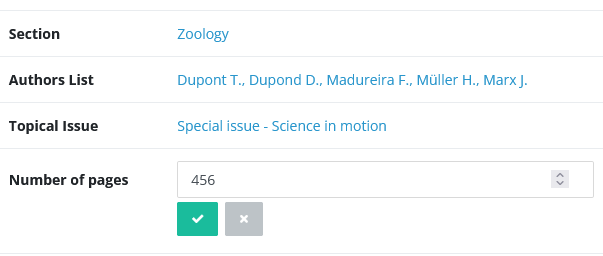
For example, let us imagine that for each article, I want to track the number of pages.
I can configure a custom field accepting only numbers, so:

In the article page, I will retrieve my field and can input the relevant data for this article:
|
|
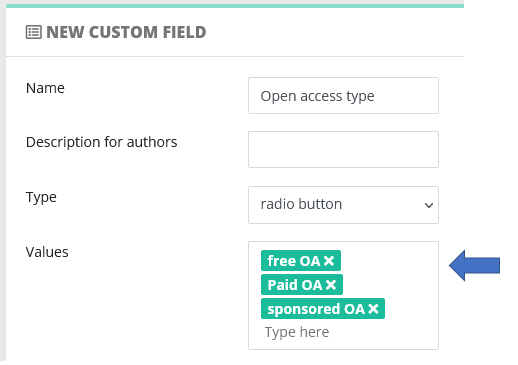
List custom fields
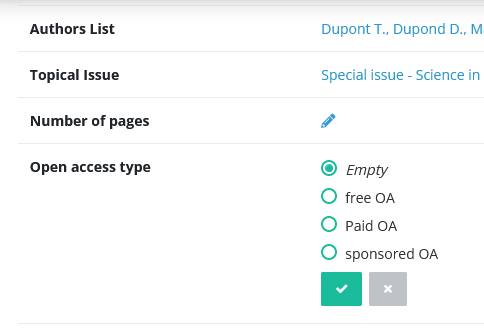
The custom fields select / checkbox / radio are used to create a flat list of selectable options. When creating such a custom field, you will have to provide the corresponding list of options:
The configured options will then be selectable in the article page:
Custom fields and other tools
- Custom fields can be updated automatically:
- Custom fields can be used to:
- handle specific workflows
- dispatch articles to editors with automatic assignments
- perform advanced searches on articles
- display visual flags on article pages and article lists
- process data about your journal
File types
File types may be configured in the journal configuration, where file types are listed, and may be created, updated, or deleted:
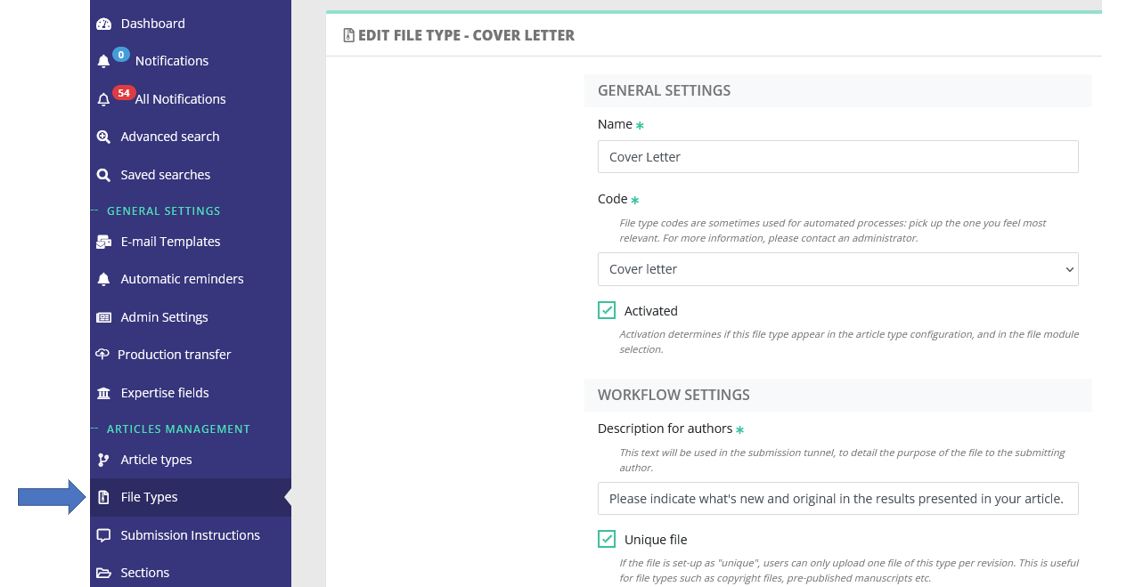
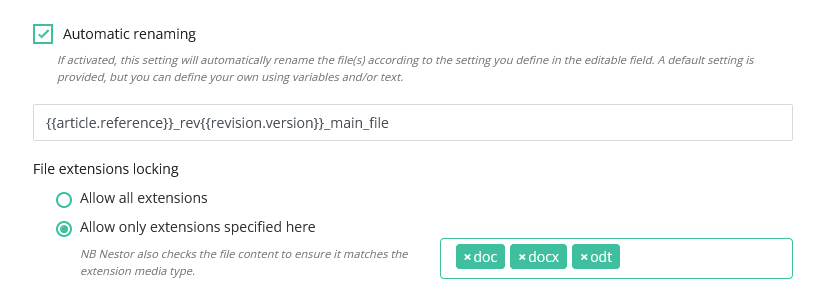
Clicking on “Edit file type” will get you to the file type configuration, where the following options must be edited for any given file type:
-
General setting (labels and activation)
-
Workflow settings, related to submission and Similarity Check
- Automatic renaming and extension checks:
-

- Visibility settings
Flags
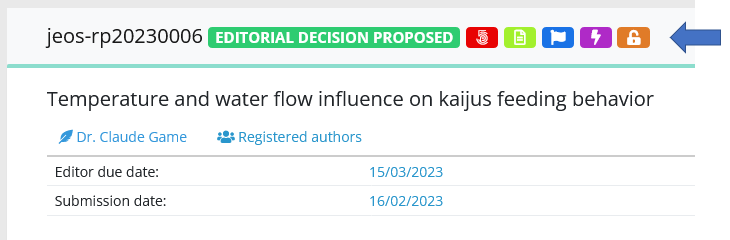
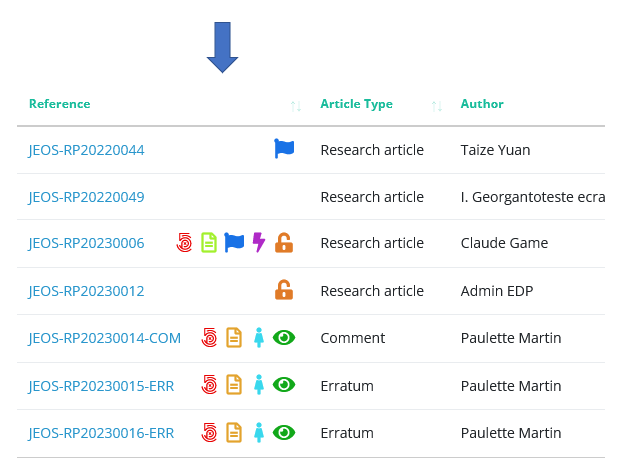
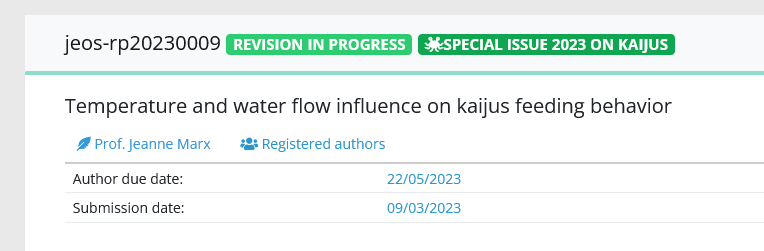
Flags are symbols displayed on articles, to help editors to identify important information. They are visible both in articles pages and in articles lists.
| Flags on the article page |
Flags in article lists |
| In article pages, flags are displayed in the upper information area, near the reference and the status |
In article lists, flags are displayed next to the reference |
|
|
|
Configuring flags
Flags are based on the article metadata and categorizations. The following data can be flagged:
- Article type
- Section
- Topical issue
- Country
- Any list custom field (select, check boxes, radio buttons)
Flags: a case study
For example, we want to closely follow articles submitted for a 2023 special issue. Let us create this flag:
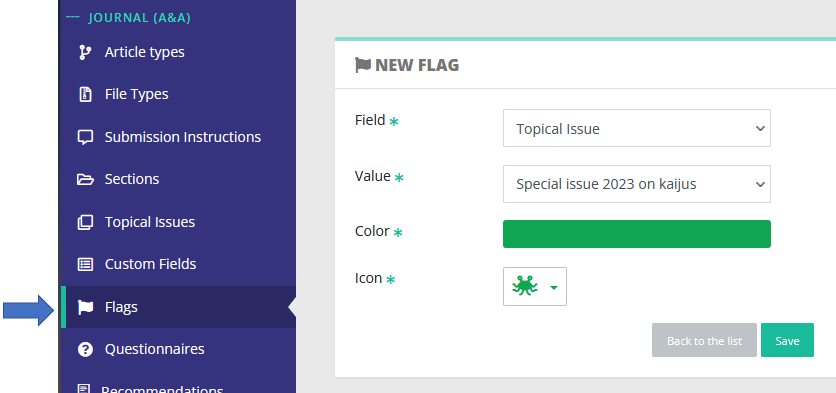
Any article included in this topical issue will be flagged accordingly:
Data exports
Exporting data from Nestor is a simple process, please have a look here :)